Quick answer: Use Resolve Color Management when you want project-wide input, working-space and output transforms. Use CST nodes when you want those transforms visible and placed explicitly.
For either workflow, identify each camera input correctly, grade in a known working space such as DaVinci Wide Gamut/Intermediate, and feed every LUT the color space and gamma it was designed to receive. Don't combine RCM with matching input/output CSTs unless you intentionally override part of the managed pipeline.
A color-managed image is a controlled route from source encoding to a timeline working space and then to a display or file. Resolve Color Management runs that route at project level; Color Space Transform nodes make selected mappings visible in the graph.
The workflows and version-sensitive labels below were rechecked on September 5, 2026 against the final DaVinci Resolve 21 Reference Manual.
Most failures come from losing track of the signal: a clip is tagged as the wrong log curve, normalized twice, or sent into a LUT that expects a different input.
This guide builds the pipeline from the signal outward so you can change cameras, LUTs or deliverables without guessing. Use the Resolve scopes guide to judge whether the transform preserves useful highlight, shadow and saturation information instead of trusting the viewer alone.
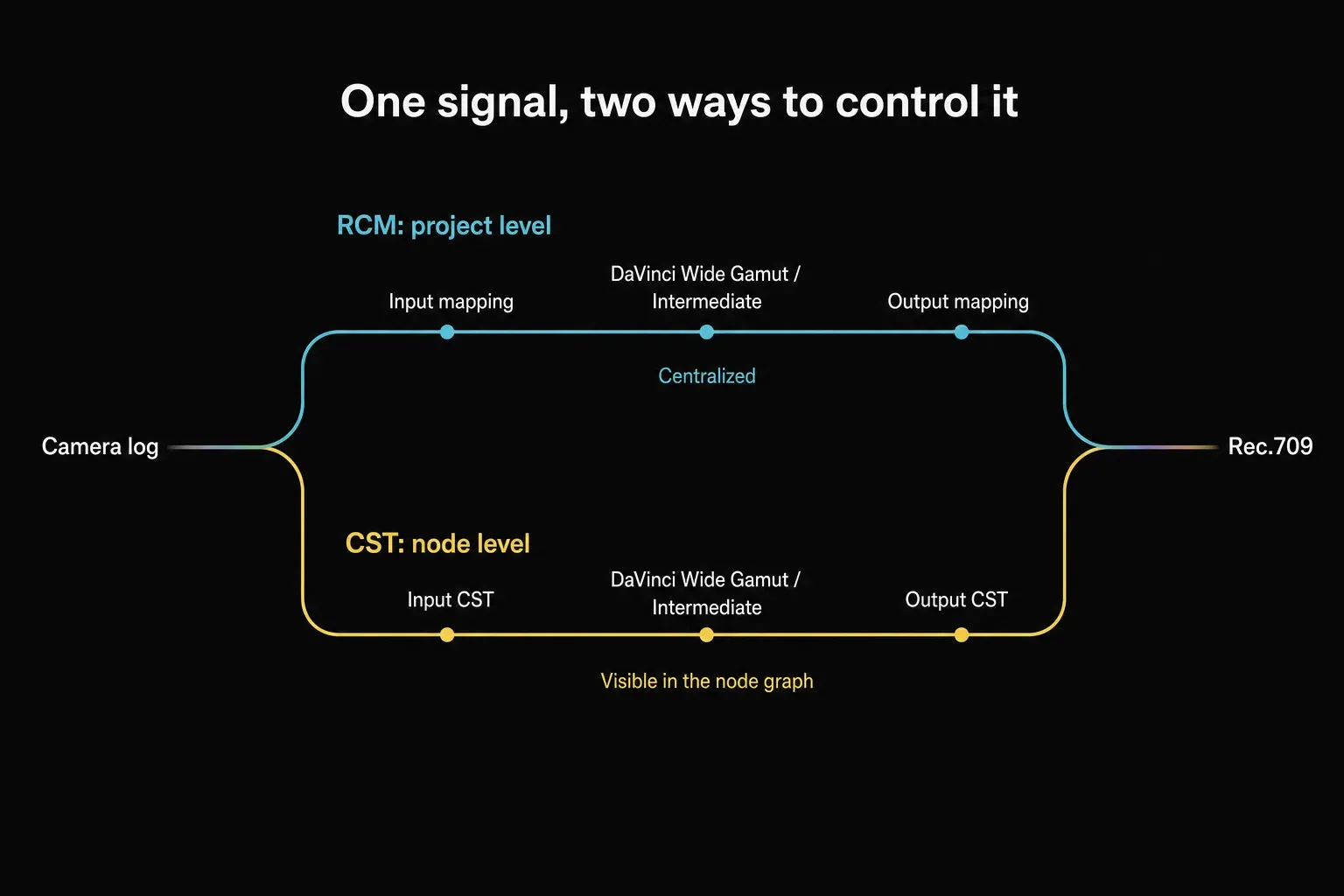
RCM and CST Solve the Same Mapping Problem
| Question | RCM | CST workflow |
|---|---|---|
| Where are transforms controlled? | Project settings and clip input tags | Visible nodes, groups or timeline nodes |
| Mixed camera formats | Efficient when inputs are tagged correctly | Explicit but requires per-camera transform management |
| Changing SDR/HDR output | Central output setting | Change or branch the output transform |
| Debugging | Fewer visible nodes, more hidden state | Signal path is visible in the graph |
| Image quality | Accurate when configured correctly | Accurate when equivalent transforms are configured correctly |
Choose by project design, not by a claim that one route creates inherently better color. RCM is usually easier for long edits with mixed cameras and several deliveries. CSTs are useful when a colorist wants to inspect, move, group or branch transforms explicitly.
Equivalent input, working and output mappings can be built either way, but RCM Output DRT and CST tone/gamut-mapping settings must also match before the rendered results can be compared.
Don't enable DaVinci YRGB Color Managed and then add a camera-to-DWG CST at the start plus a DWG-to-Rec.709 CST at the end out of habit. RCM may already be doing both. That stack can normalize the source twice and apply the display transform twice.
Understand Input, Timeline and Output Color Space
- Input color space: the camera gamut and transfer function that encoded the clip, such as Sony S-Gamut3.Cine/S-Log3 or Blackmagic Wide Gamut/Film Gen 5.
- Timeline color space: the working environment in which color-aware tools and nodes operate.
- Output color space: the target display or deliverable mapping, such as Rec.709 Gamma 2.4 for a controlled SDR viewing environment.
An input tag isn't a creative conversion. It tells RCM how to interpret the numbers already in the file. Wrong tags produce wrong contrast, saturation and hue before you touch a wheel. Do not identify a clip by how flat it looks. Check camera metadata, the production notes or the source-camera settings.
Automatic color management can save time when files carry reliable metadata, but inspect mixed-camera and transcoded media. A transcoded file may no longer expose enough information for correct identification. In a managed project, right-click clips in the Media Pool or Color-page clip strip and assign the actual Input Color Space when needed.
What DaVinci Wide Gamut and Intermediate Actually Mean
DaVinci Wide Gamut is the color gamut. DaVinci Intermediate is the companion log-like transfer function. Together they form a large scene-referred working space designed to hold camera data and behave consistently across SDR and HDR grades.
Working in DWG/Intermediate doesn't make every source HDR, recover clipped sensor data or improve an 8-bit file. It gives correctly transformed sources a common, roomy environment. You still need to balance exposure and color, match shots and control saturated colors.
In a manual DaVinci YRGB plus CST workflow, setting the project's Timeline Color Space to DWG/Intermediate doesn't perform the input or output conversion. It declares the working environment to color-space-aware tools and output metadata; the explicit CST nodes still perform the image mappings.
Set Up Resolve Color Management
- Open Project Settings > Color Management.
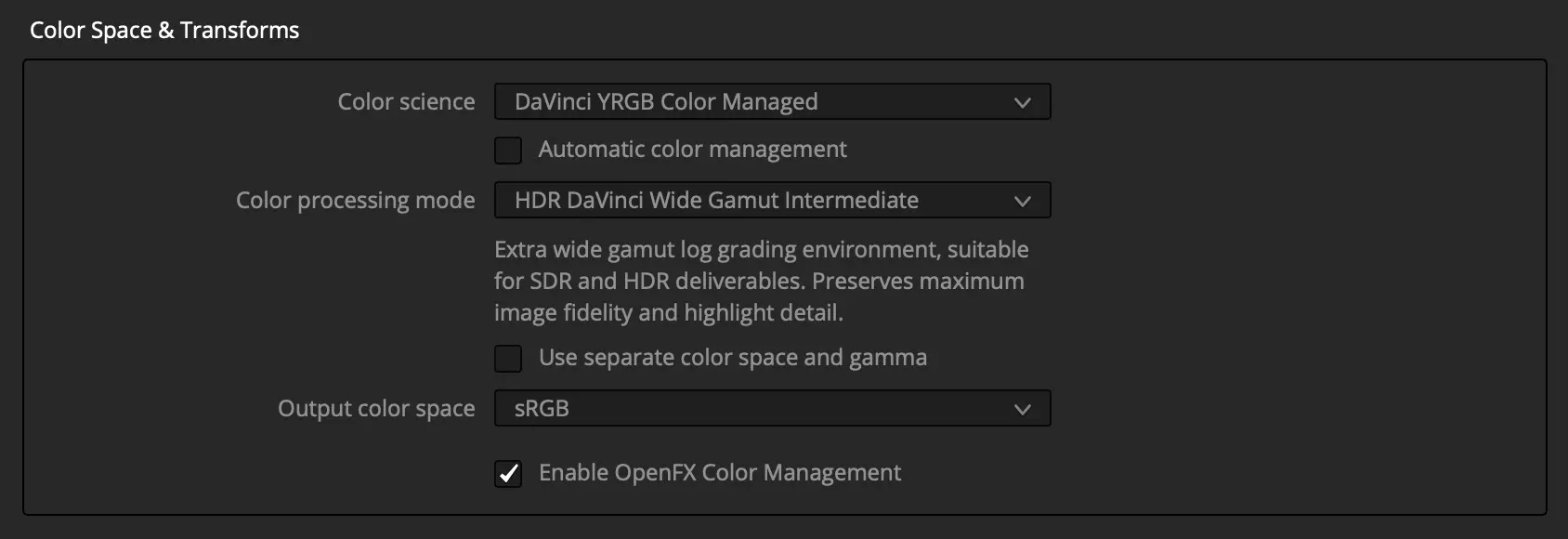
- Set Color science to DaVinci YRGB Color Managed.
- Disable Automatic color management if you need to inspect and control custom input, timeline and output settings directly.
- Choose DaVinci Wide Gamut/Intermediate as the timeline working space.
- Set the output to the actual monitoring and delivery target.
- Save, then verify and correct the Input Color Space for every source family.
- Grade in normal clip/group nodes without adding redundant normalization CSTs.
The output transform occurs after the managed grading pipeline. This makes it convenient to change a well-built scene-referred grade from an SDR output to a separately checked HDR output, but it doesn't remove the need for output-specific trim and monitoring.
RCM handles mapping, not shot correction. A correct source tag can't know that the camera was two stops under, the white balance was wrong or one angle used a different ND filter.
Continue with the balancing and shot-matching process in the color grading guide. The real Resolve 21 panel below comes from Video Village's May 2026 Resolve 21 photography workflow. Its sRGB output is correct for that example, not a universal video preset; choose the output that matches your calibrated monitoring and delivery target.
Build a Manual CST Sandwich
For explicit node-based management, leave project Color science on DaVinci YRGB. Then build a clean signal path:
- Input CST: camera gamut/gamma to DaVinci Wide Gamut/DaVinci Intermediate.
- Balance: exposure and white-balance corrections.
- Shot match: align the scene.
- Look: creative contrast, palette and texture in the known working space.
- Output CST: DWG/Intermediate to the monitoring/delivery space.
- Output-space finishing: only effects intentionally designed for that display space.
For many clips from one camera, put the input transform at Group Pre-Clip level. Put a shared output transform at Group Post-Clip or Timeline level when the whole group or timeline shares one destination. Keep clip nodes for shot-specific work. This prevents 100 slightly different copies of the same technical transform.
The Colorist Guide also documents a valid single-CST pattern: grade upstream in the source space and transform camera input directly to output near the end. The two-CST sandwich is easier when several camera families need a common working space; it isn't a law for every project.
Place LUTs by Their Input and Output Contract
Before applying any LUT, answer two questions:
- What gamut and gamma does the LUT expect?
- What gamut and gamma does it produce?
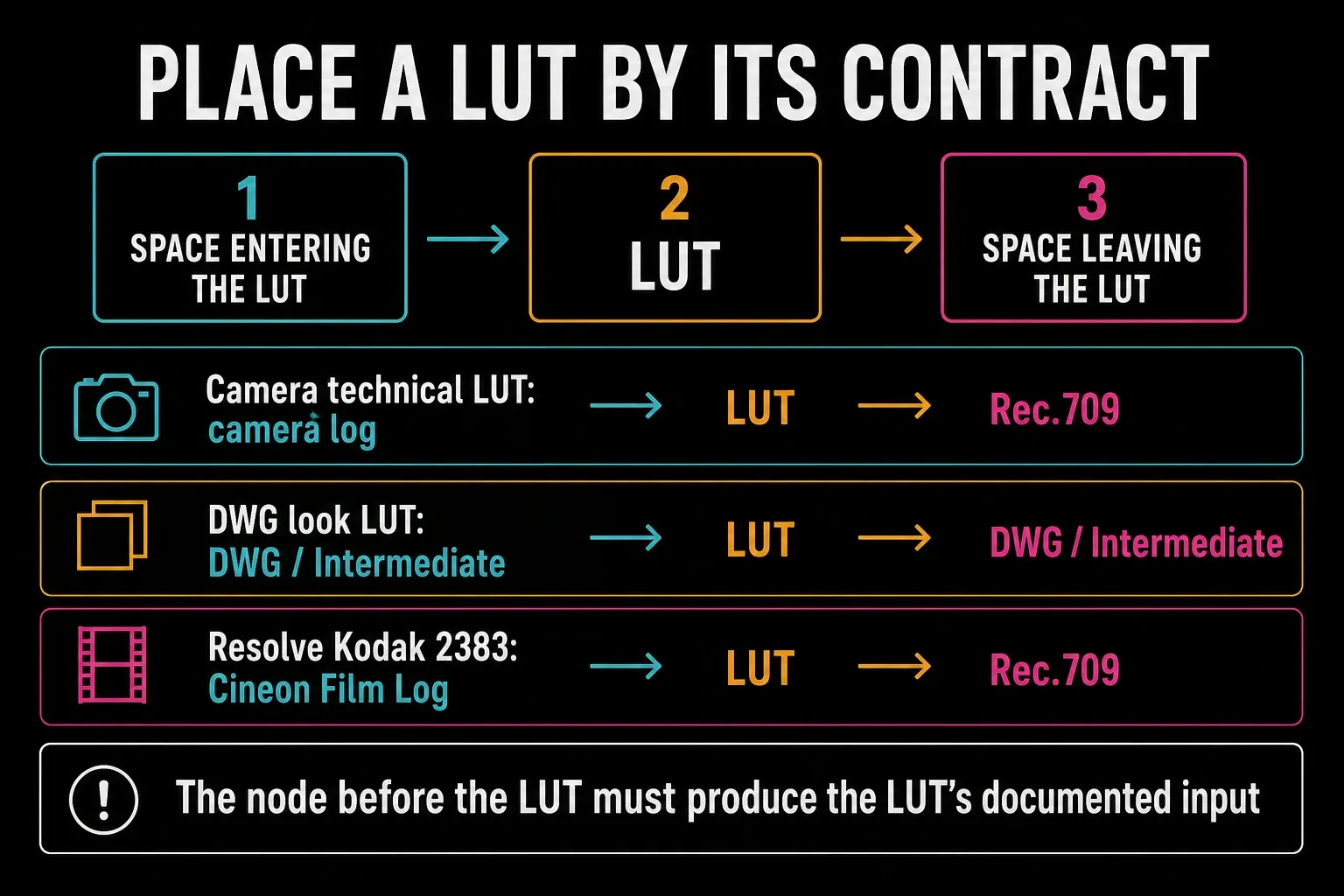
A camera technical LUT may expect one exact log profile and output Rec.709. A creative show LUT may expect and return DWG/Intermediate. A film-print emulation may expect Cineon Film Log and produce a display-referred Rec.709 result. Resolve can't infer those conditions from a generic .cube file.
| LUT type | Safe placement logic | Common error |
|---|---|---|
| Camera log to Rec.709 technical LUT | Use it as the intended normalization/output mapping, or do not use it | Adding it after RCM already mapped the same camera to Rec.709 |
| DWG-to-DWG creative LUT | Inside the DWG/Intermediate grading section | Feeding it camera log or display-referred Rec.709 |
| Rec.709 creative LUT | Feed it the specified Rec.709 variant and account for its output | Dropping it directly into a DWG node tree |
| Resolve film-print LUT | Prepare its documented Cineon Film Log input and design the output path around it | Treating it as a generic DWG look |
The official Resolve 20 Colorist Guide says the bundled Rec709 Kodak 2383 film-look LUTs anticipate Cineon Film Log as the input transfer function and are intended for Rec.709 monitoring or delivery.
Its worked example converts the incoming Rec.709 gamma to Cineon immediately before the LUT. If you don't want to manage that contract and its display-referred result explicitly, use a DWG-native look or a suitable film-look tool instead of treating the LUT as a generic DWG look.
For installation, preview and intensity controls, use the separate Resolve LUT guide. The rule here's narrower: the node before a LUT must produce what that LUT expects.
Choose Node Order Without Memorizing a Template
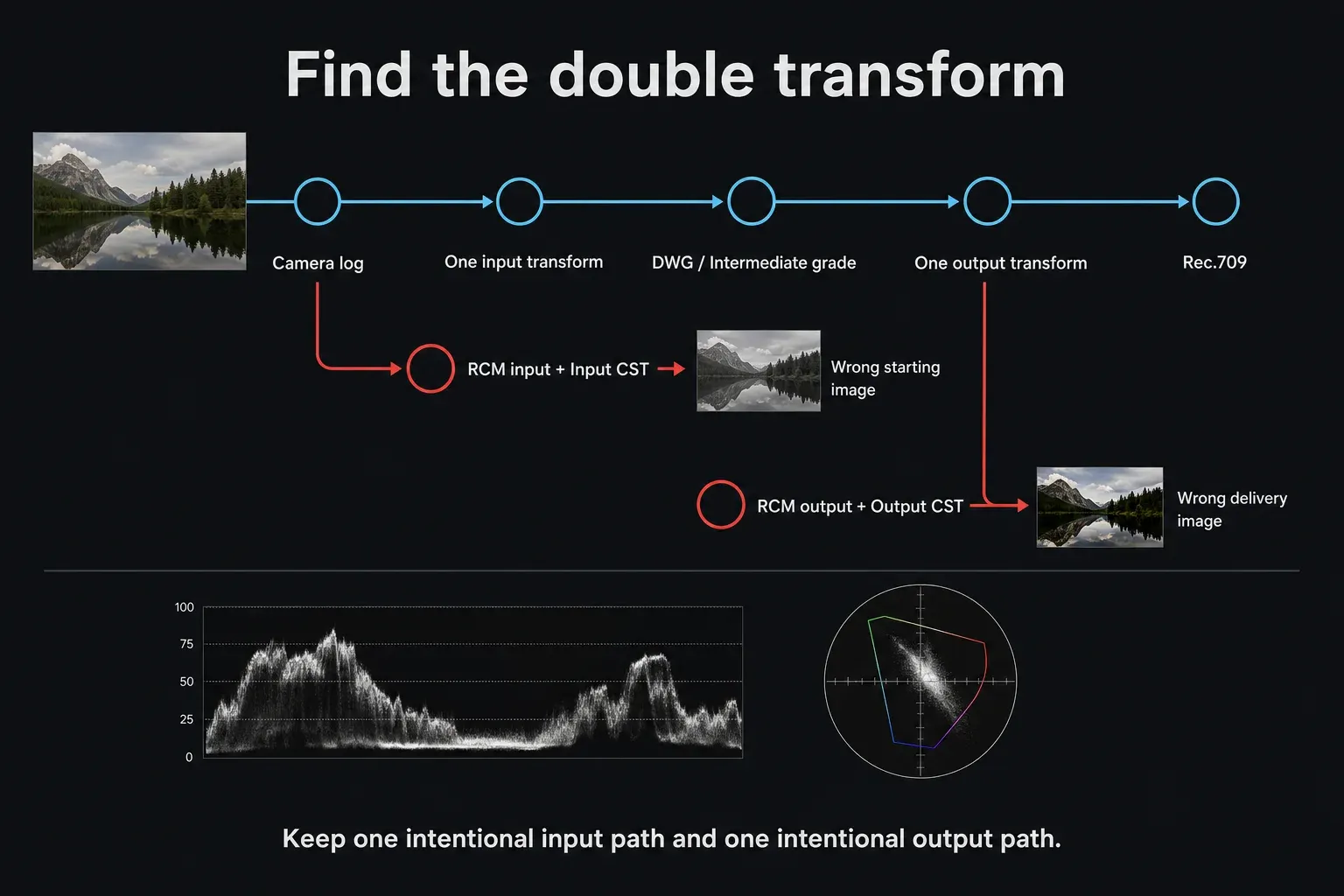
Ask of every node: what space enters, what operation happens, and what space leaves? A qualifier may key differently before and after a display transform. Grain or halation may be designed for scene-referred or display-referred values. A LUT has a fixed contract. Put the operation in the section it was designed for.
A practical wide-gamut tree is:
Camera input to DWG/I | balance | matching | look | DWG/I to output | output-specific finish
In RCM, the first and last stages are managed outside the visible clip tree. In a CST workflow, you can see them. If a particular look requires Rec.709 or Cineon, build a deliberate transform around that operation rather than pretending the whole node tree changed spaces.
Diagnose Double Transforms and Wrong Tags
The log image becomes harsh before grading
Bypass CST and LUT nodes one at a time. If RCM is enabled and a technical LUT or input CST adds the same normalization, remove the duplicate. Also verify the clip's Input Color Space.
Changing the RCM output makes the image break
A display-referred LUT or node may be sitting inside the scene-referred tree. Identify what that operation expects. A DWG-native look should survive an output change more predictably than a Rec.709-baked LUT.
Different cameras do not match after RCM
First verify every input tag. Then balance exposure and white balance. Color management normalizes encoding; it doesn't erase sensor, lens, lighting or exposure differences.
The manual CST image looks different from RCM
Compare the actual input gamut/gamma, output gamut/gamma, tone mapping, gamut mapping and timeline settings. "CST to Rec.709" isn't specific enough; several Rec.709 gamma choices and mapping options can produce different results.
The LUT looks correct only after random CSTs
Stop and inspect the LUT documentation or filename. Reconstruct its stated input and output deliberately. A visually pleasing accidental chain can still clip, remap or double-transform values in ways that fail on the next shot.
Validate the Pipeline Before the Full Grade
- Choose representative clips from every camera and graphics source.
- Verify source tags and transform only those clips.
- Check scopes for clipping and out-of-gamut behavior.
- Temporarily bypass the look and confirm the technical pipeline remains coherent.
- Test the darkest, brightest and most saturated shots.
- Render a short file with the intended output tags and inspect it on the target playback path.
- Only then ripple the pipeline across the project.
Monitoring is part of color management. A correct Rec.709 mapping viewed on an uncalibrated display or through a player with different color handling can still look inconsistent. The pipeline and the viewing path must both be known.
Frequently Asked Questions
Is RCM better quality than CST?
No inherent quality advantage exists when both routes use equivalent input, timeline and output transforms with matching tone- and gamut-mapping choices. RCM centralizes the pipeline; CSTs expose selected mappings in nodes. Operational consistency and deliberate settings are the deciding advantages.
Do I need CST nodes in a color-managed project?
Usually not for the same input-to-timeline and timeline-to-output transforms RCM already performs. Use a CST only for an intentional local conversion, special effect or LUT requirement, and return to the expected managed space when necessary.
What is the difference between DWG and DaVinci Intermediate?
DaVinci Wide Gamut defines the color gamut. DaVinci Intermediate defines the transfer function used with it. Together they form the common DWG/Intermediate working space.
Where should a LUT go in the node tree?
Place it where the incoming gamut and gamma match the LUT's documented input, then account for the LUT's output. There's no correct universal position for every LUT.
Why does my image look double-normalized?
RCM may be applying an input or output transform while a CST or technical LUT applies the same conversion again. Bypass each mapping stage and keep only one intentional route.
Should I grade before or after the output CST?
In a scene-referred wide-gamut workflow, perform most balancing, matching and look work before the output CST. Put only operations intentionally designed for the output/display space after it.
This guide is part of the DaVinci Resolve color grading hub. Use the hub to move from pipeline setup into balancing, matching, LUT work and delivery checks without mixing their intents.
