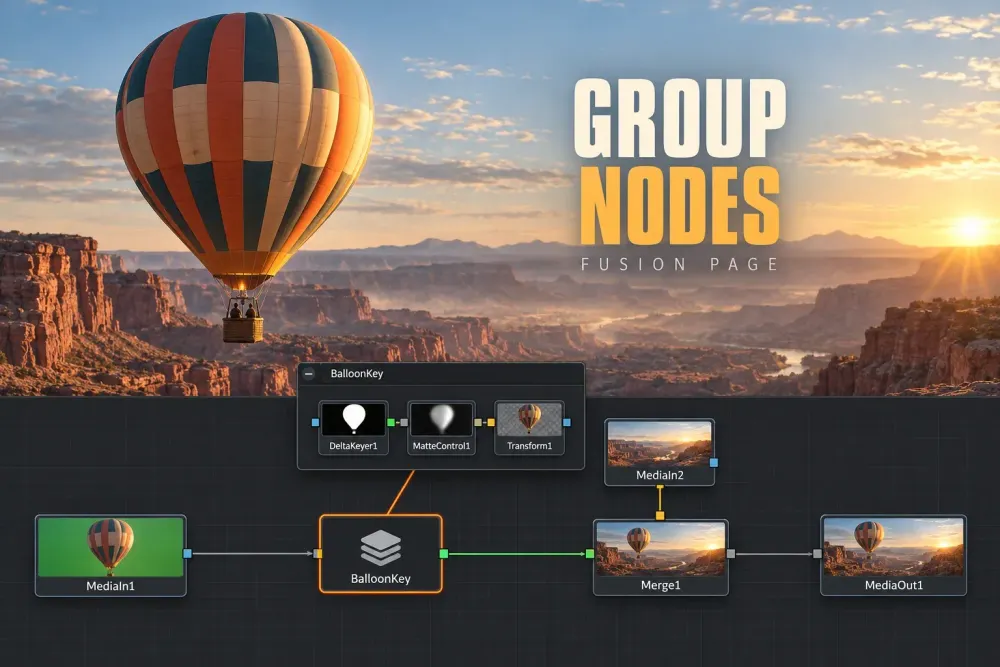
Quick answer: select the nodes on the Fusion page, right-click one of them and choose Group, or press Ctrl+G (Cmd+G on a Mac). The selection collapses into one stack node. Double-click it or press Ctrl+E (Cmd+E) to open it, and press the same keys to collapse it again. To get the nodes back, right-click the group and choose Ungroup. Don't press Delete on a group unless you want everything inside it gone.
A group tidies the Node Editor and nothing else. It won't put text controls on the Edit page, it won't link Fusion clips together, and it won't move merged layers for you. For those jobs you'll want a macro, a saved setting or a Transform node, and each one gets its own section below. If the Node Editor itself is still new to you, the Fusion tutorial for beginners covers the basics this guide assumes.
What a Group Node Does in Fusion
Blackmagic's manual compares a group to a folder on your desktop: a container in the node tree that holds as many nodes as you like, other groups included. Collapsed, it shows up as a single stack node, so a keying setup of a dozen nodes takes the space of one tile and the main tree reads left to right again. The manual also calls groups non-destructive. The nodes inside keep their settings, and you can open the group whenever you need them.
I'd group a branch once it works and no longer needs touching every few minutes: a key, a sky replacement, a stack of title layers. A branch you're still tuning is easier to leave open or to mark with an underlay, because a closed group hides exactly the nodes you'd want to click. Grouping is one of several habits that keep a comp readable, and the Fusion page guide covers the rest.
How to Group Nodes in Fusion
- Open the clip on the Fusion page and select the nodes you want inside the group.
- Right-click one of the selected nodes and choose Group, or press Ctrl+G on Windows and Linux (Cmd+G on a Mac).
- The nodes collapse into a single stack node. Press F2 and give it a name that says what it does, such as BalloonKey.
- Look at the inputs on the group node. It only shows inputs for connections that already ran to nodes outside the group.
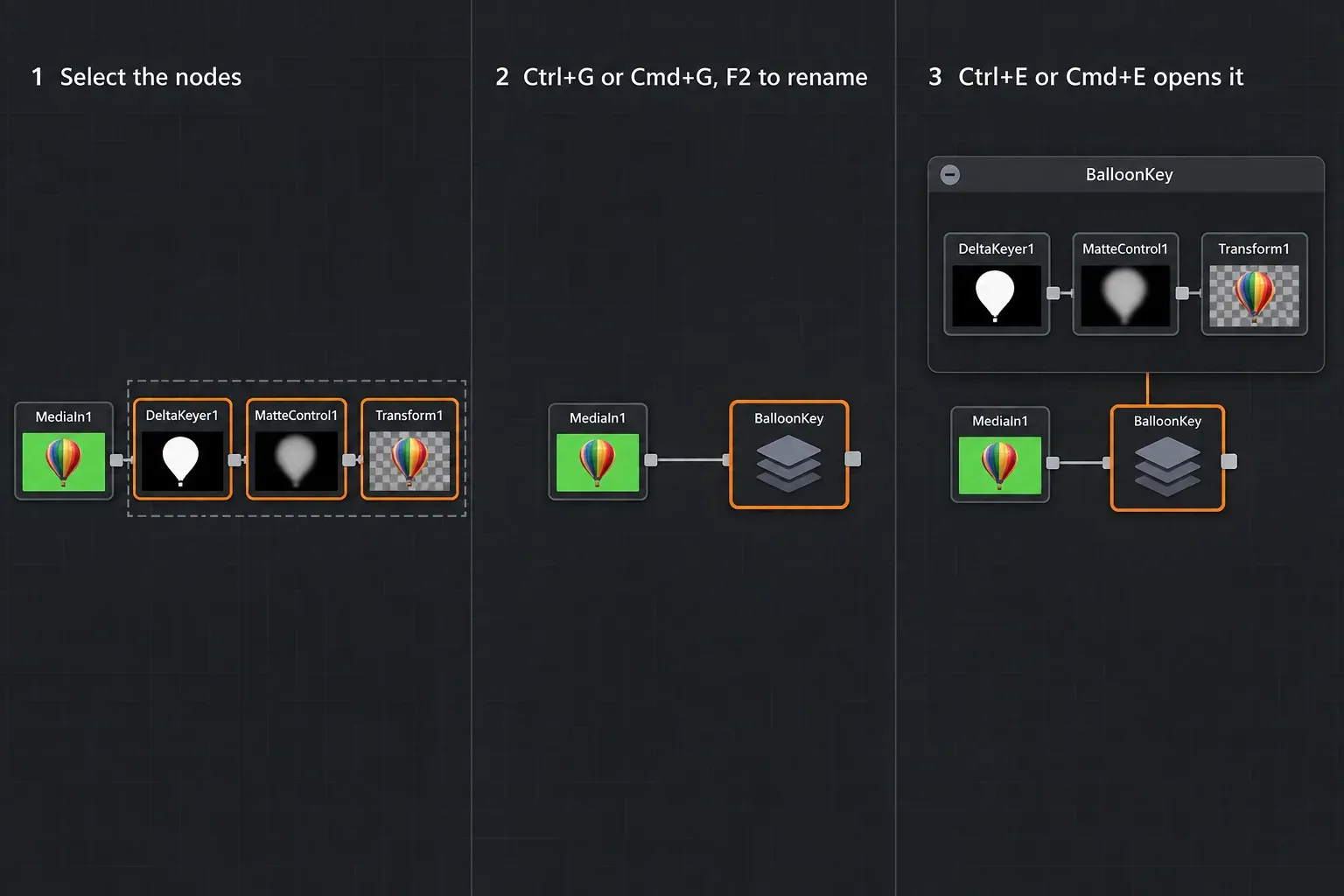
The manual lists the Mac keys, and its keyboard section maps Command to Ctrl on Windows and Linux, which is why Cmd+G becomes Ctrl+G there. More Fusion and Color page keys are in our keyboard shortcuts guide.
Step 4 is the one that catches people out. An input inside the group that wasn't connected when you grouped it gets no knot on the group node, so there's nothing to drag a wire into from the main tree. Connect the background, mask or second image first and then group. If you already grouped too early, ungroup, connect the input and group again.
Open, Edit and Collapse a Group
Double-click the group, or select it and press Ctrl+E (Cmd+E). Right-click and Expand Group does the same. The nodes open in a floating window that works as its own Node Editor: you can resize, zoom and pan it, adjust any node inside, and add, insert or delete nodes while it's open. To close it, click the minimize button in the top-left corner of that window or press Ctrl+E (Cmd+E) again, as the manual's section on expanding and collapsing groups describes.
The Position button at the right end of the group title bar is easy to miss. Turn it off and the nodes in the open group stay locked to the size of the rest of the tree, which helps when you're working in the group and the main tree at the same time. Turn it on and you can scale and pan the group window on its own.
Groups can sit inside other groups. A key group inside a larger foreground group is fine, though I'd stop at two levels. Past that you spend more time opening windows than compositing.
Ungroup vs Delete: Don't Lose the Nodes
Selecting a group and pressing Delete, Backspace or Forward Delete removes the group and every node inside it from the tree. If you only want to dissolve the container, right-click the group and choose Ungroup. The nodes go back into the main node tree, which the manual calls decomposing the group.
The manual's group chapter gives Ungroup as a right-click command with no shortcut next to it, so the contextual menu is the safe route. If you hit Delete by mistake, undo straight away before you do anything else in the comp.
Rename and Color a Group
Select the group and press F2, or right-click it and choose Rename. Fusion names have to work in scripts and expressions, so the naming rules in the manual allow letters and numbers only, no spaces, and no number at the start. Anything else is stripped automatically, so "Balloon Key 2" becomes BalloonKey2.
To color it, right-click and pick a color from the Set Color submenu. Set Color > Clear Color puts it back. Once a few nodes carry custom names, press and hold Ctrl+Shift+E (Cmd+Shift+E) to see the original node types instead.
Save a Group and Reuse It in Another Comp
Right-click the group and choose Settings > Save As to write it out as a .setting file. To use it somewhere else, drag that file from Finder or File Explorer straight into the Node Editor. Fusion builds a new group with the same nodes, as the manual's Saving and Reusing Groups section explains.
Settings > Load does something different. It loads saved settings into a group you already have, as long as that group contains the same nodes. Blackmagic's example is a studio where a lead artist sets up a keying group in the master comp, another artist refines the key, and the improved settings are loaded back into the master. It's handy when you work alone too: refine a key once, then load it into the matching group in each shot's comp.
To pick a saved group from a menu instead of dragging files, save the .setting file into the Macros folder. According to the manual, groups saved there load from the Insert Tool > Macros submenu, and its macOS example is Macintosh HD/Library/Application Support/Blackmagic Design/DaVinci Resolve/Fusion/Macros/. On Windows or Linux, open Fusion > Fusion Settings and look at the Path Map panel: the Macros path map points to the folder Fusion reads user macros from.
In Fusion Studio you can also drag a group into an open Bin window, which saves the .setting file and keeps it in the bin for later.
Group, Underlay or Macro: Which One to Use
Fusion gives you three ways to package part of a node tree, and they solve different problems.
| Tool | In the Node Editor | Inner nodes | Controls on the Edit page | Use it for |
|---|---|---|---|---|
| Group | One stack node that opens in its own window | Editable after you open the group | No | A finished branch you want out of the way |
| Underlay | A titled, colored backdrop behind the nodes | Stay in place and visible | No | Labeling parts of the tree you still adjust |
| Macro | One custom tool with the controls you chose | Hidden until you re-edit the macro | Yes, when saved as a template | Handing an effect to an editor or another artist |
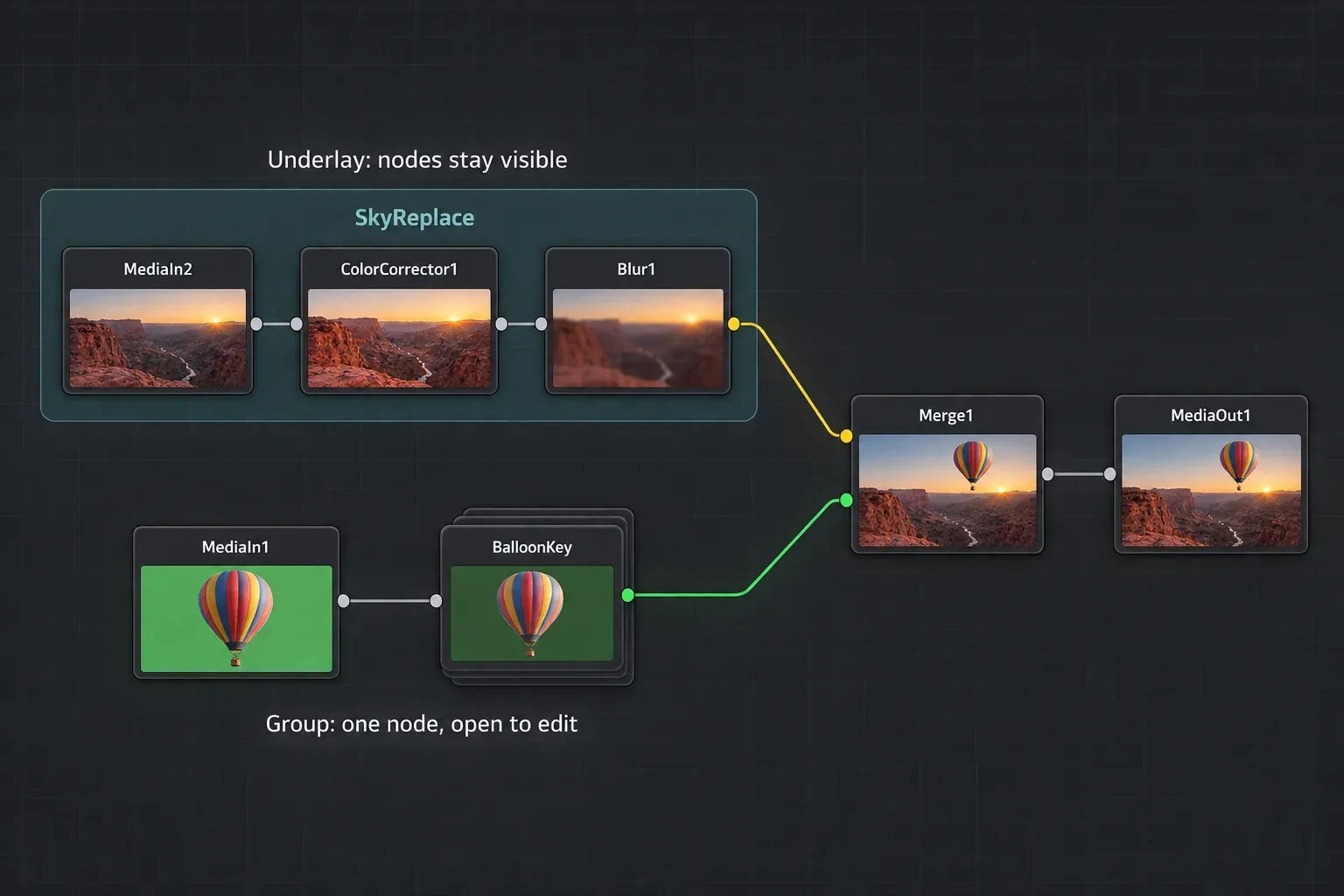
Add an underlay from the Flow category of the Effects Library, or find it with Select Tool (Shift+Space). The manual's underlay page says underlays highlight nodes instead of hiding them and don't restrict outside connections. Click the title to select every node sitting wholly inside, which makes it a quick way to move or duplicate a whole block. To rename or color the underlay alone, Alt-click (Option-click) the title first so the nodes stay unselected, then right-click the title.
When someone else will use the effect and only needs a few controls, I'd build a macro instead. The Fusion macros and templates guide walks through the Macro Editor, the Save to menu and Edit page templates.
Move Several Merged Layers Together
People often reach for a group when what they really want is to move a few layers at once. A group only changes how the tree looks, so it won't move anything. Add one Transform node after the last Merge instead. Everything merged above it then moves, scales and rotates together. The node tree example in the manual does exactly this with five Text nodes combined through Merges and one Transform at the end.
Why a Grouped Text+ Isn't Editable on the Edit Page
Group a Text+ with a few effect nodes, save it as a title, and the Edit page has no text field to offer. That's the problem in a 2025 Blackmagic forum thread about making a group control text, and the replies point to a macro, where you choose which inner controls to publish. One reply adds that a macro can be turned into a group that keeps its custom controls, either by changing MacroOperator to GroupOperator in the .setting file with a text editor or by re-saving it as a group from the Macro Editor. If you try the text edit, work on a copy of the file.
What Groups Can't Do
- Reach across Fusion clips. A group lives inside one comp. In a 2021 forum thread about grouping clips on the Fusion page the answer was a flat no, and a reply there notes that instanced nodes, pasted with Ctrl+Shift+V (Cmd+Shift+V) as the manual describes, do not link separate Fusion clips either. For one key on many shots, save the group and load it in each comp.
- Act as one block in the Keyframes panel. A forum feature request for keyframe grouping opened in April 2025 asks to trim and slip a set of nodes as one unit there, and it was still collecting replies in October 2026. Until that lands, the keyframes and curve editor guide covers retiming the tracks one by one.
- Expose controls on the Edit page. That is the macro job described above.
Compound Nodes: the Color Page Version
On the Color page the equivalent is a compound node. Select the nodes, right-click one and choose Create Compound Node. Double-click it or choose Show Compound Node to edit the contents, which take the place of the whole tree in the Node Editor. To leave, use the path control at the bottom of the Node Editor or Exit Compound Node. Decompose Compound Node is the Color page ungroup, with one catch the manual's compound node section spells out: an adjustment made on the compound node itself is lost when you decompose it.
The guide to Color page node types shows where compound nodes fit in a grade. If you meant grouping clips on the Edit timeline, that's Link Clips, or a compound clip when they have to act as one object.
Frequently Asked Questions
What is the shortcut to group nodes in Fusion?
Ctrl+G on Windows and Linux, Cmd+G on a Mac. Ctrl+E (Cmd+E) opens the selected group and collapses it again.
How do I ungroup nodes in DaVinci Resolve Fusion?
Right-click the group and choose Ungroup. The nodes go back into the main node tree. Pressing Delete on a group removes the group and every node inside it.
Why does my group node have no input for the background?
A group node only shows inputs for connections that already ran to nodes outside the group when you made it. Connect the input first and then group, or ungroup, connect it and group again.
Can I save a node group and use it in another project?
Yes. Right-click the group, choose Settings > Save As, then drag the .setting file into the Node Editor of any comp. Saved into the Fusion Macros folder, it also shows up in the Insert Tool > Macros submenu.
Should I use a group or an underlay?
Use an underlay while you're still adjusting part of the tree, because it labels the nodes and keeps them in view. Use a group for a finished branch you want folded into one node.
How do I group nodes on the Color page?
Select them, right-click one and choose Create Compound Node. Double-click the compound node to edit what is inside, and choose Decompose Compound Node to split it back into separate nodes.
