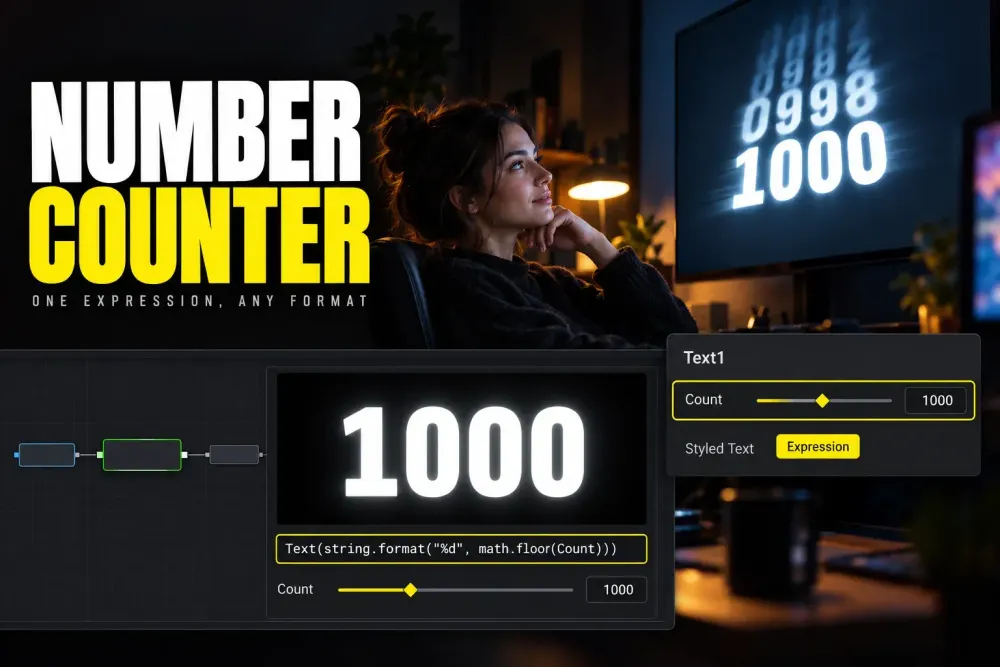
To make a number counter in DaVinci Resolve, add a Text+ title, open it on the Fusion page, right-click inside the Styled Text box, choose Expression and enter a one-line formula that turns the frame number into text. This line counts from 0 to 1,000 over the first 72 frames, which is three seconds at 24 fps, and then holds: Text(string.format("%d", math.floor(1000 * math.min(1, math.max(0, time / 72))))). Fusion evaluates it on every frame, and all of it works in the free version.
My default build is slightly different: a keyframed Count slider that the expression only formats, because then the timing, easing and manual steps live on keyframes and the code never needs another edit. Below are both methods, ready-made formats for dollars, percentages, commas and decimals, a countdown clock, the two built-in counter modifiers, the fix for jittering digits and how to save the result as a title you can reuse.
How a Text+ counter works
Fusion calls these formulas SimpleExpressions. The SimpleExpressions section of the DaVinci Resolve 21.1 manual describes them as one-line Lua scripts with some Fusion shorthand, and its first example is time, which returns the current frame number. An expression can also return text instead of a number: the next page of the manual builds a label with Text("..." .. x), where .. joins strings, and shows Lua's os.date and os.getenv working inside one. The Fusion Scripting Guide adds that Simple Expressions are a limited subset of the scripting environment and are evaluated automatically at the current time.
So a counter is any formula of time, or of an animated slider, wrapped in Text(). The formatting comes from Lua's string.format, which follows the printf rules: %d prints a whole number, %.1f one decimal, %03d pads with zeros and %% prints a percent sign. The counter scripts that circulate in Resolve tutorials rely on the same function.
The equals-sign shortcut the manual describes is for number fields; in Styled Text an equals sign is just another character. Use the right-click route instead: the manual's own walkthrough opens an expression from a parameter's contextual menu, and the Blackmagic forum thread on scripting a number counter gives the same route for Text+: right-click the Styled Text box and choose Expression. An empty field appears under the text box, and that's where the formula goes. If Text+ itself is new to you, start with our guide to adding text in DaVinci Resolve, and our Fusion page tutorial for beginners covers the page layout.
Method 1: a Count slider you keyframe
This method splits the job in two. A custom number slider holds the value and gets the keyframes; the expression only reads that slider and formats it. I prefer this build because the code never changes: when the count has to land half a second later, you drag a keyframe instead of rewriting a formula.
Add the Count slider
- Drag Text+ from the Titles section of the Effects panel onto the timeline, select it and open the Fusion page.
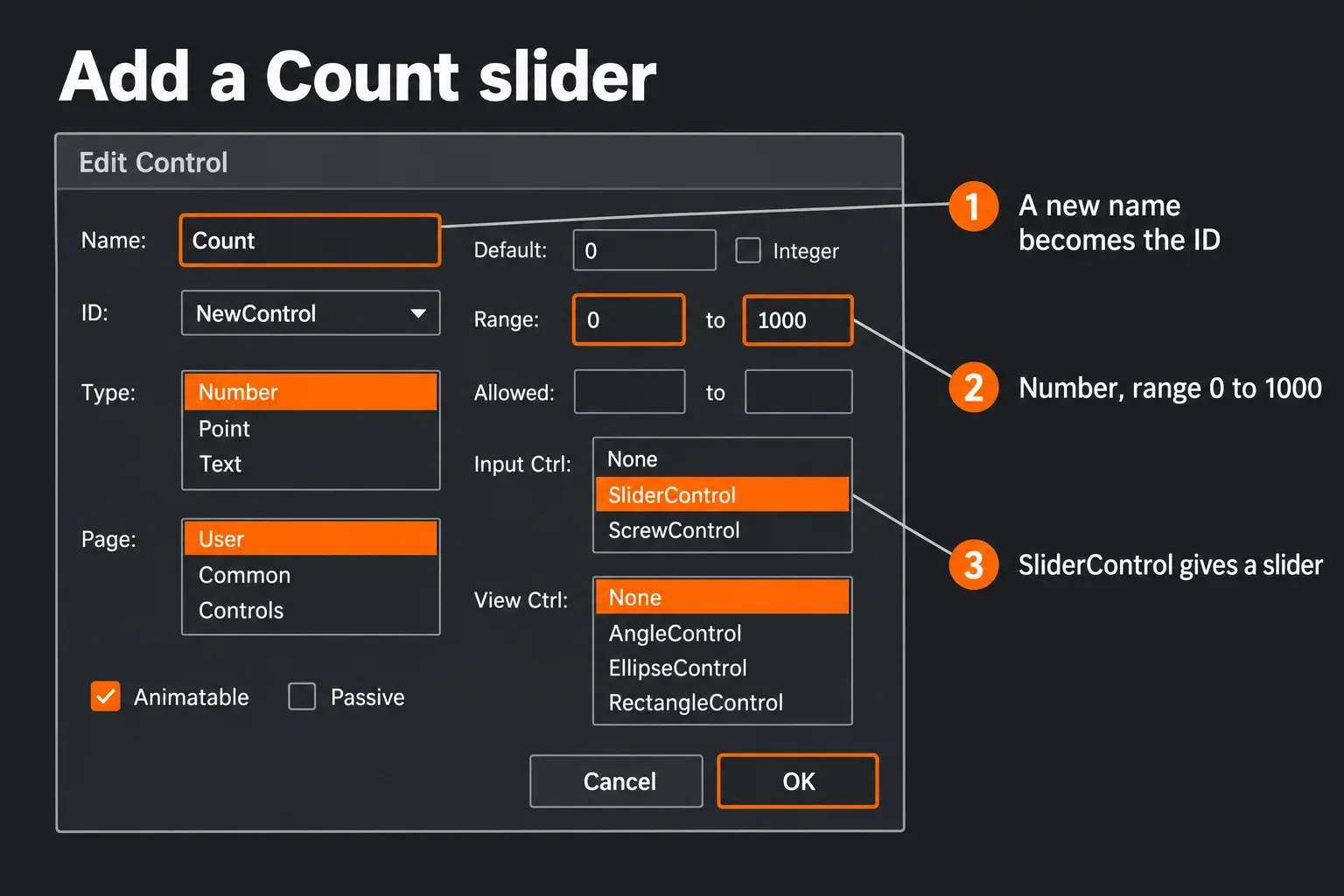
- In the Inspector, right-click the node's name at the top and choose Edit Controls, the route the manual's custom controls section gives.
- Type
Countin the Name field without picking an existing entry from the ID menu. The manual's Centered example says a new name typed this way sets both the name and the ID of the control. - Set Type to Number, pick the Inspector tab for it in the Page list, set the Default to your start number and a Range that covers your numbers, for example 0 to 1000. SliderControl in the Input Ctrl list gives you an ordinary slider.
- Click OK. The Count slider now sits on the tab you picked.
Keyframe it and link the text
- Move the playhead to the frame where the count should start, type the start number into Count and click the keyframe diamond to the right of the slider.
- Move to the frame where the count should land and type the end number. Fusion adds the second keyframe.
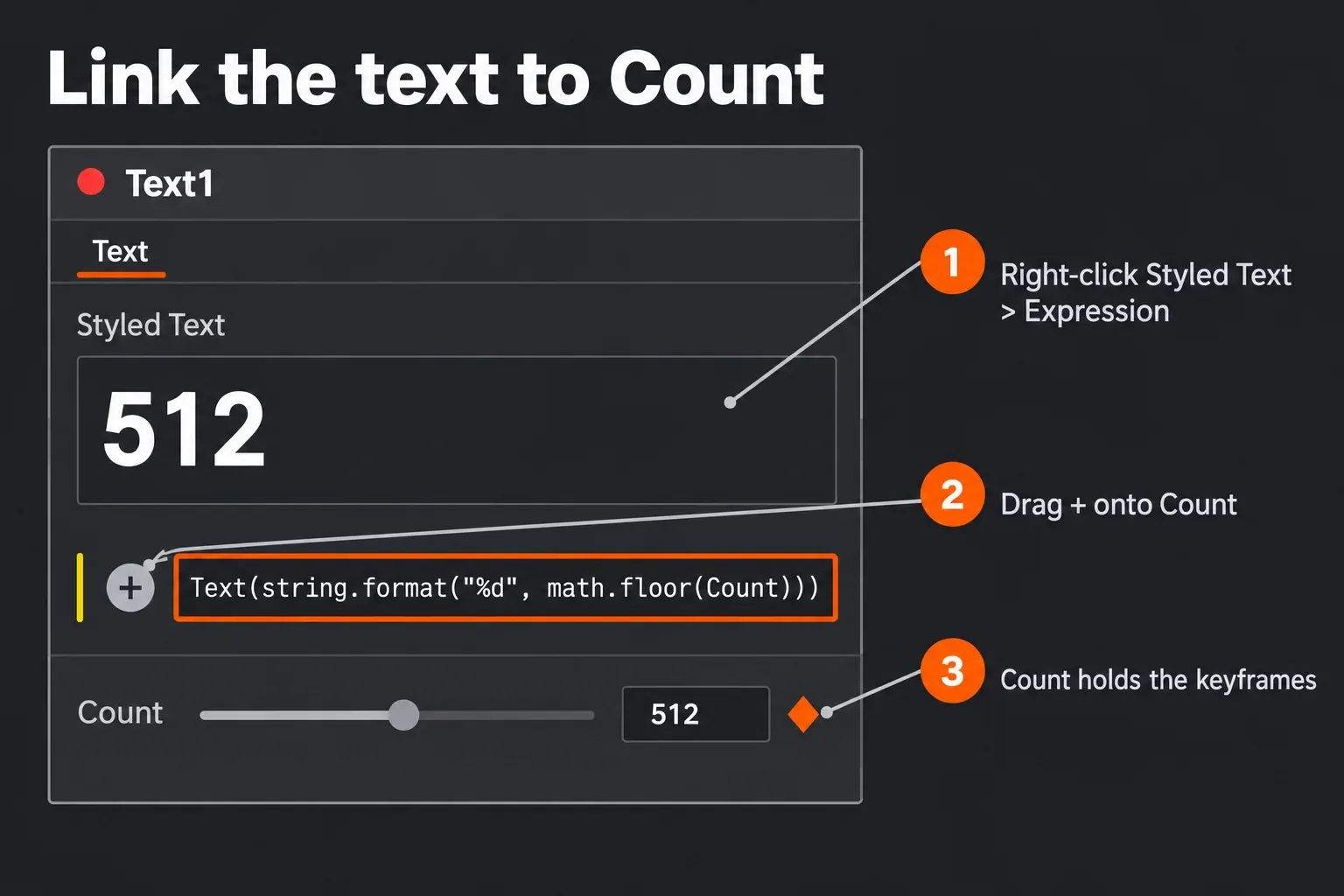
- Right-click inside the Styled Text box and choose Expression. Drag the + button on the left of the new field onto the Count slider; the manual says this pick whip links the two parameters and leaves the link editable as an expression.
- Replace what's in the field with the line below, keeping the control name exactly as the pick whip wrote it. A bare number won't display in a text field, so the
Text()wrapper isn't optional.
Text(string.format("%d", math.floor(Count)))Play it back. The text now shows whole numbers while Count moves between your two keyframes. Without math.floor and the format string you'd see the raw slider value with its decimals, so don't drop that part when you copy the line.
Ease, hold or step the count
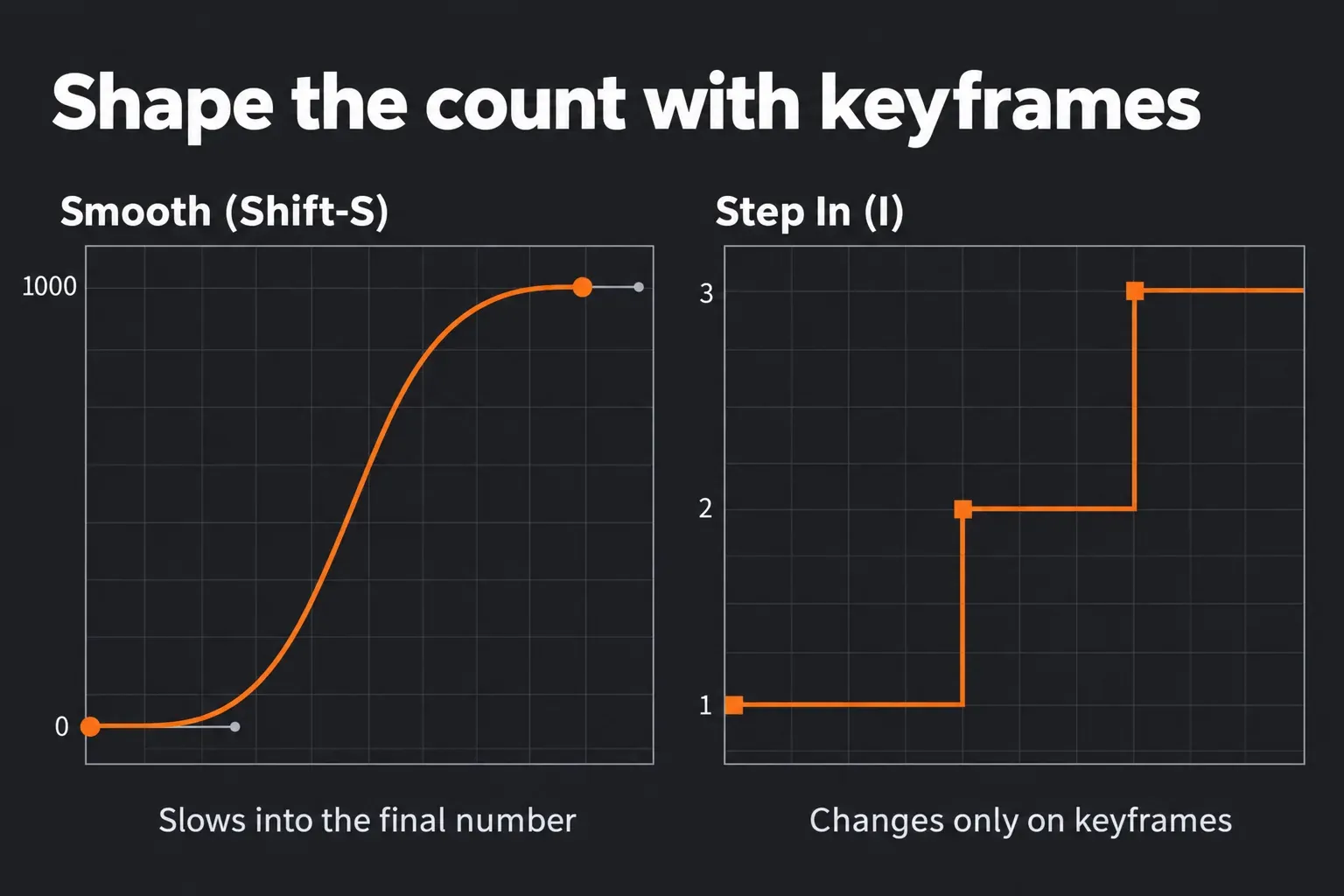
Because the value lives on keyframes, the Spline Editor shapes the count. Select the Count keyframes there and press Shift-L for an even, linear count, or Shift-S for a smooth one: the manual's interpolation section says smoothing slows the animation as it passes through a keyframe, which is the classic counter that rushes in the middle and settles on the final number. For finer control, select a keyframe and press T to open the Ease In/Out controls above the graph.
A count that starts slow and speeds up toward the end, a question that shows up in the search results for this topic, is the same tool with the shape reversed: flatten the curve at the first keyframe and let it steepen into the last one. Our keyframes and curve editor guide covers handles and curve shapes in more depth, and the Text+ typewriter effect guide uses the same keyframe spacing to set the typing speed.
For a counter you bump by hand, such as a lap count, a score or a step number, keyframe each new value on the frame where it should appear, select all of them and press I for Step In. The manual describes Step In as holding the previous keyframe's value, then jumping straight to the next one, so the number changes exactly on your keyframes and nothing counts in between.
Method 2: a pure frame formula
When the count has to run over an exact frame range and you don't want keyframes at all, put the timing in the formula. Replace A with the start number, B with the end number, S with the frame where counting starts and N with its length in frames:
Text(string.format("%d", math.floor(A + (B - A) * math.min(1, math.max(0, (time - S) / N)))))The part (time - S) / N runs from 0 to 1 over those N frames. math.max and math.min clamp it, so the text holds A before frame S and B after the count ends, and math.floor drops the decimals. N is seconds times the frame rate: three seconds is 72 frames at 24 fps and 90 at 30. For S, read the start frame at the left end of the Fusion page time ruler; the manual's time ruler section says the starting frame number always comes from there.
A real example from the search results asks for 0 to 50% in 50 frames. With the count starting on frame 0, that's:
Text(string.format("%d%%", math.floor(50 * math.min(1, math.max(0, time / 50)))))To count down, set A above B. With math.floor the start number flashes for a single frame; swap in math.ceil if it should hold for a full step the way the first number of a count-up does.
Scripts that circulate for this divide time by comp.RenderEnd, the comp's last frame. That ties the speed of the count to the length of the comp and assumes it starts on frame 0, so trimming the title changes how fast it counts. A forum thread on a counter with a comma and a $ sign goes the other way and hard-codes the frame where the count stops. I'd rather type S and N as plain numbers too, because I can read straight from the expression where the count starts and lands, and changing the clip length doesn't change its speed.
Format the number: dollars, percent, commas, decimals
Every format below wraps a value V. In Method 1, V is the slider name the pick whip wrote, such as Count. In Method 2, V is the bracketed part inside math.floor(...), without the floor.
| Display | Looks like | Expression |
|---|---|---|
| Whole number | 1234 | Text(string.format("%d", math.floor(V))) |
| One decimal | 12.5 | Text(string.format("%.1f", V)) |
| Percent | 50% | Text(string.format("%d%%", math.floor(V))) |
| Dollars | $250 | Text("$" .. string.format("%d", math.floor(V))) |
| Leading zeros | 007 | Text(string.format("%03d", math.floor(V))) |
| Plus sign | +12 | Text(string.format("%+d", math.floor(V))) |
Lua has no built-in thousands separator, so commas take a conditional. Fusion's iif(condition, a, b) is the manual's shorthand for if-then-else, and this line prints 1,234 style numbers up to 999,999:
Text(iif(V >= 1000, string.format("%d,%03d", math.floor(V / 1000), math.floor(V) % 1000), string.format("%d", math.floor(V))))For millions, nest one more level:
Text(iif(V >= 1000000, string.format("%d,%03d,%03d", math.floor(V / 1000000), math.floor(V / 1000) % 1000, math.floor(V) % 1000), iif(V >= 1000, string.format("%d,%03d", math.floor(V / 1000), math.floor(V) % 1000), string.format("%d", math.floor(V)))))Both lines are built for positive counts. The %03d keeps the zeros in 1,005, and the Lua manual defines % so the remainder of a positive number is always between 0 and 999 here. For a money counter with commas, put "$" .. in front of the iif inside Text().
Build a countdown clock
A minutes-and-seconds countdown is the same idea with two numbers. This one counts down 60 seconds from frame 0 on a 24 fps timeline and stops at 00:00:
Text(string.format("%02d:%02d", math.floor(math.max(0, 60 - math.floor(time / 24)) / 60), math.max(0, 60 - math.floor(time / 24)) % 60))Change 60 to the length in seconds and 24 to the frames per timecode second: 24 for a 23.976 timeline, 30 for 29.97, 25 for 25. If the countdown starts later than frame 0, replace time with (time - S) in both places. On a 23.976 timeline each counted second is 24 frames, which play in 1.001 seconds, so a one-minute countdown runs about 0.06 seconds longer than a stopwatch minute. That only matters if the clock has to match a real one on screen.
Time Code or Text Timer: counters without code
Text+ also has two ready-made counter modifiers in the same right-click menu of the Styled Text box, which the manual's Text tab section lists along with Text Scramble and Follower.
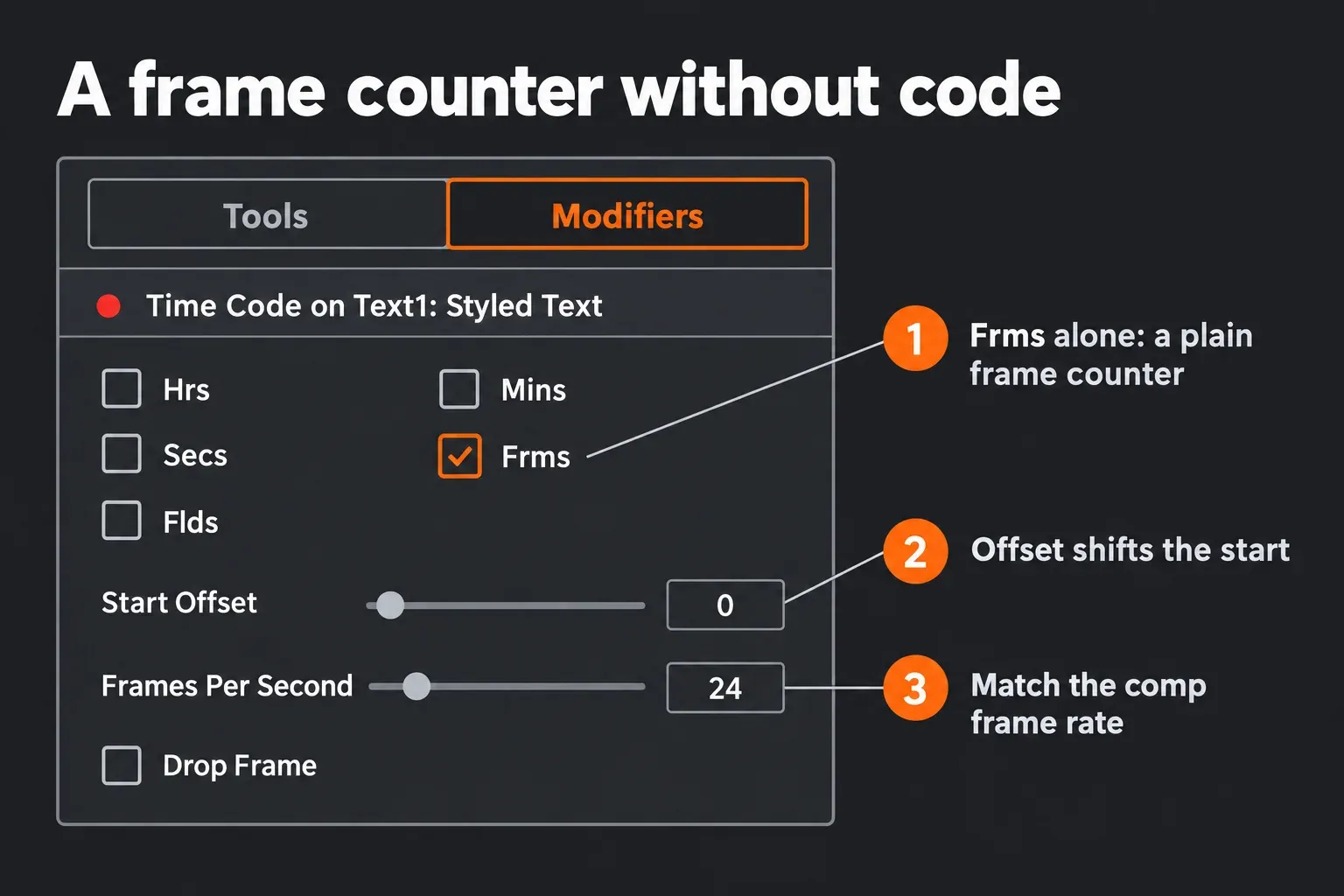
Time Code works only on Text+ and turns Styled Text into a counter based on the current frame. The manual's Time Code page lists checkboxes for hours, minutes, seconds, frames and fields, notes that turning on frames alone gives a plain frame counter, and adds a Start Offset, a Frames Per Second value that should match the comp and a Drop Frame checkbox for drop-frame NTSC footage. Its controls sit on the Modifiers tab of the Inspector. With only frames checked and an offset, you get a counter that rises by exactly one per frame from any number you choose, without writing a line.
Text Timer has CountDown, Timer and Clock modes, hour, minute and second checkboxes and Start and Reset buttons. The manual's Text Timer page pitches it at onscreen real-time displays and burning in the time a frame was created, and it doesn't tie the modifier to the frame number the way it does for Time Code. For anything that has to land on a frame in the edit, use Time Code or an expression, since both are calculated from the current frame and the edit decides what the viewer sees.
Stop the digits from jittering
In most fonts the digits have different widths, so a changing number changes the width of the line and the text wobbles as it counts. The fix is in Text+ under the Text tab's Advanced Controls: the manual's Force Monospaced entry says 0, the default, relies on the font's kerning and 1 makes the spacing between characters completely even. I'd set Force Monospaced to 1 on every counter before anything else, because it's one slider and it removes the wobble that makes a counter look cheap.
Then check the horizontal anchor. The H Anchor buttons justify the text to the left edge, the middle or the right edge, and a centered number grows in both directions when it gains a digit, from 999 to 1,000 for example. Anchor to the right for a number that should grow leftward from a fixed edge, or to the left when a label sits in front of it. Leading zeros with %06d keep the digit count fixed if the design allows them.
Save the counter as a reusable title
The manual says changes made in the Edit Controls dialog are stored in that tool instance, so the Count slider travels with the node when you copy and paste it within the comp, but not to other projects. To reuse the counter anywhere, turn it into a macro with Count exposed and save it in the Fusion Templates Edit Titles folder, which the manual's title template section gives for macOS, Windows and Linux; titles saved there appear under Effects Library > Titles. Our Fusion macros and templates guide walks through the macro steps, and if you'd rather start from a finished design, our list of free DaVinci Resolve templates is the place to look.
Which method to use, and what ranking tutorials show
The first results page for two counter searches holds 15 unique pages. Here they are grouped by what they teach, read in full where a page was readable and from the title and snippet where it wasn't.
| What the page teaches | Pages | Where |
|---|---|---|
| Expression in the Styled Text box | 4 | Two Blackmagic forum threads, one video, one text article |
| Dollars, percent, commas or decimals | 3 | Two videos, one Reddit question |
| General counter or expressions primer | 2 | Two videos |
| Paid number-count templates | 2 | Two template catalogs |
| Keyframed or manual counter | 1 | One video |
| Saved as a preset | 1 | One video |
| Count that speeds up toward the end | 1 | One Reddit question |
| Counter bumped by hand | 1 | One Reddit question |
Seven of the 15 are videos and only one is a readable text tutorial. The Styled Text expression is the method most pages show, formatting is the most common follow-up, and the two Reddit questions about speeding up and bumping by hand are exactly what a keyframed slider solves. None of the readable pages covers easing, Step In, the Time Code modifier or jittering digits, which is why those get their own sections here. In short:
- Easing, holds or hand-placed bumps: Method 1, the keyframed Count slider.
- An exact frame range with no keyframes, such as 0 to 50% in 50 frames: Method 2, the frame formula.
- A frame counter or a timecode burn-in: the Time Code modifier.
- A clock look that doesn't need to match the edit: Text Timer.
- The same counter in many projects: a macro saved as a title.
When the counter doesn't work
- The formula shows on screen as text. It went into the Styled Text box instead of the Expression field. Delete it from the box, right-click the box, choose Expression and paste it into the field that appears.
- The text goes blank after you add the expression. Check that the whole line is wrapped in
Text(), that every bracket closes and that the quotes are straight; some text editors swap in curly ones. Our guide to text not showing in DaVinci Resolve covers the other causes, from track order to opacity. - Long decimals like 512.8374. The value reaches the text unformatted. Wrap it in
string.format("%d", math.floor(V)), or%.1ffor one decimal. - The count stops early or never reaches the end number. The count runs past the end of the clip. In Method 2, compare S plus N with the frame range in the time ruler; in Method 1, check that the last keyframe sits inside the clip.
- The count speed changed after a trim or a retime. Check S and N again, or the keyframe positions. A script that divides by
comp.RenderEndchanges speed with the clip length by design. - The Count slider is missing in another project. Edit Controls changes live in that tool instance only. Save the counter as a macro title to carry it over.
Questions about number counters in DaVinci Resolve
Can you make a number counter in the free version of DaVinci Resolve?
Yes. Text+, the Fusion page, SimpleExpressions and the Time Code modifier are all part of the free version. Our Free vs Studio comparison and the list of free version features show what Studio adds.
What does time mean in a DaVinci Resolve expression?
It returns the current frame number of the Fusion comp. A counter formula turns that number into the value you want and wraps it in Text() so Styled Text can display it.
How do I make a counter count down?
Set the start number above the end number, either on the two Count keyframes or as A and B in the frame formula. For a minutes-and-seconds clock, use the countdown expression with %02d:%02d.
How do I add a comma or a dollar sign to the counter?
Put "$" .. in front of the formatted number for a dollar sign. Commas need the iif expression from the formatting section, because Lua's string.format has no thousands separator.
Can the count speed up or slow down?
Yes, with a keyframed Count slider. Shape the curve in the Spline Editor: smooth keyframes slow the count into the final number, and a curve that starts flat and steepens makes it speed up toward the end.
Do I need to know Lua to make a counter?
No. SimpleExpressions are one-line Lua, and the formulas in this guide only need their numbers changed: the start and end values, the start frame and the length.
Verdict: a keyframed slider with a formatting line
The fastest counter in DaVinci Resolve is one line in the Styled Text expression field, and Method 2 does that well for an exact frame range. For anything that may need retiming, my default stays the keyframed Count slider with Text(string.format("%d", math.floor(Count))), because easing, holds and manual steps then happen in the Spline Editor and the code stays the same. Add the format you need from the table, set Force Monospaced to 1, pick a fixed H Anchor, and use the Time Code modifier when all you need is a number that rises by one per frame.