If text is not showing in DaVinci Resolve, identify the failure before changing settings: is it missing in the Viewer, visible in the Viewer but absent from the exported file, limited to subtitles, or broken only inside a Text+ or Fusion composition? Each symptom has a different output path. Start with the row below that matches what you see.
| Symptom | Check first | Why it matters |
|---|---|---|
| Title missing in the Viewer | Playhead position, clip enable, track enable and track order | The title must be active at the current frame and able to reach the Viewer. |
| Title visible in the Viewer but missing from export | Timeline, render range and Fusion-effect bypass state | The Deliver job may not be rendering the same frames or effect path you previewed. |
| Subtitles visible while editing but absent from the file | Deliver > Video > Subtitle Settings | A subtitle track is not automatically burned into every export. |
| Text+ visible in a Fusion viewer but absent on Edit or Deliver | Merge path and MediaOut | A node can preview correctly without being connected to the composition’s final output. |
Do not treat basic Text, Text+, a Fusion Title and a Subtitle Track as one tool. If you still need to build the title, use the separate guide to add text in DaVinci Resolve. This page assumes the title or subtitle already exists.
Text Missing in the Viewer
I start with the timeline because it gives the fastest clean split between placement and styling. Park the playhead inside the title clip, select that clip, and confirm the title sits on a video track above the footage it should cover. A title on V1 can be hidden by an opaque clip on V2. Moving it higher is a useful diagnosis; it is not a reason to rearrange unrelated tracks permanently.
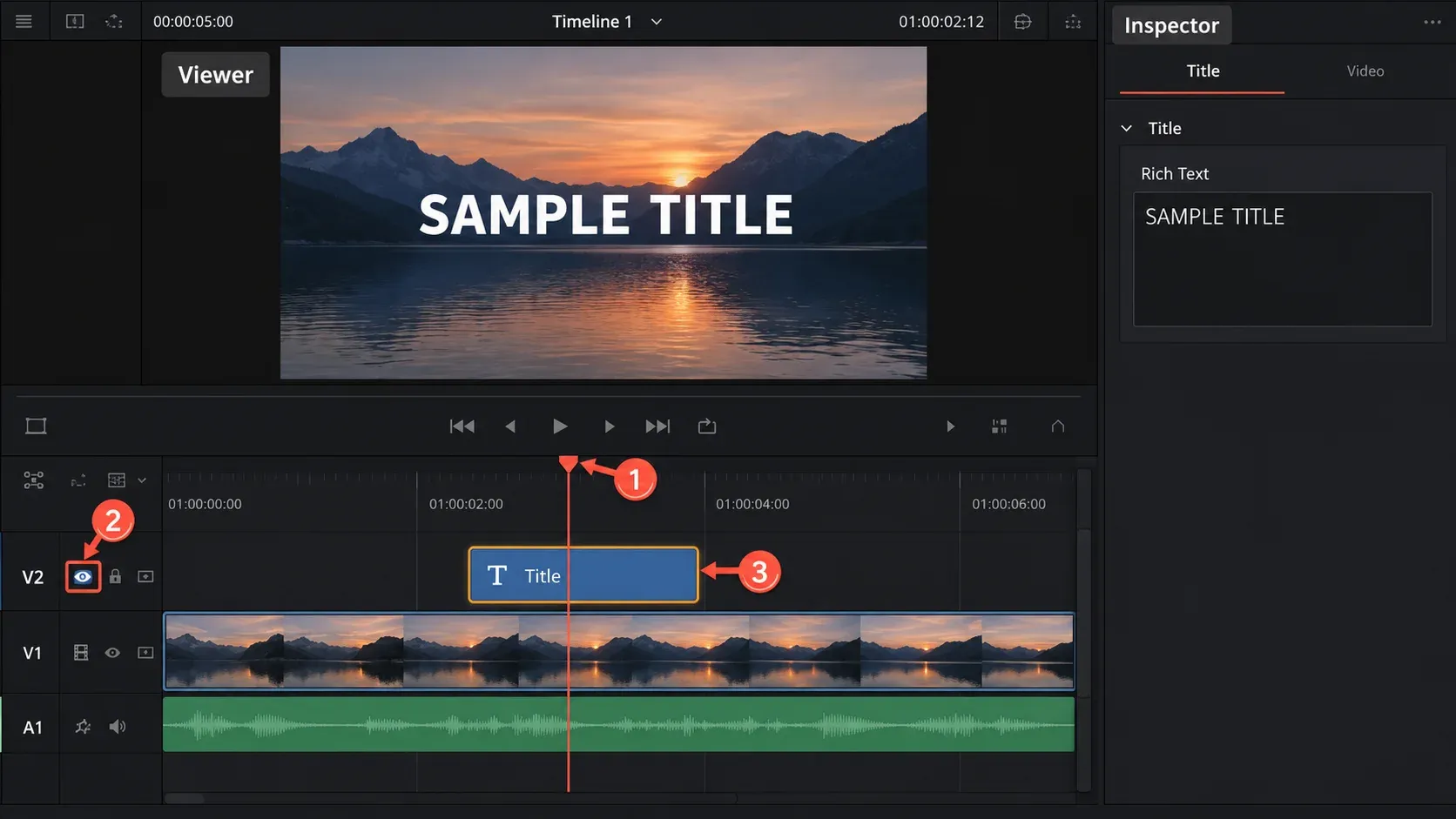
Confirm the clip and track are enabled
A disabled clip appears dimmed. Select the title, open its contextual menu and confirm Enable Clip is checked. The default enable/disable toggle is D, so it is easy to switch a selected title off while using nearby shortcuts. The whole track also has its own enable button in the track header. Blackmagic’s Resolve 21 reference material states that disabled clips and tracks are not rendered on the Deliver page until they are enabled again.
Make sure you are editing the title you selected
Open the Inspector after selecting the title clip. For a basic Text title, confirm the Rich Text field contains the expected copy. For Text+, open the Title controls and check the Styled Text field. If the Inspector is showing controls for the footage underneath, the title is not the active selection.
Next, remove styling as a variable. Use a readable font, increase the size, choose a color that contrasts with the frame, and return position or transform controls toward their defaults. A title can be present but effectively invisible because it is off canvas, too small, transparent or the same color as the background. If a project arrived from another workstation, also check for a missing font warning and choose an installed substitute before judging line breaks or position.
Use a plain Text title as a control
Add a temporary basic Text title on a new enabled track at the same timecode. If that appears, the Viewer and track stack are working; the fault is inside the original title’s styling, template or Fusion structure. If the plain title also fails, stay on the Edit-page checks rather than rebuilding the original effect.
Text Visible in the Viewer but Missing From Export
When the Viewer is correct, stop changing font and position. The question becomes whether the Deliver job renders the same timeline, range and effect path.
- Open the timeline you actually want to deliver. Similar timeline names can hide a simple selection error. Compare the visible title and its timecode before opening Deliver.
- Check the render range. If Render is set to In/Out Range, confirm the title falls between the active marks. Use Entire Timeline when that is the intended deliverable.
- Review bypass controls. A basic Text title and a Fusion-based title do not travel through exactly the same effect path. If color grades and Fusion effects are being bypassed, restore the normal state before creating the final job.
- Replace an old render-queue job after changing settings. Build the job from the current timeline and inspect the summary instead of assuming an earlier queued job inherited every later change.
Render a short range that includes the failing title before committing to a long export. That is an editorial recommendation, not a performance benchmark: a small diagnostic file answers whether the current delivery path contains the title without waiting for unrelated frames. The full DaVinci Resolve export guide covers the rest of the delivery setup.
Subtitles Need Their Own Export Decision
A subtitle track can look correct in the timeline and still be absent from the video file because subtitle output is chosen separately. On the Deliver page, open Render Settings > Video > Subtitle Settings and enable Export Subtitle.
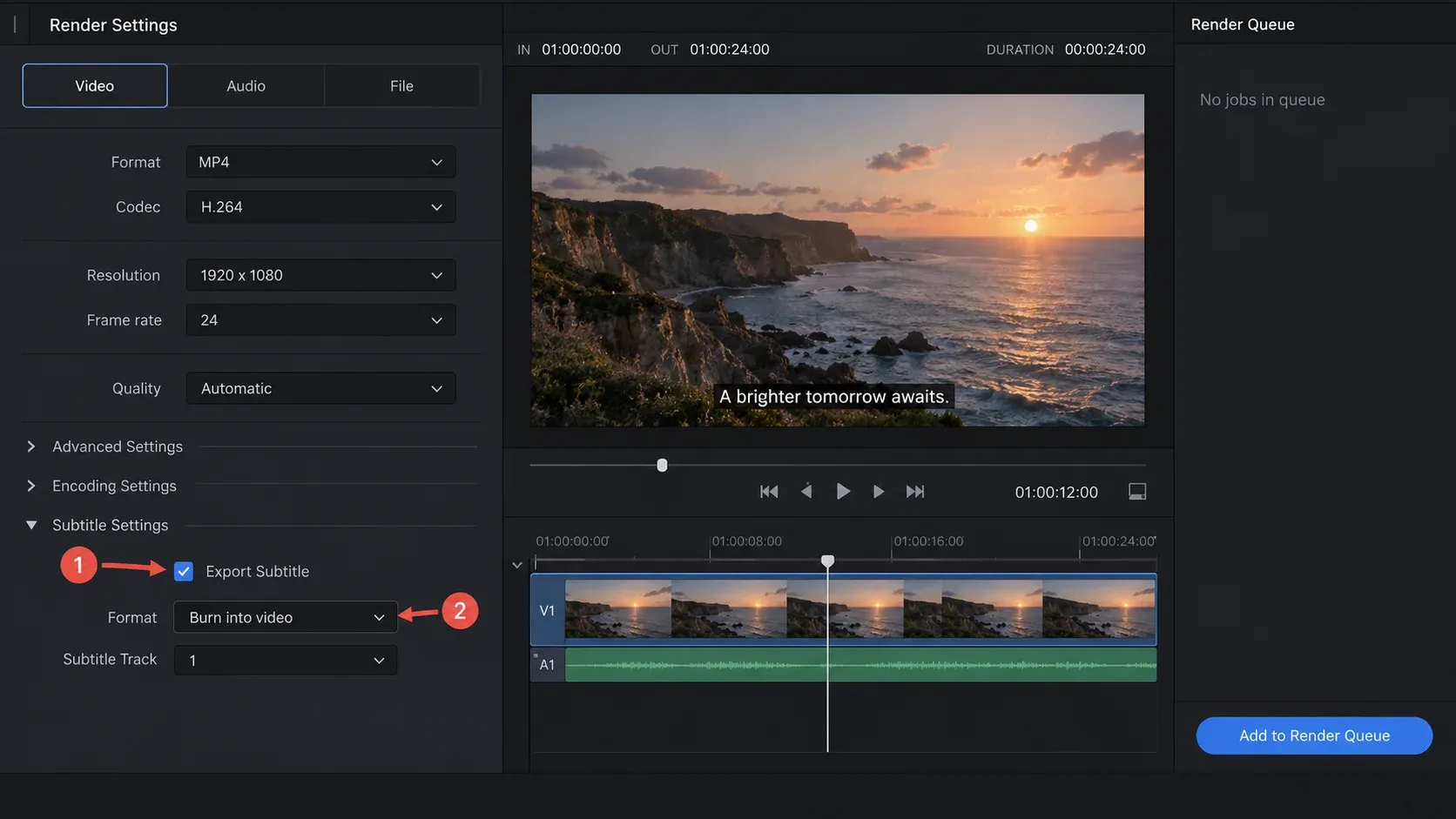
Choose the output that matches the deliverable:
- Burn into video renders the selected subtitle track into the image. Use this when the words must always be visible in the exported video.
- As a separate file creates a timed subtitle file. The video itself will not show those words unless a player loads that file.
- As embedded captions stores supported caption data inside a compatible media format. Support depends on the chosen container, codec and caption format.
Then select the intended subtitle track. If the project has several language or caption tracks, choosing the wrong one can produce an empty or unexpected result. The site’s subtitle and caption workflow explains track creation, timing and separate-file delivery in more detail.
Text+ or Fusion Text Does Not Reach the Output
Text+ is Fusion-based. Inside a Fusion composition, seeing Text1 in a node viewer proves that the node can render its own image; it does not prove that the node reaches the final composition. Follow the connection from the text node into a Merge node and from that Merge into MediaOut.
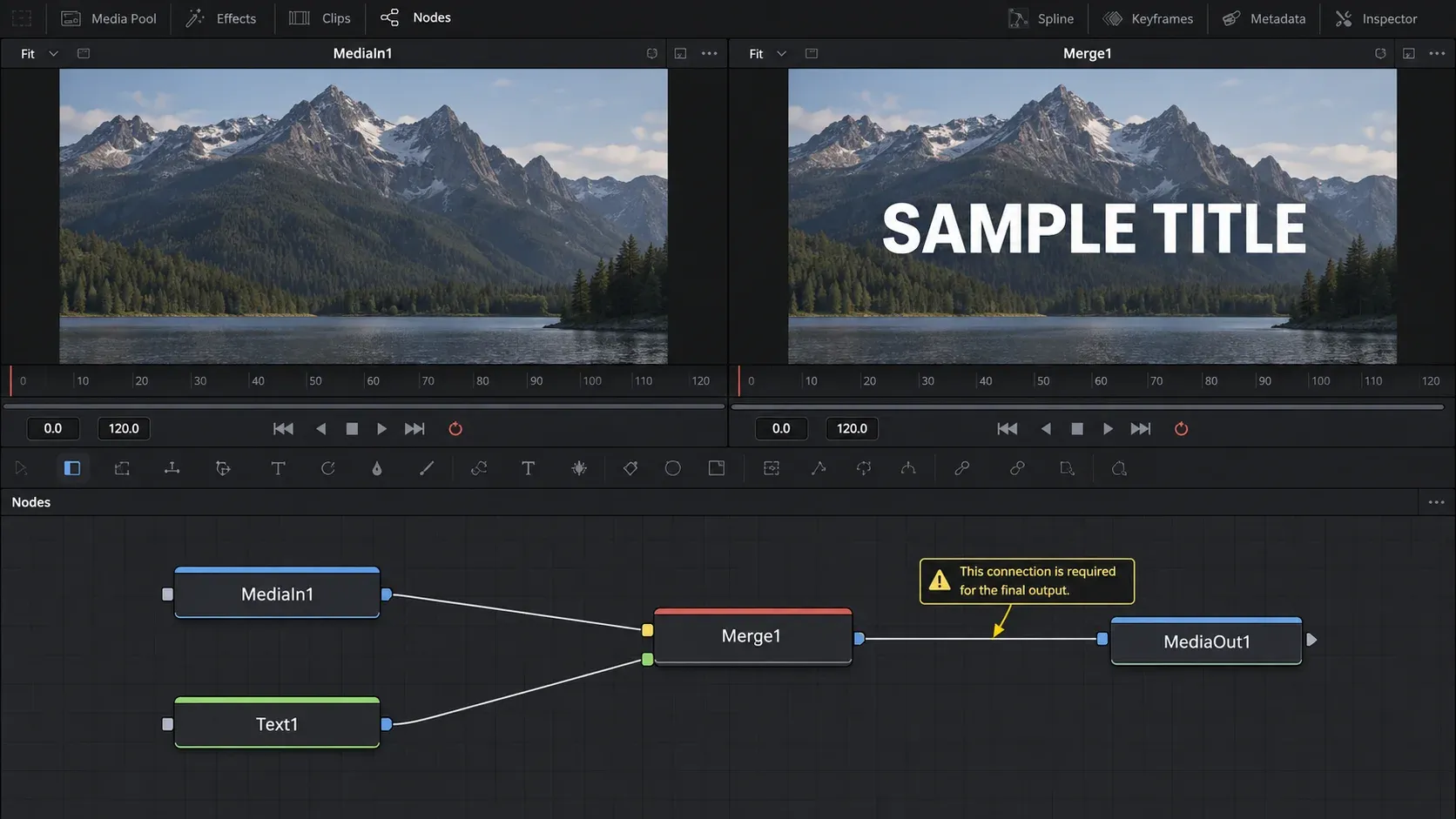
For a text overlay, the usual logic is:
- MediaIn supplies the underlying picture to the Merge background input.
- Text supplies the foreground input.
- The Merge output connects to MediaOut.
If Text connects directly to MediaOut, you may see text over transparency but lose the footage. If the Merge is not connected to MediaOut, the branch can look correct in a node viewer while the Edit page and export receive another path. When the graph is unfamiliar, the Fusion beginner guide explains the flow from source nodes to the final output.
Check animation at the failing frame
A Text+ title can also be structurally connected but invisible at one timecode. Inspect the frame where the failure occurs and check Styled Text, opacity or blend, Write On values and any transform animation. A start or end value that hides all characters is different from a broken MediaOut connection. Diagnose one frame first, then confirm the title remains visible across its intended duration.
Clear Cache Only After the Output Path Is Correct
Cache work is useful when the structure is correct and Resolve is showing an older result. It cannot enable a disabled clip, include a subtitle track in Deliver or reconnect a Fusion branch. After those checks, remove the render cache for the affected clip or turn caching off temporarily, reopen the project if needed, and create a new short diagnostic render.
If the problem affects several unrelated projects or the interface behaves inconsistently, record the Resolve build, operating system, Free or Studio edition, title type and exact failing timecode. Then compare the behavior with current material on the official Blackmagic Design support page. The broader Resolve troubleshooting hub can route crashes, render failures and media problems that are not limited to text.
Final Missing-Text Checklist
- Playhead is inside the title or subtitle duration.
- Title clip and its video track are enabled.
- Title sits above any opaque footage it should overlay.
- The selected clip exposes the expected text controls in Inspector.
- Text color, size, opacity and position make it visible.
- Deliver is using the intended timeline and render range.
- Subtitle output is enabled and set to burn in, separate file or embedded captions as required.
- Fusion text reaches a Merge and the final result reaches MediaOut.
- A fresh short render confirms the repaired path before the full export.
