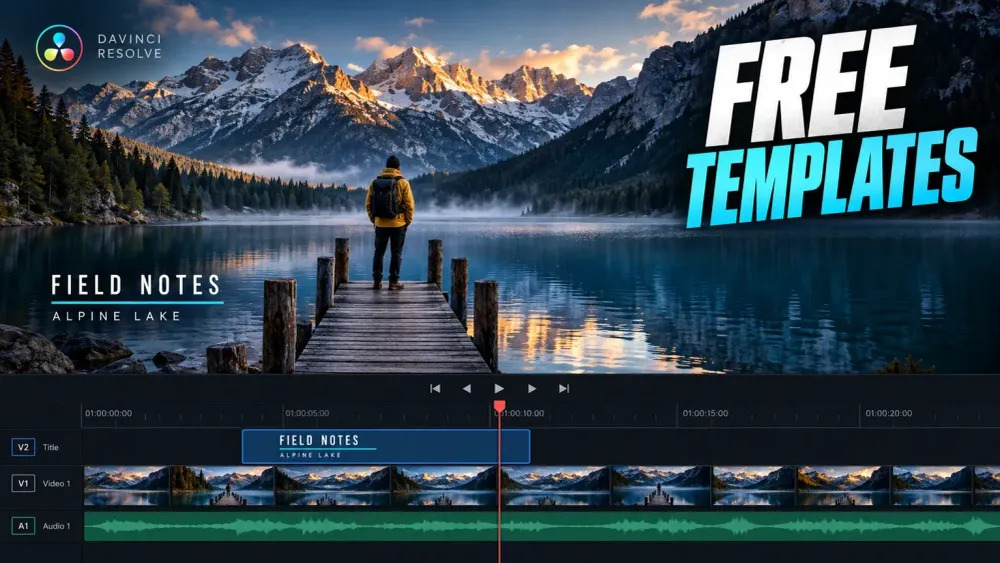
For a free DaVinci Resolve template, I'd start with the job it has to do: a restrained lower third for an interview, a short opener, a vertical title, or a complete slideshow. Mixkit offers individual Fusion compositions, while Videokits has free projects and transition packs. Those downloads fit different workflows, even when the previews look alike.
The picks below link to the creators' pages and explain the useful limits: file format, Resolve edition, version, fonts and commercial use. Check those before you download. A free asset that needs a different edition or arrives as a whole project can cost more time than building a simple title.
Which free template fits your edit?
- Interview or documentary: start with Mixkit's Line Drop Lower Third for a name and role.
- Short logo or channel opener: look at Mixkit's Fast Text Transition Title.
- Vertical social video: try Mixkit's Basic Story Template, then check the actual text layout in your delivery frame.
- Wedding, travel or family slideshow: Videokits' Memories is a complete project with media and text placeholders.
- Movement between shots: Videokits' free Smooth Pack offers slide and zoom transitions.
- A wider title collection: JayAreTV's titan pack is free to request by email, with licensing and compatibility details to confirm for your use.
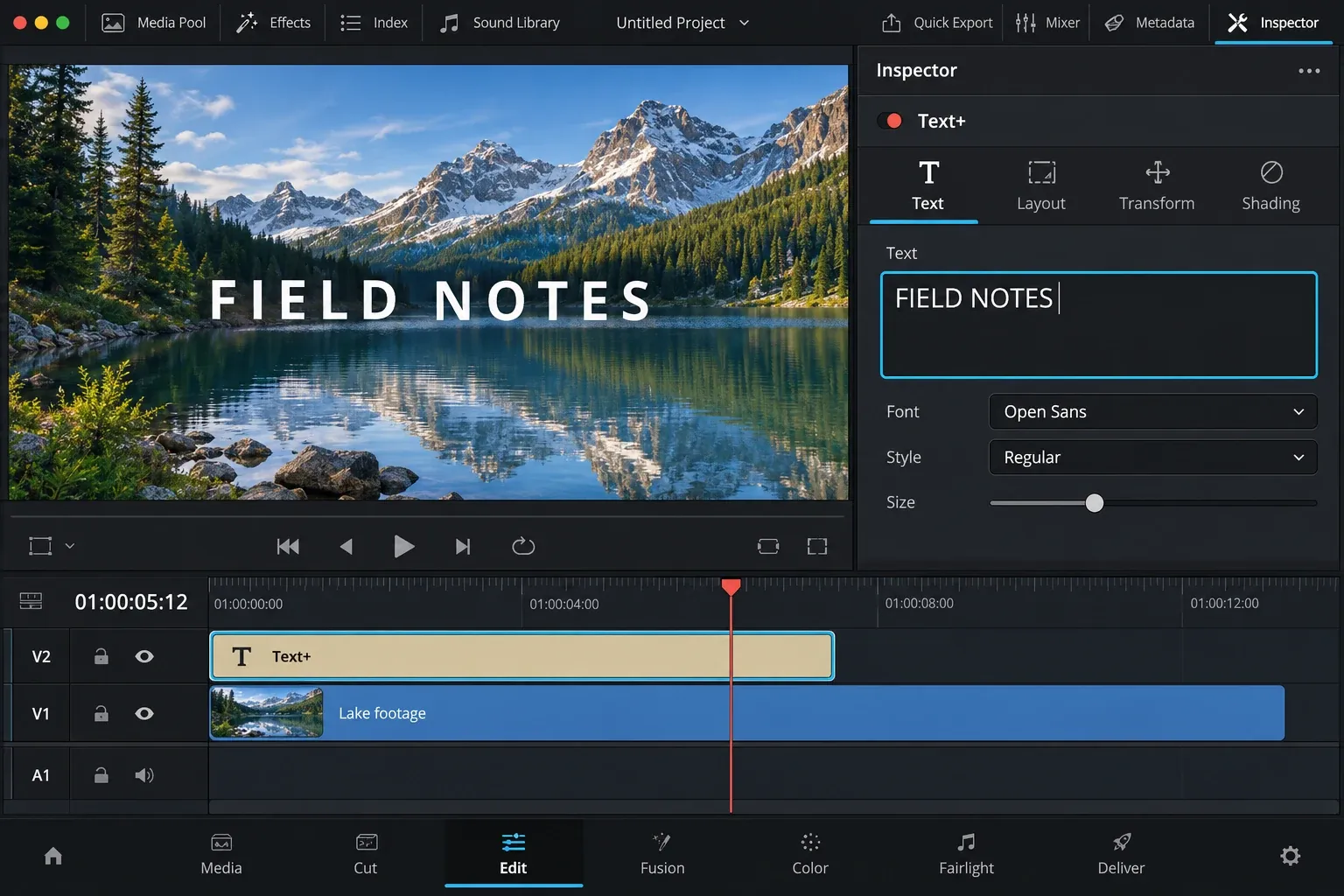
If you only need a clean name or heading, try Resolve's built-in titles first. Blackmagic documents ordinary lower thirds, Text, Text+ and prebuilt Fusion Titles in the title generator reference. You may already have the right starting point. Our guide to adding and styling text explains which tool to choose.
Mixkit: individual titles, intros and vertical graphics
Mixkit is a useful starting point when you want one graphic instead of a large pack. Its Resolve templates are labeled as .comp compositions. The catalogue's version guidance still says they were designed to work best with Resolve 16. That's a legacy compatibility statement, so don't read the free label as a promise that every design has been validated for your current release.
Line Drop Lower Third: a name and role
Line Drop Lower Third combines a heading and subheading with a separating line and a drop animation. This kind of layout suits an interview name, a speaker's role or a location label. It gives the information a clear hierarchy without turning the graphic into the subject of the shot.
Judge the fit with the longest real name in your edit. If you have to shrink the text until it's hard to read, change the layout or choose a simpler title. Replacing a font also means checking the line length, weight and spacing again.
Fast Text Transition Title: a brief opener
Fast Text Transition Title uses moving text, changing background colors and a logo reveal. It suits a short branded introduction or section opener better than a persistent lower third.
Choose it because that movement fits your edit. A quiet interview doesn't need the same opening rhythm as an event recap, and a logo reveal is only useful if you have a suitable logo asset to put in it. Check the download for any media and font requirements, and don't assume everything in the preview comes with it.
Basic Story Template: vertical text and a tagline
Basic Story Template is presented as an Instagram Story design with animated text and a tagline. It's a more sensible place to start for a vertical announcement than a wide opener whose typography runs across the frame.
Keep the headline short enough to read on a phone. A vertical preview is a useful clue, but you still need to inspect the actual delivery frame, text position and animation. The section on vertical layouts below shows what to check.
These templates use the Mixkit Video Templates Free License, which permits commercial and non-commercial projects and doesn't require attribution. The license also points to the User Terms and their limits on redistributing items. Being allowed to make a finished video isn't the same as being allowed to assemble a downloadable template library. Keep the applicable license with the project.
Videokits: a slideshow project or a transition pack
Memories: a complete photo or video slideshow
Videokits' Memories slideshow is listed as a free .drp project for Resolve 18–21, Free and Studio. The creator specifies 1920 × 1080 at 24 fps, with 24 media placeholders and 24 text holders, and says no third-party plugins are required. It includes links for fonts and instructions.
I'd choose it when the sequence itself is the starting point: a wedding presentation, travel montage or family album. A complete project is less useful if you only need one title in an edit you've already built. Its existing pace and frame size also have to suit the deliverable. Don't pick a 24 fps landscape project solely because its preview looks attractive.
The preview music is available separately. The product page identifies the supplied music option as CC BY 3.0 and requires attribution, so check the track's own license if you use it. The template's commercial-use permission doesn't remove a music credit requirement.
Smooth Pack: slides and zooms between shots
The free Smooth Transitions Pack contains eight slide transitions and two zoom transitions. Its current specifications list Resolve 18–21, Free and Studio, with landscape, vertical and square aspect ratios. The creator describes Inspector controls for timing, slide offset and zoom pivot.
Those controls matter more than a long effects count. Choose a direction that follows the movement in the footage, and place the zoom's focal point on something worth looking at. A repeated zoom at every cut can overwhelm a simple edit. For the underlying cut and duration choices, see our Resolve transitions guide.
Videokits permits personal and commercial projects, but its license limits redistribution and a client's reuse of supplied source content. Don't assume that delivering an editable project transfers the template license. Have the recipient obtain the asset under the appropriate terms if they need to reuse it.
JayAreTV titan titles: free, with an email step
JayAreTV's titan title collection is advertised as free and lists 51 templates. The page asks for an email address to send the pack and says the address will receive occasional updates and newsletters. That's a different arrangement from a file you can download immediately.
It's worth browsing when you need a range of title designs, but don't infer edition support, minimum Resolve version or commercial rights from the word “free.” The site's commercial license is phrased around purchased tools and prohibits source redistribution. Confirm the terms supplied with the free pack before you use it for client work. For a clearly documented commercial option, I'd start with the Mixkit or Videokits picks above.
Check the file type before installing anything
A download ZIP is packaging. What matters is the file inside it, and these formats have different destinations:
.drp: a Resolve project. Import it into the Project Manager; it doesn't become a title in the Effects Library..drfx: a Fusion template bundle. Blackmagic documents double-clicking the bundle, or dragging it into the Fusion page, and confirming the installation dialog..setting: a Fusion settings or macro file. An Edit-page template belongs in its intended Titles, Generators, Effects or Transitions category; the extension alone doesn't tell you which one..comp: a Fusion composition. Importing it replaces the current composition, so use an empty composition and protect any existing work first.
For manual template folders and missing Effects Library entries, use our Fusion macros and templates installation guide.
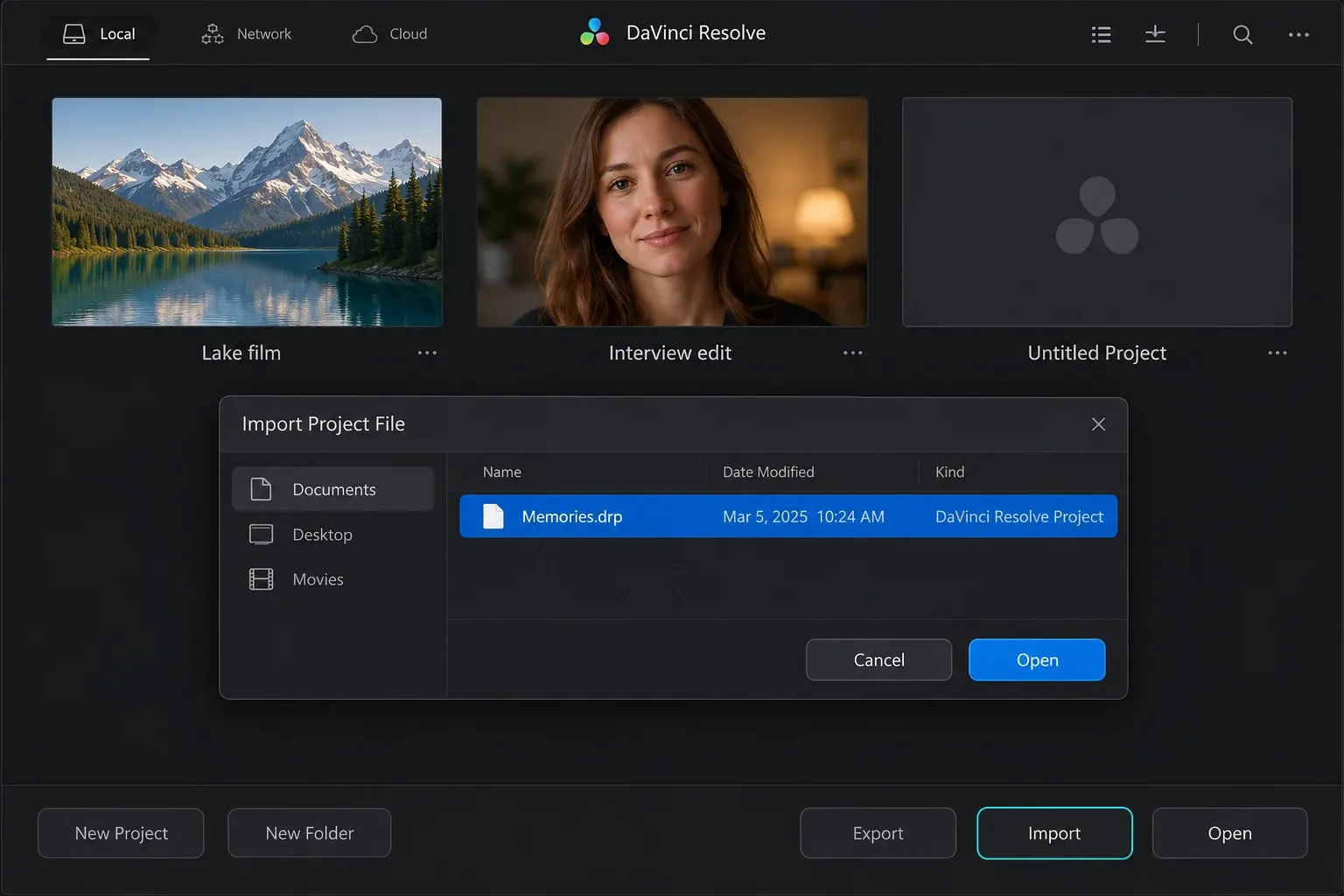
Hold on to the original download of a .drp and import a separate working project. In the Project Manager, choose Import, select the file and click Open, or drag the file into the Project Manager. Keep its supplied assets together, because a project file doesn't guarantee that external footage, fonts or plugins are included. Blackmagic treats archiving a project with its media as a separate operation.
For a .comp, start with an empty composition on the Fusion page and choose File → Import Fusion Composition. Select the downloaded composition and click Open. Follow the creator's instructions for its media inputs and final output. The command loads the node tree and replaces whatever composition is already open. It doesn't automatically turn the file into a reusable Edit-page title.
Free download and Resolve Free are separate checks
The price of a template doesn't tell you which Resolve edition its nodes require. A free download can still depend on a Studio-only tool, a paid plugin or an unavailable font. The wrapper doesn't remove those dependencies. Read the requirements for that specific item before you import it, especially when a catalog mixes projects, macros and plugins.
Check the exact version, operating system and font family or face as well. When a vendor says “Resolve 18 and above,” that's the vendor's compatibility claim. It isn't evidence that every later release was tested. If the creator doesn't state a dependency or platform you need, ask them or pick a better documented asset.
Motion Array's free Resolve catalogue and MotionElements' free templates page are useful places to broaden the search. Base the decision on the selected asset's own page and license. A free filter, royalty-free label or subscription invitation doesn't settle the rights and requirements of a particular file.
Adapt the design for Reels, Shorts and vertical video
A title that fits 16:9 can become unreadable or clipped in 9:16. Reflow the words, move the graphic and adjust its size inside the actual vertical timeline. Keep essential text away from the edges and from the platform's captions and controls. Don't rely on scaling the whole landscape graphic down until it fits.
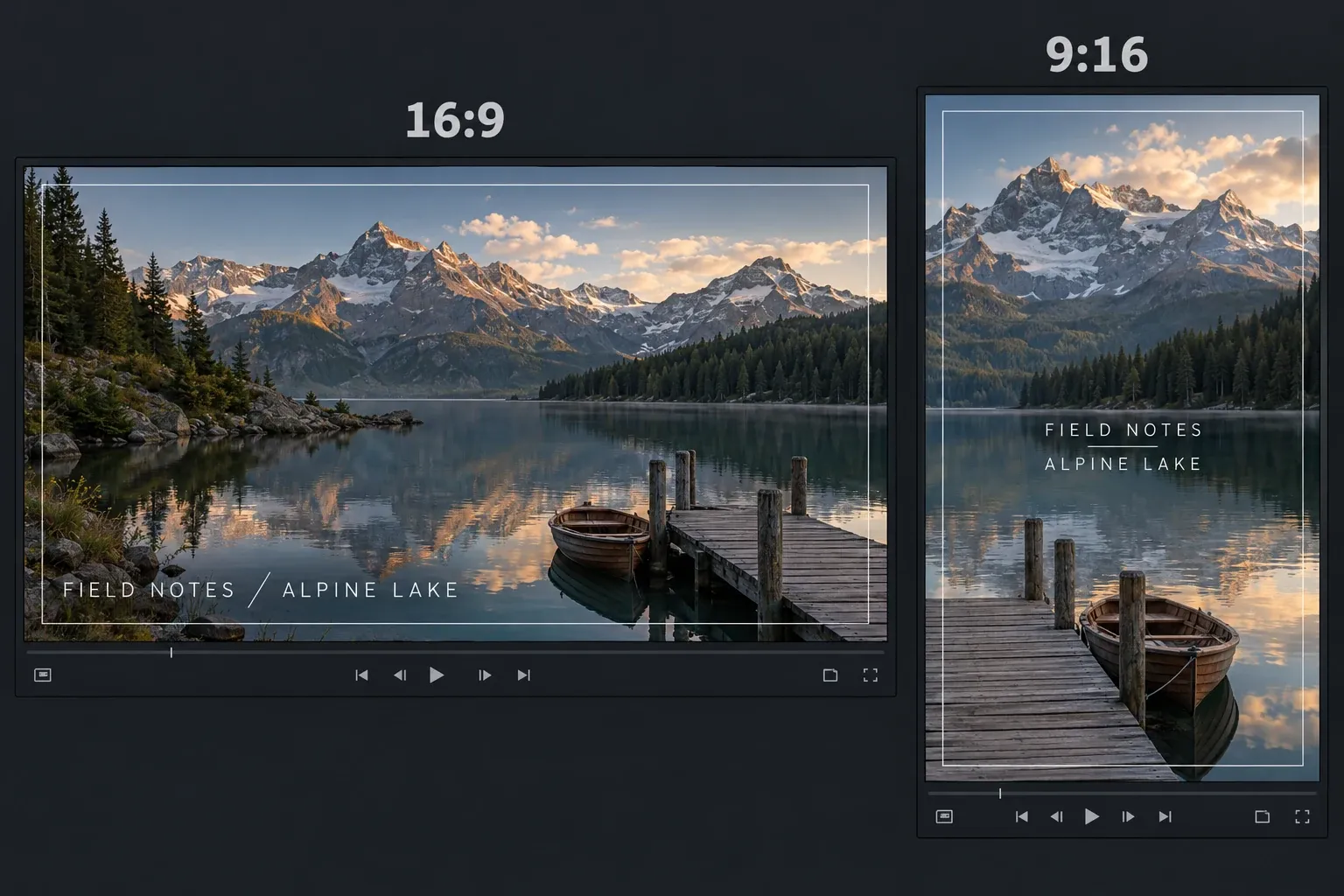
Resolve's safe-area and social framing guides include 16:9 and 9:16 overlays. They help you see the crop and protect the title, but they don't model every social app's interface. Judge the finished layout with the real headline and intended platform in mind.
Before you commit to a design, inspect its entrance, readable hold and exit at the duration your edit needs. Try a long name, a two-line headline and any font substitution. Then export a short clip yourself and review the final text, logo edges, motion and media. If the design stops fitting as soon as the wording changes, choose a simpler one.
If the exposed controls aren't enough and you need to change the composition itself, the Fusion learning hub connects the relevant node, text and compositing guides. Check the template's license before you modify its source or hand it over.
