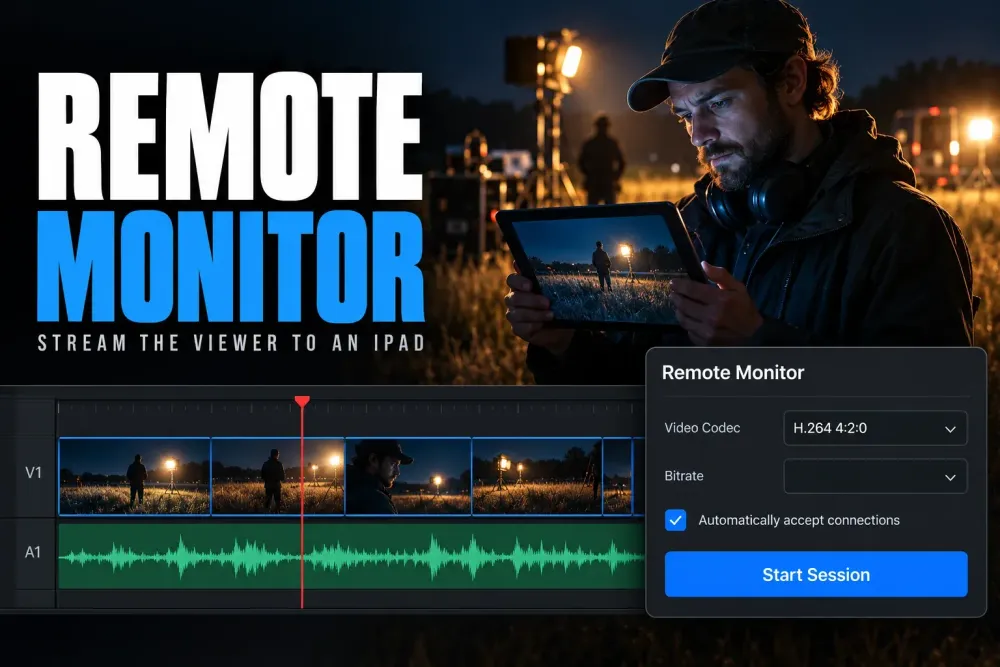
To stream your live Resolve viewer, open Workspace > Remote Monitor in DaVinci Resolve Studio, pick a codec your viewers can play and click Start Session. Send the session code to your client. Viewers on iPhone, iPad or Android can use the free Blackmagic Remote Monitor app. Desktop viewers use DaVinci Remote Monitor from their Resolve installation.
I'd use it for client review and a quick second look on an iPad, and I wouldn't treat it as a calibrated grading feed unless the viewer is an iPad Pro in Reference Mode or a desktop client with a DeckLink card. Below you'll find who needs which edition, the host and viewer steps, codec choices, the Reference Mode setup, the IP connection mode that skips Blackmagic Cloud, reported connection and playback problems and a fix table.
What you need for DaVinci Remote Monitor
Blackmagic's 21.1 Reference Manual labels the feature "DaVinci Remote Monitor (Studio Version Only)" and calls the sending system the Resolve Host and every viewer a Resolve Client. Its requirements list asks for Resolve Studio on the host and a Blackmagic Cloud account on every side. It also lists an RTX series NVIDIA GPU with drivers on Windows and Linux, saying "AMD and Intel GPUs are currently unsupported". The Windows release-note exception is covered below. That account doesn't cost anything: a new one starts on Blackmagic's free Cloud plan.
| Role and device | What it needs | What to watch |
|---|---|---|
| Host on a Mac | DaVinci Resolve Studio and a Blackmagic Cloud account | IP mode replaces the Cloud sign-in on a network you control |
| Host on Windows or Linux | Resolve Studio; the manual lists NVIDIA RTX, while Resolve 20 notes add Intel/AMD on Windows | Check sending compatibility on the actual Windows setup; the Windows note does not change Linux requirements |
| Viewer on iPhone or iPad | The free Blackmagic Remote Monitor app, iOS 17 or later, an A12 Bionic chip or newer | Streams up to 10-bit; no Studio license needed |
| Viewer on a Mac | DaVinci Remote Monitor from the DaVinci Resolve folder | Resolve builds from Blackmagic's site include it; App Store builds don't |
| Viewer on Windows or Linux | Studio and RTX per the manual; Windows has newer installer/GPU notes below | The Windows installer includes the app. Blackmagic’s release note leaves the license requirement open. |
| Viewer on Android | Free Blackmagic Remote Monitor on Google Play | Plays the H.264 or H.265 stream in 8 or 10 bit. Check availability on the viewer’s device. |
The viewer rules are where most confusion starts. The manual says desktop clients run Resolve Studio. In a June 2025 support reply, Blackmagic added that on a Mac the versions of both Resolve and Resolve Studio 20 downloaded from Blackmagic give access to the viewer, the Apple App Store versions don't, and Windows and Linux viewers need Studio. The Resolve 21 release notes also say the Remote Monitor app is available with Resolve on Windows; that installer note does not state its activation terms. So before a session with a Mac viewer on free Resolve, I'd have them open the DaVinci Resolve folder and confirm DaVinci Remote Monitor is there, because that check takes a minute and a missing app ends the call. The DaVinci Resolve download guide shows where to get the Mac installer from Blackmagic.
The GPU rule has a wrinkle too. The Resolve 20.0 release notes explicitly add Intel and AMD GPU support for Remote Monitor on Windows, yet the 21.1 manual keeps the RTX requirement for Windows and Linux hosts and clients. That Windows note does not separate encoding on the host from decoding on the viewer, so it does not establish that every AMD or Intel Windows host can send a stream. I'd verify sending and joining separately on the exact setup before a client session; on Linux, follow the manual's RTX requirement.
If the host and a desktop viewer are both your own machines, one Studio activation key can be active on two computers at the same time. For a client at another company, check the desktop version and its license terms; the mobile viewer app is free, and the Mac exception is described above. If you're still deciding whether Studio is worth it, the free vs Studio comparison puts remote monitoring next to the other paid features.
Start a Remote Monitor session on the host
The host steps on page 4259 of the manual take about as long as writing the email with the code:
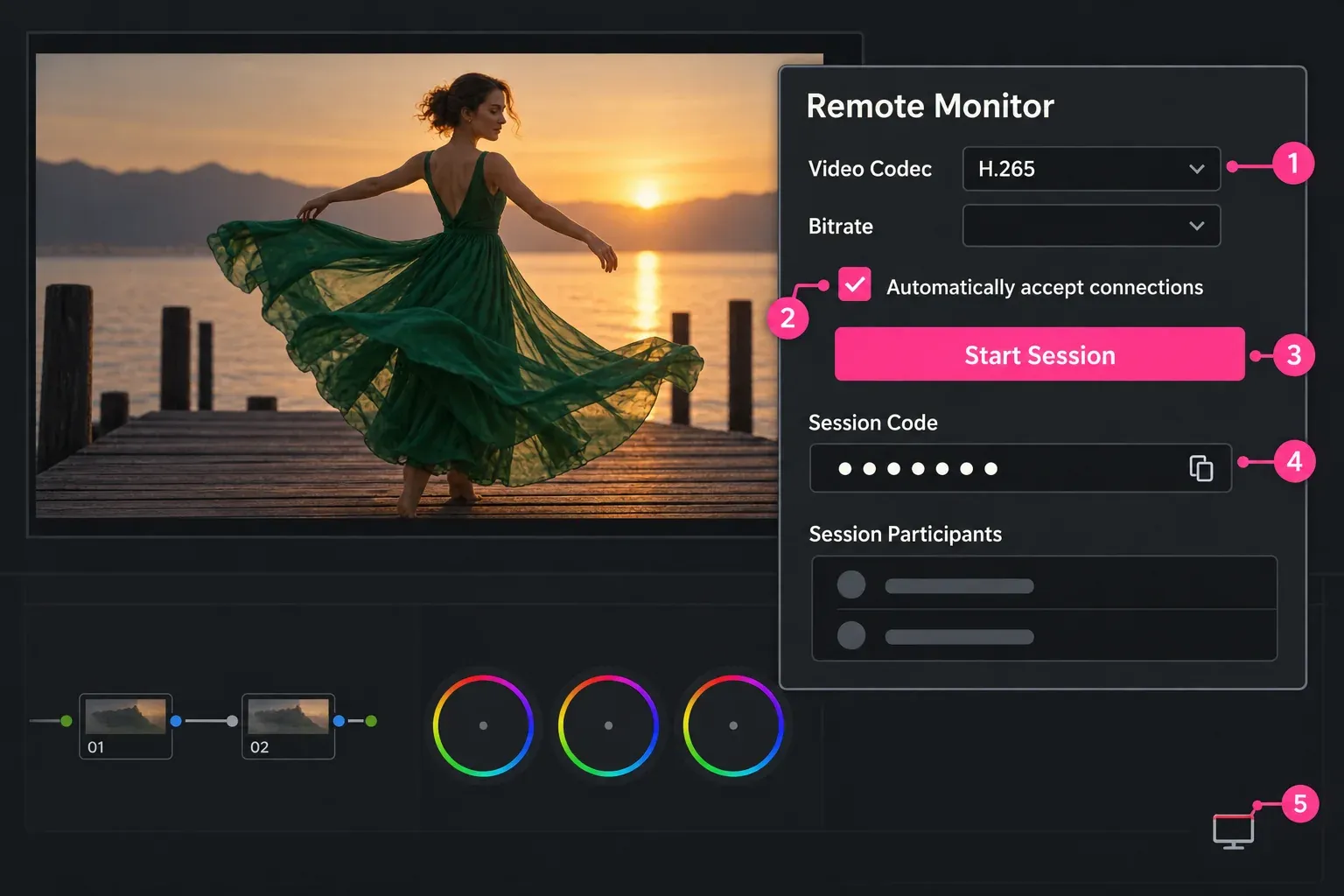
- Open the project in Resolve Studio and choose Workspace > Remote Monitor.
- Sign in to your Blackmagic Cloud account if Resolve asks.
- In the Remote Monitor window, choose the Video Codec and Bitrate for the session.
- Leave "Automatically accept connections" checked so anyone with the code can join, or uncheck it to approve each viewer yourself.
- Click Start Session, copy the Session Code and send it by email or message.
- Watch the Remote Monitor icon at the lower right of the interface: its top turns red once at least one client connects, and the Session Participants field lists who's watching.
I'd uncheck automatic acceptance for any session with unreleased footage, because otherwise a forwarded code is all it takes to join. Approving each viewer is a small price for knowing who's watching.
To change quality mid-session, click the Remote Monitor icon, then the Settings icon at the upper right of the Remote Monitor window, pick a new codec and bitrate and click Save. The manual says existing clients reconnect to the new stream on their own. The same icon holds End Session, which stops the stream for everyone, and an X next to each client name that drops only that viewer.
Two limits shape how you run the session. The stream only works on the Media, Cut, Edit, Color and Deliver pages, so a client watching while you open Fusion or Fairlight won't get that page's viewer. Audio is limited to two channels, which is fine for a cut review and not enough to judge a surround mix.
Join from a phone, tablet or computer
On an iPhone or iPad, install Blackmagic Remote Monitor from the App Store. It's free, needs iOS 17 or later on an A12 Bionic chip or newer, and Apple's listing describes "very low latency H.264 or H.265, 8 or 10 bit" streams. On Android, install Blackmagic Remote Monitor on Google Play. On a Mac or PC, open DaVinci Remote Monitor from the folder where Resolve is installed. Then follow the client steps from the manual:
- Sign in to your Blackmagic Cloud account.
- Paste the Session Code from the host into the code field.
- Choose the Output Device: the computer display, or a Blackmagic DeckLink or UltraStudio device for color-accurate monitoring.
- Click Join. The Remote Monitor window opens with the host's current viewer, picture and sound.
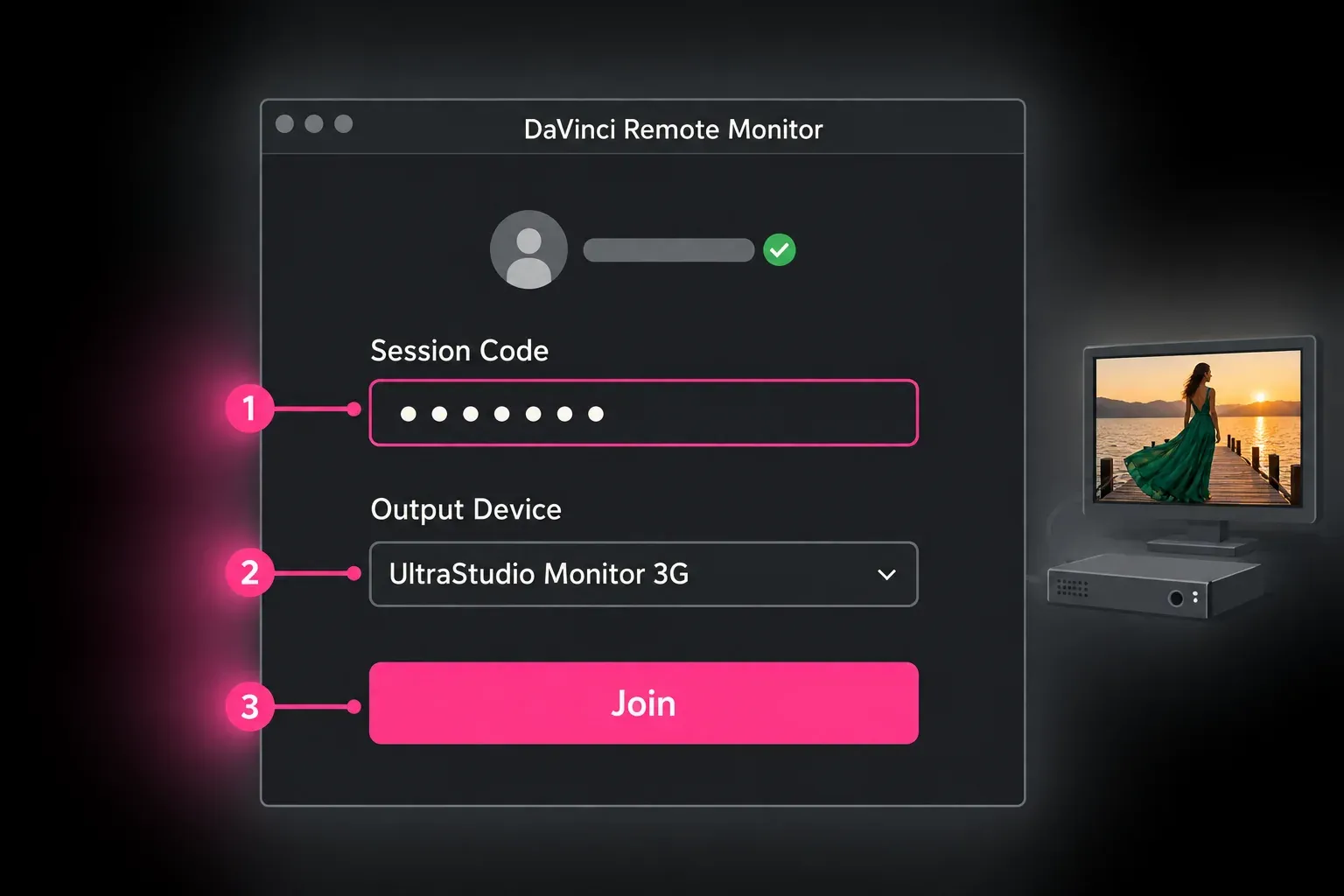
To leave, the client makes the DaVinci Remote Monitor app active, rather than the Remote Monitor window that shows the picture, and clicks Leave.
The mobile app is for watching the feed. For editing on an iPad, use the separate DaVinci Resolve for iPad app. If you’re choosing a mobile workflow, check which Blackmagic apps are available for Android and iPhone.
Choose a codec and bitrate every viewer can play
The manual's rule is short: the codec has to be one that all client devices support. It calls H.264 4:2:0 8-bit a good choice for compatibility and says accurate color monitoring may need a 10-bit or 12-bit codec instead. Its own examples run from HD H.264 8-bit 4:2:0 for offline editing to full UHD H.265 12-bit 4:4:4 RGB for HDR grading. The mobile listings describe 8-bit and 10-bit streams. If a phone or tablet is joining, choose 10-bit or lower. Save a 12-bit session for compatible desktop viewers.
| Session | Codec I'd start with | Why |
|---|---|---|
| Edit review, mixed devices | H.264 8-bit 4:2:0 | The manual names it for maximum compatibility; confirm playback on each viewer |
| Color review on an iPad Pro | H.265 10-bit | The highest bit depth the iPhone and iPad app lists |
| HDR grading to a desktop client with a DeckLink | H.265 12-bit 4:4:4 RGB | The manual's own HDR example for compatible desktop viewers |
The Remote Monitor chapter gives no recommended Mbps value. A Blackmagic forum question asking for recommended bitrates sat without a reply. What the manual does say is that bandwidth needs to grow with the number of clients and that a wired ethernet connection performs best. I'd start with a modest bitrate on the busiest shot of the timeline and raise it a step at a time while the viewer watches. If the host disconnects with an error, which is what the manual says happens when internet bandwidth drops too low, reduce the stream load and check the host's upload and each viewer's connection. That error alone does not identify the slowest viewer as the cause.
Make an iPad Pro match your grade with Reference Mode
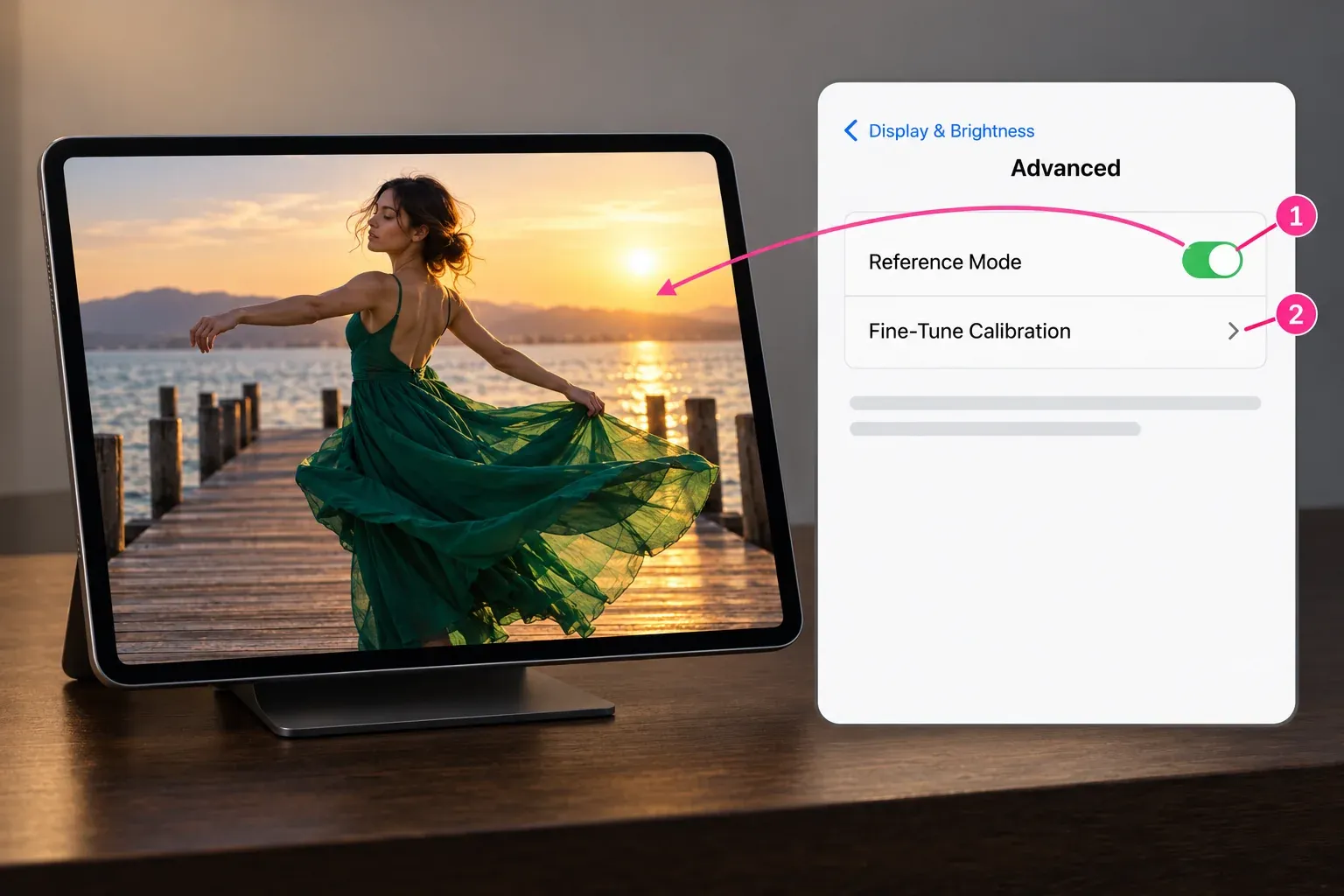
An iPad Pro is the best cheap client monitor this feature has, as long as Reference Mode is on. Apple's Reference Mode page lists the iPad Pro 13-inch and 11-inch with M4 and the 12.9-inch fifth and sixth generation on iPadOS 16 or later. The mode targets formats including BT.709 and BT.2100 PQ and HLG at a D65 white point, with up to 1,000 nits for HDR and 100 nits for SDR, and it switches off True Tone, Auto-Brightness and Night Shift. Turn it on in Settings > Display & Brightness > Advanced, where Fine-Tune Calibration also lets you trim the display against an external measuring instrument.
Colorists on Lift Gamma Gain describe differing results. One poster found the stream heavily contrasty; replies recommended Reference Mode and reported full-range display on non-Pro iPads even with Resolve set to legal levels. One colorist found an iPad Pro in Reference Mode a close match to several reference monitors in SDR and HDR; another called it not perfect but good enough to give clients confidence. A fourth-generation iPad Pro has no Reference Mode at all, and another poster found the feature finicky and noted that it takes encoding power from the workstation.
That's why I'd give a client an iPad Pro in Reference Mode for color notes and treat any other phone or tablet as a picture-and-timing check. If the levels on a non-Pro iPad look wrong, read the scopes on the host before you touch the grade.
Use Remote Monitor without Blackmagic Cloud (IP mode)
Resolve can also stream over a plain IP connection with no Cloud sign-in. The manual warns that it needs some technical knowledge of network setup, and the host side goes like this:
- Sign out of Blackmagic Cloud in Preferences > Internet Accounts.
- In Preferences > System > General, check "Use Remote Monitoring without Blackmagic Cloud".
- Choose Workspace > Remote Monitoring, set the codec and bitrate and click Start Session.
- Give the clients the host's IP address or host name.
On a desktop client, choose "Use Remote Monitor without Blackmagic Cloud" in the setup dialog. On an iPhone or iPad, turn on the toggle under Settings > DaVinci Monitor, a setting the app added in version 2.0. Enter the host's IP address or host name and click Join. The firewall and port forwarding are yours to configure: TCP 16410 is the server port, and each client takes its own TCP and UDP port starting at 16411, then 16412 and up.
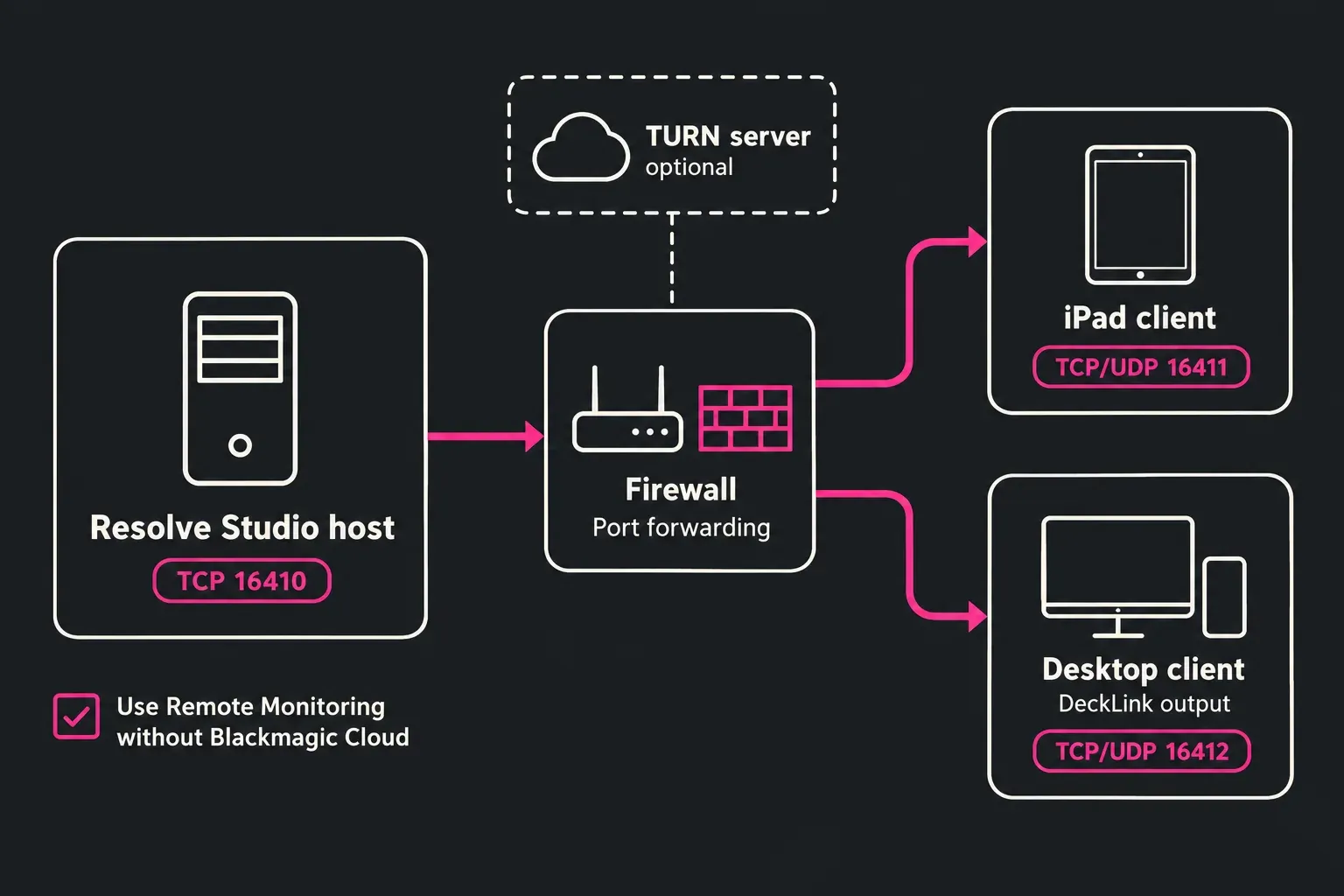
I'd keep IP mode for a single facility network where you control the firewall, such as a grading suite feeding a client lounge. For a client across town, the Cloud session code is less work and doesn't leave ports open on your router.
If a strict office or hotel network blocks the session from starting, the manual points to two routes. Remote Monitor uses WebRTC to open connections, and some heavily restricted networks block it, in which case a VPN may be needed. For networks that restrict WebRTC STUN, Preferences > System > General has "Use TURN server for Remote Monitoring", where you add the URL of your own TURN server.
Remote Monitor: reported connection, playback and image problems
Blackmagic calls the stream low latency but the manual and app listing give no latency or bitrate figure. The examples below come from the Blackmagic forum, App Store reviews, DVResolve reader comments and Lift Gamma Gain. They include launch-era reports from 2023 and later discussions. A review can describe several issues, and a thread-edit date does not date every post, so these examples do not establish a session success rate or the most common failure.
| Check | Result | What it means |
|---|---|---|
| Connecting | Historical reports include timeouts, black or frozen phones, a missing code and “No suitable output mode found”. | Use the exact symptom and version to choose a check; a shared error message does not establish a shared cause. |
| Playback | One Resolve 18.6/iPhone 14 report describes smooth video and audio; App Store reviews also describe dropped frames. | Check the actual host, viewer and network together before the review. |
| Image match | Colorists report useful iPad Pro Reference Mode matches as well as contrast or range differences on other setups. | These are visual observations, not instrumented accuracy measurements. |
| Menu greyed out | DVResolve commenters reported it even with Studio; their posts do not identify a confirmed cause. | Check edition, platform, GPU and installed versions without assuming one is the cause. |
| iOS requirements | The current App Store listing requires iOS 17 or later and an A12 Bionic chip or newer. | The 2023 complaints concerned the older iOS 16 floor; use the current requirements for installation. |
| Device and edition requests | Older threads ask for Android, a simpler desktop viewer and AMD support. | These requests do not establish current availability; use the current platform notes above. |
| App Store rating | 4.0 out of 5 from 32 US App Store ratings. | A small set of subjective ratings; not a benchmark or a connection success rate. |
The launch-year reports from 2023 include timeouts on several devices, an App Store reviewer whose phones froze or went black after the first viewer, a "Remote monitor is not supported" log line and Intel iMacs with Radeon Pro graphics that failed to connect. A later connection report, from October 2025, was a session code that never appeared, and Blackmagic support fixed it with a preference change covered in the fix table below.
The good reports are concrete. One DVResolve reader streamed from an M2 MacBook Pro on Resolve Studio 18.6 to an iPhone 14 over cellular data and a neighbor's network and got smooth video and audio. A freelance colorist on the App Store called the iPad and iPhone image color accurate without a video I/O box, and the Lift Gamma Gain colorist above put an iPad Pro in Reference Mode next to reference monitors. My practical recommendation is to run a short private session to the client's own device on the client's own network before the real review.
Remote Monitor troubleshooting
| Problem | Likely cause | Fix |
|---|---|---|
| No session code appears | "Use Remote Monitoring without Blackmagic Cloud" is switched on | Untick it in Preferences > System > General; if it's greyed out, exit Remote Monitor mode first |
| Remote Monitor menu is greyed out | Check host edition, GPU support and installed version; the reported Studio cases were not diagnosed | Confirm Studio in About, then compare the GPU/platform with the manual and Windows release notes above |
| Connection times out or never starts | A restricted network blocks WebRTC | Try a wired connection, a VPN, or a TURN server in Preferences > System > General |
| "No suitable output mode found" on an iPad | Not confirmed in the threads that report it | I'd rule out the codec first: switch the session to H.264 8-bit and update the app and Resolve |
| "Remote monitor is not supported" or crashes | Cause unconfirmed in the cited Intel iMac/Radeon Pro reports | Check the host OS/hardware and both app versions; the Windows RTX rule alone does not diagnose an older Mac failure |
| Host disconnects with an error | Internet bandwidth dropped too low | Lower the bitrate in the session Settings, use ethernet, or drop a client |
| Frames drop during playback | Wi-Fi on the host or viewer, or a bitrate above the link | Wire the host and step the bitrate down |
| Viewer stops updating in Fusion or Fairlight | The stream only works on the Media, Cut, Edit, Color and Deliver pages | Switch back to one of those pages for the review |
| Only stereo audio arrives | Remote Monitor carries two audio channels | Review a surround mix in the room or from an exported file |
| iPad image looks too contrasty | Reference Mode is off, or a non-Pro iPad shows full range | Turn on Reference Mode on a supported iPad Pro, and check levels on the host scopes |
| App won’t install on an older iPhone or iPad | The app needs iOS 17 and an A12 Bionic chip | Use a newer iPhone or iPad, or a desktop viewer |
| No DaVinci Remote Monitor app on a Mac | Resolve came from the Mac App Store | Install Resolve from Blackmagic's own site |
The missing-code fix comes from Blackmagic support in the same forum thread as the Mac viewer answer. The other half of that Mac fix is getting the right installer, and the Studio download guide covers Blackmagic's own download route. When a crash or error turns up right after a version change, match the app and Resolve versions on both ends, and follow the safe update routine so the project survives the upgrade.
Remote Monitor, Remote Grading and Cloud collaboration
Three Resolve features sound alike and do different jobs. Remote Grading lets one Resolve system control another for a color session. Both systems need the same Resolve version and the same conformed timeline, with identical clips and durations, because each one plays its own copy. The manual warns that playback speeds can differ between the two and frames only line up when playback stops, and the colorist's input, output and display LUTs on the Config page don't apply on the client system. Remote Monitor sends one live picture from the host, so what the client sees is your viewer, not a second copy of the project.
Blackmagic Cloud collaboration is the third piece. It shares the project and syncs media between editors rather than streaming a picture, and the Cloud collaboration guide explains how to split originals and proxies across that handoff. A team can run all three on the same project: collaborate through Cloud, then stream the finished grade to the client with Remote Monitor.
Remote Monitor FAQ
Is DaVinci Remote Monitor free?
The app is free on iPhone, iPad and Android. Hosting a session needs DaVinci Resolve Studio, and the manual lists Studio for Windows and Linux viewers; the Windows installer note and Mac exception are explained above. Blackmagic Cloud accounts start on a free plan.
Can I use Remote Monitor with the free version of DaVinci Resolve?
Not as the host. Free Resolve on a Mac, downloaded from Blackmagic's site, could open the viewer app in Resolve 20, so check the DaVinci Resolve folder before the session. The manual lists Studio for Windows and Linux. Resolve 21 also bundles the Windows viewer, but its release note does not settle license-free access. Mobile viewers use the free app.
Does DaVinci Remote Monitor work on Android?
Yes. Install Blackmagic Remote Monitor on Google Play and use the session code from the host. The app lists H.264 and H.265 at 8 or 10 bit. The computer sending the feed still needs Resolve Studio.
How much latency does Remote Monitor add?
Blackmagic describes the stream as low latency and the App Store listing says "very low latency", but neither gives a figure in milliseconds. Field reports describe smooth playback on good connections and frame drops on weak Wi-Fi.
Do I need a Blackmagic Cloud subscription?
No. Every side needs a Blackmagic Cloud account, and new accounts start on a free plan. IP mode skips the Cloud sign-in entirely if you can set up the firewall and port forwarding.
Can a client watch on a calibrated monitor?
Yes. A desktop client can send the stream to a Blackmagic DeckLink or UltraStudio device, which the manual lists for color-accurate monitoring. Use a codec at 10-bit or higher for that session.
Final verdict: set up the host once, test the client every time
For a client review, start with Studio on the host and check what the client's device can play. Send the session code once they've opened the free app on their phone or tablet, or the Remote Monitor client on their computer. I'd pick H.264 8-bit for edit reviews and H.265 10-bit to an iPad Pro in Reference Mode for color notes, and I'd always run a private test session to the client's own device first, because the reports include both connection failures and image or playback differences on particular setups. For the next step in the learning path, the DaVinci Resolve tutorial hub has the rest of the workflow guides.