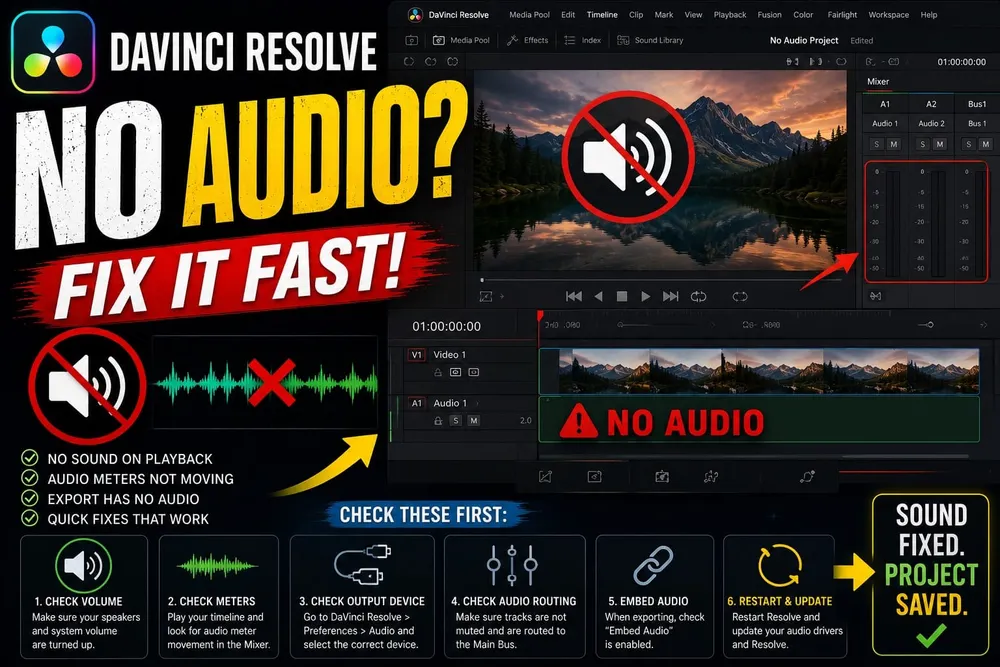
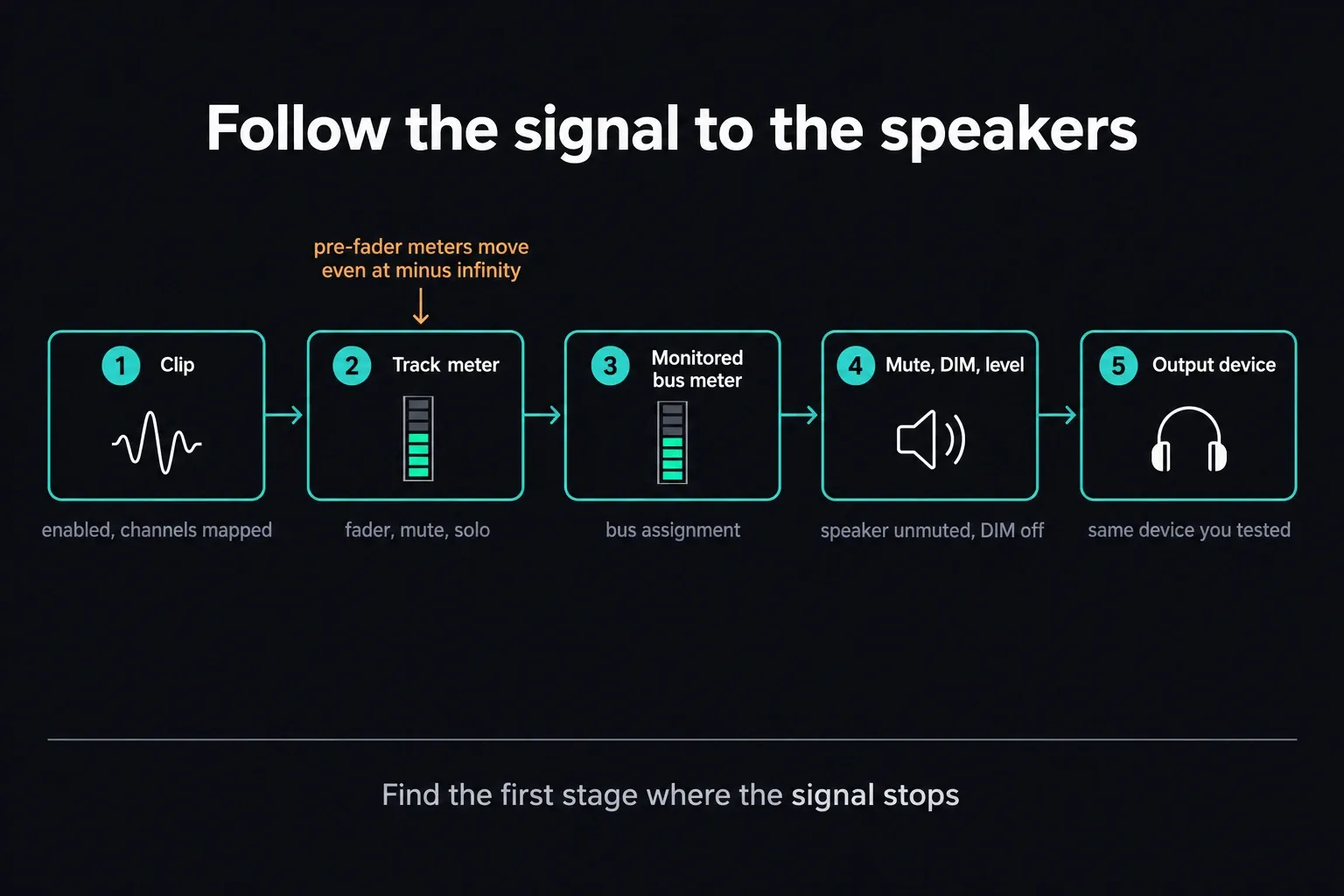
Don't start by flipping every audio preference you can find. Play a clip you know has sound on it and follow the signal: track meter, bus meter, monitoring controls, output device. Notice where each meter takes its reading, too. A pre-fader meter keeps bouncing even with the fader pulled all the way down.
This guide is about sound that vanishes while you work: in the timeline, on the Edit or Fairlight page, or on the way to your speakers and headphones. If playback sounds fine and only the exported file is silent, that's a different problem with a different fix, and the DaVinci Resolve export settings guide handles it.
DaVinci Resolve No Audio: Quick Symptom Map
Find your symptom below. Waveforms are a display aid, and seeing one is no audibility test. If they're missing, check Timeline View Options > Display Audio Waveforms first; it's in the Resolve timeline display controls. Then play a part of the source that should be loud and watch the meters.
- No waveform and no meter activity: check the waveform display, the source audio and channel mapping
- Waveform visible, clip or track meter idle: check clip mute/enable, clip level, channel mapping, track mute and solo
- Track meter moves, intended bus meter doesn't: check faders, mute/solo and output assignments
- Intended bus meter moves, speakers silent: check bus monitor selection, monitor level, mute/DIM, the device and OS app volume
- Source Viewer has sound, timeline doesn't: test a new track, then compare track type, mapping, mute/solo and bus assignment
- Timeline sounds right, export is silent: go to the export-audio workflow and leave playback monitoring alone
Before you touch Resolve, play the source in another player you trust and confirm the operating system can reach the output you want; a browser stereo test is enough for that. It proves the file and the device work. It won't catch a mute that only applies to one app. On Windows 11, open Settings > System > Sound > Volume mixer and look under Apps for Resolve's volume, mute state and Output device, if Resolve is listed there. Microsoft walks through these per-app audio checks. An ASIO interface has its own driver routing to configure as well.
If the source plays outside Resolve and the operating system reaches the speakers or headphones you mean to use, leave the source file alone and move on to the checks inside Resolve.
I rechecked these control names against the Blackmagic Resolve reference manual for version 21.1 on October 2, 2026. Start with your speakers or headphones turned low and bring them up slowly. Once you clear whatever was blocking the route, a loud mix can hit you all at once.
Unmute Resolve Monitoring and Clear DIM
The monitoring controls sit at the far right of the Fairlight transport: a speaker button, a level slider and a DIM button. According to the Resolve 21.1 manual, the speaker icon turns red when monitoring is muted, and the slider turns yellow while DIM is active. Unmute the speaker, switch DIM off and bring the monitor level back up to something audible and safe.
No Audio: Check Track and Clip Mute States
Next, look at the M and S controls on every audio track that matters. A muted track is silent, and one soloed track can make all the others look broken. Check the bus strip for mute or solo too, and clear any stray solos before you go near routing.
On the clip itself, check Enable Clip in the timeline context menu and the volume in the Audio Inspector. A disabled clip looks dimmed and won't play or render. Separately, check whether a required source channel is muted or mapped to an empty channel in Audio Configuration or Clip Attributes. Those are different controls, so don't start toggling a linked video selection at random. If you're muting on purpose for an edit, the guide to muting and splitting audio covers that side.
Still nothing after clearing the accidental mutes and solos? Bypass the channel's insert chain for a moment with Effects In. The manual explains the bypass limits: it switches off Fairlight FX, AU and VST inserts and leaves Track FX and the built-in Dynamics and EQ running. So a closed gate or heavy attenuation in those stages needs its own check.
If the sound comes back, turn the chain on again and bypass the plug-ins one at a time. Leave the processing where it is until you've found the insert that's blocking or crushing the signal.
Confirm Track Routing to the Monitored Bus
In a simple stereo timeline, every track you want to hear has to reach the bus you're monitoring, directly or through a submix. That bus might be labelled Bus 1, Main 1 or whatever custom name someone gave it. FlexBus lets tracks go to different destinations, so don't assign every track to the first bus, and don't add a duplicate direct route around a submix that already exists.
Open the Fairlight Mixer. Under Bus Outputs, use the + control to see which bus a track is assigned to, or choose Fairlight > Bus Assign for the full matrix. If the track is supposed to feed a submix, follow that submix along to where it goes. Fix a missing assignment only after you've checked faders and mute/solo. The Fairlight bus-routing guide covers building a submix on purpose.
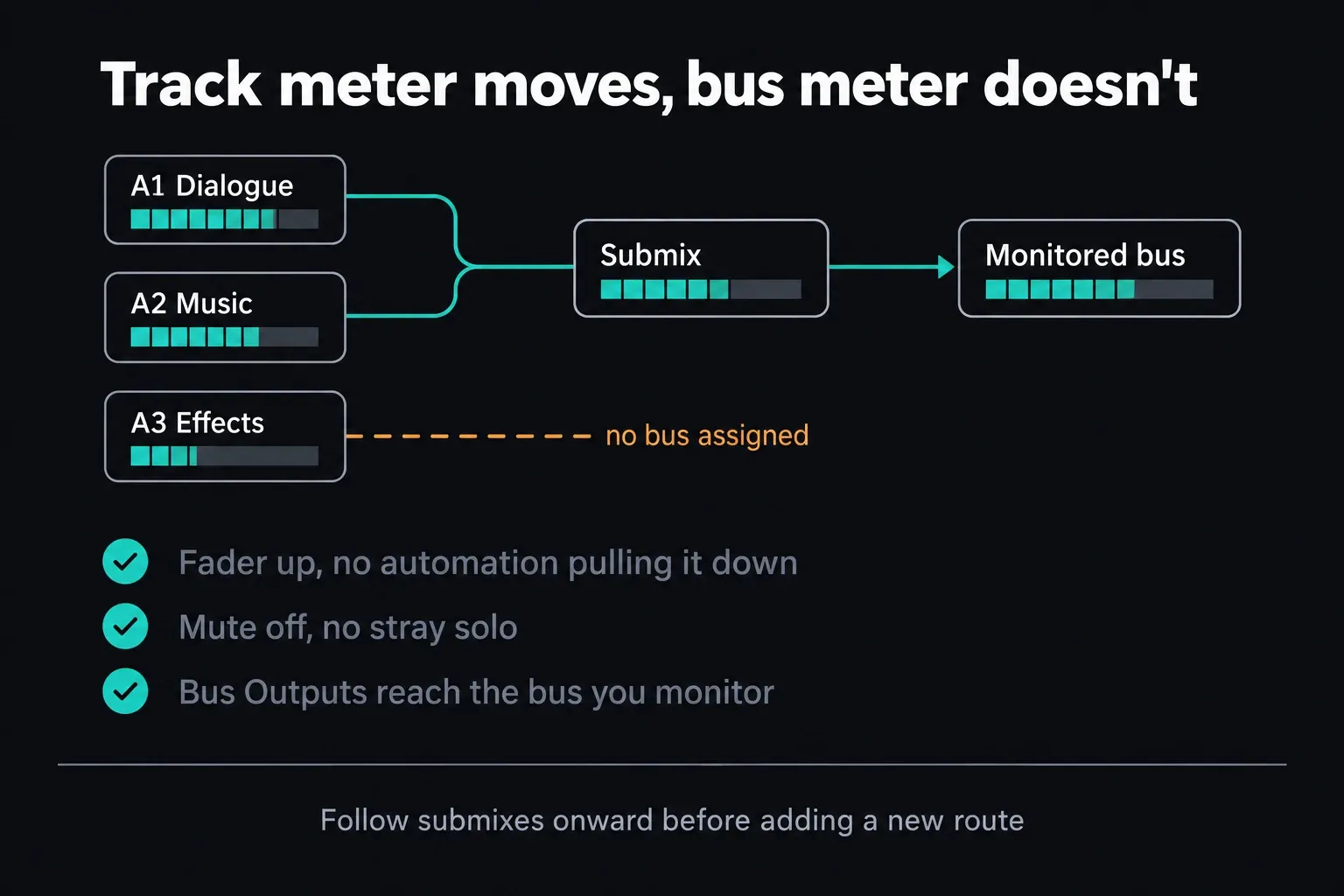
Look at track and bus faders as well as mute/solo and output assignments. Automation already on the track can pull a fader down during playback. With pre-fader metering switched on (it's off by default), a track meter keeps moving while its fader sits at minus infinity, and solo can leave ghost meters showing on tracks you can't hear. So a moving meter alone doesn't clear any of those controls. On a complex mix, save a project copy and write down the existing routing before you change it.
Check Monitor Selection Before Manual Patching
If the intended output bus meter is moving, check the bus monitoring menu below the Control Room meters. Pick the bus you actually want to hear, then check the speaker-set selection next to it. The Fairlight monitoring menus set what you listen to and through which speakers. A mix that works fine can still be silent in your headphones simply because you're monitoring a different bus.
Only dig into manual patching if your setup needs it. In Fairlight > Patch Input/Output, Audio Outputs are the hardware destinations. Monitor Out versus Bus Out matters here: Monitor Out comes after the monitor level, DIM and mute, and Bus Out is a direct feed from the bus. Swapping your monitoring path for Bus Out can skip the very controls that protect your listening level, so don't do it on a hunch. Turn the hardware volume down, save the project and record the existing patches before you change a left/right connection you need. And never clear all patches as a troubleshooting shortcut.
Check Resolve Preferences for the Wrong Output Device
Open Preferences > System > Video and Audio I/O. With System Audio chosen under I/O Engine, check Input Device, Output Device and Automatic speaker configuration against the current audio I/O controls. Pick connected hardware that you've already heard working outside Resolve. With an ASIO interface on Windows, select its compatible driver; System Audio isn't the only valid engine.
With Automatic speaker configuration enabled, Resolve sends sound to the workstation's built-in system output. Disable it only when you need to define monitor sets and map channels yourself. In a manual stereo set, confirm that Left and Right point to the intended device channels. The device name can be correct with empty channel mapping, and you'll still hear nothing.
No Audio After Switching Headphones or Bluetooth Devices
After you change speakers, headphones, a Bluetooth device or an audio interface, first confirm the new device works at the operating-system level. Then select it as Resolve's Output Device. If Resolve still holds on to the previous device, save the project, quit the application completely and open it again once.
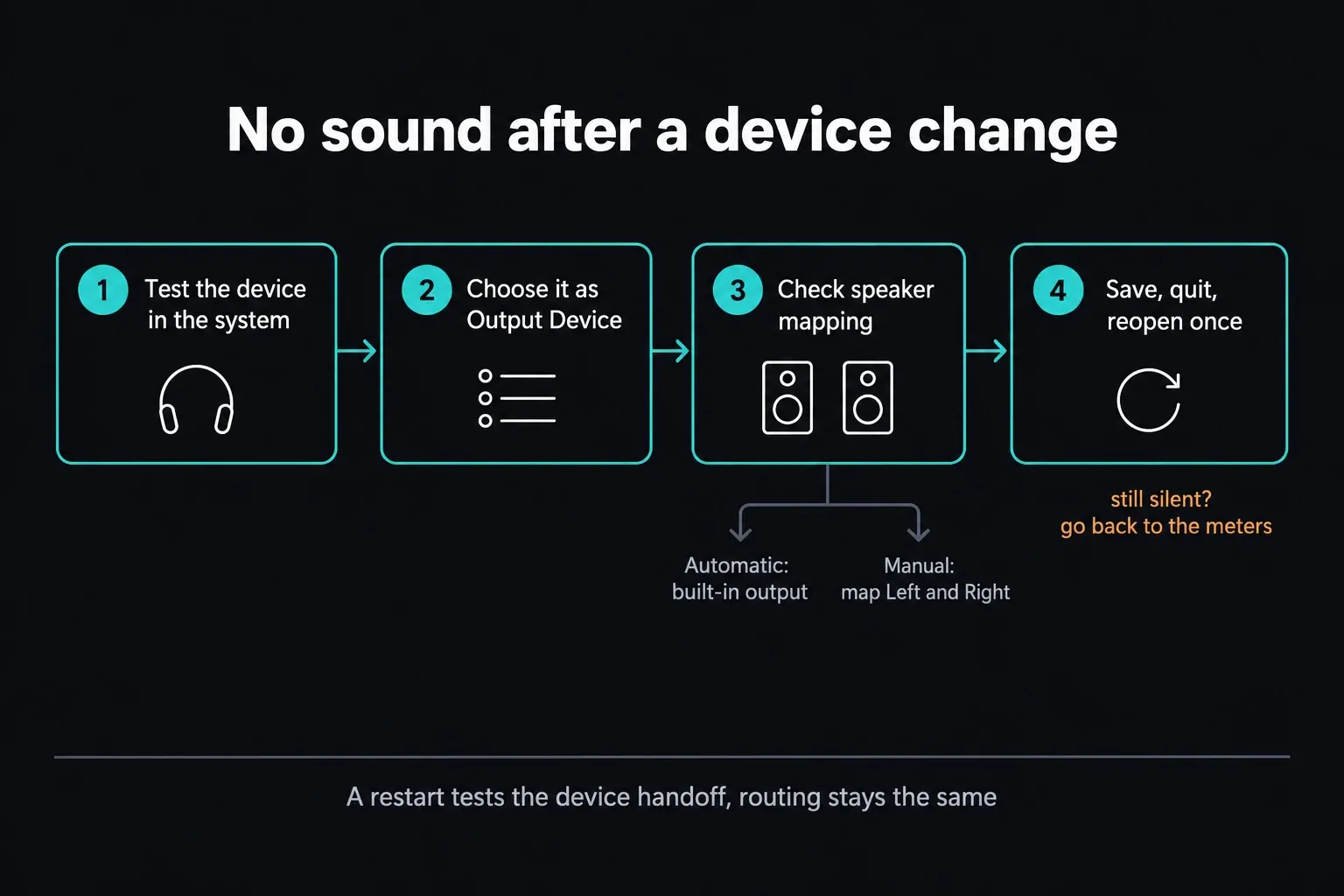
Treat the restart as a device-handoff test. It won't fix routing. If reopening Resolve doesn't bring the sound back, go back to the meters in order: track meter, monitored bus meter, then monitor output. That way a bus or patching mistake doesn't get buried under restart after restart.
On a Mac, Bluetooth sound that suddenly gets quiet or distorted when a conferencing app opens may be the headset switching into microphone mode, and your timeline audio is probably fine. Apple recommends quitting apps that use the headset microphone and reselecting the headphones. That explains a drop in quality or volume. It doesn't explain every case of complete silence.
Check Project and Audio Device Sample Rates
Project Settings > Fairlight holds Audio Sample Rate. The Resolve 21.1 manual says it defaults to 48 kHz and locks once the first timeline is created. It also says imported audio at other sample rates is automatically resampled to the timeline rate, so a 44.1 kHz music file in a 48 kHz project shouldn't go silent just because the numbers differ.
Sample-rate troubleshooting belongs at the device or driver, when it refuses the active format, crackles or drops out. Record its current settings first. On Windows, use the interface or ASIO control panel; on macOS, Audio MIDI Setup lets you select Format for the chosen device. Pick a rate the device supports for your project, and restart only if the driver requires it. There's no need to rebuild an existing project so a 44.1 kHz source file matches a 48 kHz timeline.
Set the project sample rate before you create the first timeline, because after that it locks. The Resolve Fairlight project settings document this limit. If you're doing initial setup and nothing is actually silent, start with the beginner DaVinci Resolve tutorial.
No Audio: Check Channel Mapping and Codec Support
For one silent clip, open Audio Configuration or Clip Attributes and look at channel mapping and muted source channels. Identify the codec and container from metadata, then compare that platform-specific combination with the current Supported Formats and Codecs list on Blackmagic Support. A container extension on its own doesn't prove codec support.
Linux AAC is worth checking early. The Resolve 21.1 codec list, dated September 2026, still marks AAC decode and encode unavailable in its Rocky Linux section, just as the Resolve 20 list did, and the Blackmagic Linux AAC discussion confirms the limitation for both Free and Studio in the versions discussed there. Buying Studio or switching the container from MP4 to MOV won't add AAC decoding. Check the list for the release you have installed, and when AAC is unsupported, convert the audio to PCM in a new file. The supported codecs guide explains how container, codec and platform fit together.
If the file carries an audio stream Resolve can't decode on your platform, make a new file and leave the original untouched. To replace only the audio, use uncompressed WAV/Linear PCM with the same start and duration. If the video has to be transcoded too, pick a documented edit-friendly codec and check frame rate, duration and sync before you swap the clip.
Silent audio is no reason to delete caches or reset preferences. Test the original media first, and use a duplicate timeline if you want to compare results, since a proxy with missing audio channels can behave differently from its original. Keep the source, the project backup and your current settings intact. A waveform that won't display is no evidence of a broken audio route.
No Audio in Timeline But Fine in Source Viewer
If the Source Viewer plays the clip and the timeline stays quiet, first make sure an audio item actually made it into the timeline. A video-only edit has nothing to play. In a duplicate timeline, put the same source, audio included, on a new audio track of the appropriate type. If it plays there, compare the original clip state, track type, mute/solo, faders and bus assignment.
If the new track is silent too, open Audio Configuration in the File Inspector or the Audio panel of Clip Attributes and confirm the embedded channel you need is mapped and unmuted. A stereo container can hold two different microphones, one of them empty, so listen to the required source channel. Both sides don't always carry the same sound.
Fast Resolve No Audio Checklist
- Monitoring speaker icon unmuted, DIM off and monitor level audible
- Clip enabled, required source channels mapped, clip level audible
- Track mute off, and no stray solo isolating part of the mix
- Tracks reach the intended bus directly or through the correct submix; faders and automation checked
- Monitored bus meter moving, bus not muted or soloed
- Monitor source and speaker set correct; manual patches checked only when the setup requires them
- I/O Engine and Output Device pointing to connected hardware
- Automatic speaker configuration or manual Left/Right mapping matches your setup
- A single silent source checked against Blackmagic's platform codec support
- Original media compared with proxies, with caches and preferences left alone
No Audio FAQ
Why does DaVinci Resolve show audio meters moving but I hear nothing?
Moving track meters show signal at the point where that meter reads, which can be well upstream of your speakers. With pre-fader metering, check the fader and mute/solo too. If the intended bus meter stays still, check track outputs and bus state. If it moves, check bus monitor selection, monitor level and mute/DIM, speaker mapping, output device and OS app volume.
Does restarting DaVinci Resolve actually fix audio device issues?
It can, after an output-device handoff. Save the project, choose the correct Output Device in Video and Audio I/O, and reopen Resolve once if the previous device is still active. A restart won't repair track routing, a bus assignment or a muted monitor.
Can a sample rate mismatch really cause silence with no error message?
Not by itself. Resolve 21 automatically resamples imported audio to the timeline rate. A device or driver that can't run at the active rate can still crackle or go silent, so check its control panel or Audio MIDI Setup. Changing Clip Attributes or blaming every 44.1 kHz file won't fix that.
Why is only one clip on my timeline silent when everything else plays?
Check the clip's Audio Configuration or Clip Attributes for channel mapping and muted source channels. Then identify the actual audio codec and container from metadata and compare them with the current platform codec list. Clip Attributes won't name the codec, so don't treat it as a codec detector.
Should I check bus routing before or after checking my output device in Preferences?
After a quick OS device test, trace the signal through the track and the intended output bus. If the bus meter stays still, check faders, mute/solo and bus assignments. If it moves, check which bus and speaker set you're monitoring, then the output device and any patching your setup requires. A direct Bus Out patch isn't a universal fix, so only add one when the setup calls for it.
Why do I see waveforms but hear no audio in DaVinci Resolve?
Waveforms show that Resolve generated waveform data. They don't prove the current playback path is audible. Check clip state and channel mapping, track faders and mute/solo, bus assignments, monitor selection, speaker mapping and Output Device. Pre-fader meter activity can stay visible on a track you can't hear.
Why did DaVinci Resolve lose audio after I changed headphones?
Confirm the new headphones or speakers work in the operating system, select them under Preferences > System > Video and Audio I/O > Output Device, and reopen Resolve once if it's still holding the previous device. Map speakers manually only when Automatic speaker configuration doesn't fit your setup.
For other media, GPU, render and crash symptoms, start with the Fix DaVinci Resolve troubleshooting hub. If the meters point to a bus-routing problem, or you need EQ, dynamics and delivery work once the sound is back, continue in the Fairlight Audio hub.
