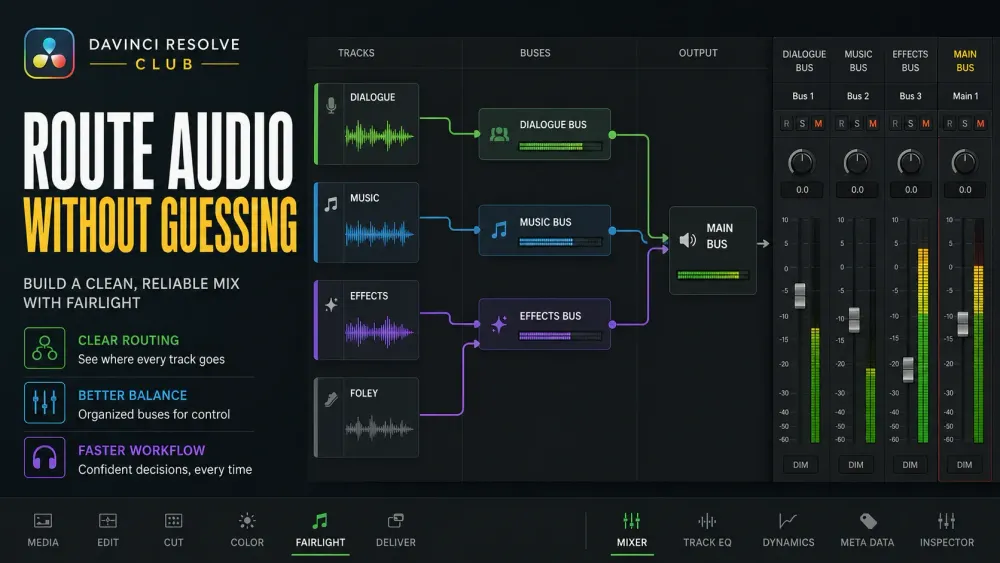
For a simple DX/MX/FX house layout, one normal output per stage makes the route easy to audit: source track to its submix, then submix to Stereo. That's an editorial recommendation, not a FlexBus limit.
Resolve supports multiple outputs and sends; the failure begins when parallel paths rejoin unintentionally, such as VO feeding both DX and Stereo while DX also feeds Stereo.
The Fairlight signal flow in plain English
A track contains clips. A bus sums the output of one or more tracks or other buses. That summed signal gets its own channel strip, so you can change the level, EQ, dynamics, plug-ins, panning, automation, and destination for the whole group.
| Path | What it does | Use it when |
|---|---|---|
| Track, then Stereo | Sends the track directly to the final output bus | The timeline is small and you do not need group processing or stems |
| Track, then DX/MX/FX, then Stereo | Routes related tracks through a controllable submix | You want one fader, shared processing, automation, or a deliverable stem for each family |
| Track, then normal output plus Bus Send, then VERB | Creates a second, parallel path | You want reverb, delay, a cue mix, or another effect without replacing the dry route |
Resolve 21 uses FlexBus. A bus role comes from what feeds it and where its output goes, rather than a permanent “main,” “submix,” or “aux” type. The final Resolve 21 Reference Manual documents track-to-bus, bus-to-bus, bus-to-track, output, and send assignments; use those active paths as the source of truth.
Build a clean DX, MX, and FX bus layout
1. Name the source tracks before touching routing
Rename generic tracks such as A1 and A2 by role: VO 1, Boom, Lav, Music, SFX, Ambience. A routing matrix full of anonymous track numbers is hard to diagnose later. If the dialogue is already edited, clean the clips first; our Remove Silence guide covers the fastest safe workflow.
Check the track format as well. Most individual microphones belong on mono tracks. Music and many effects arrive as stereo. The bus format should match what the group needs to deliver, not merely the format of the first clip you see.
2. Create and name the buses
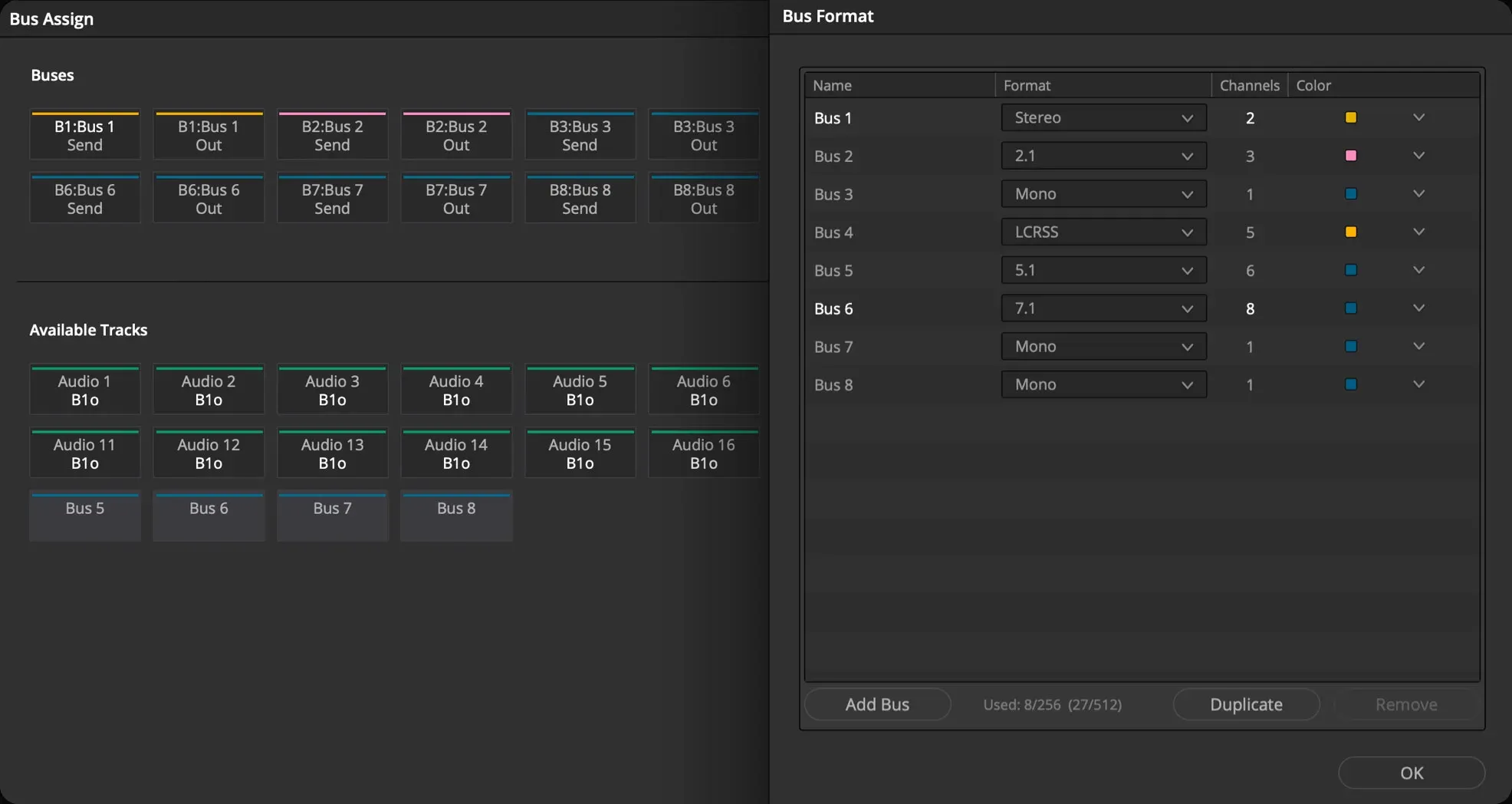
Open the Fairlight page and choose Fairlight, then Bus Format. Keep or rename the default stereo bus to Stereo, then add the submixes you actually need. A practical starting layout is DX, MX, and FX. Add VERB only if you need a shared parallel effect.
- Stereo: final two-channel mix.
- DX: dialogue and voice-over. Mono can be appropriate for a mono dialogue stem; stereo is also valid when your delivery or processing requires it.
- MX: music, normally stereo.
- FX: effects and ambience, normally stereo for web and standard stereo delivery.
- VERB: stereo auxiliary return for reverb or delay.
Don't copy those formats blindly into a surround or broadcast project. The delivery specification wins. Blackmagic also documents adaptive tracks for unusual channel layouts, but a normal YouTube or course video doesn't become better because its routing diagram is more complicated.
3. Assign every source to one submix output
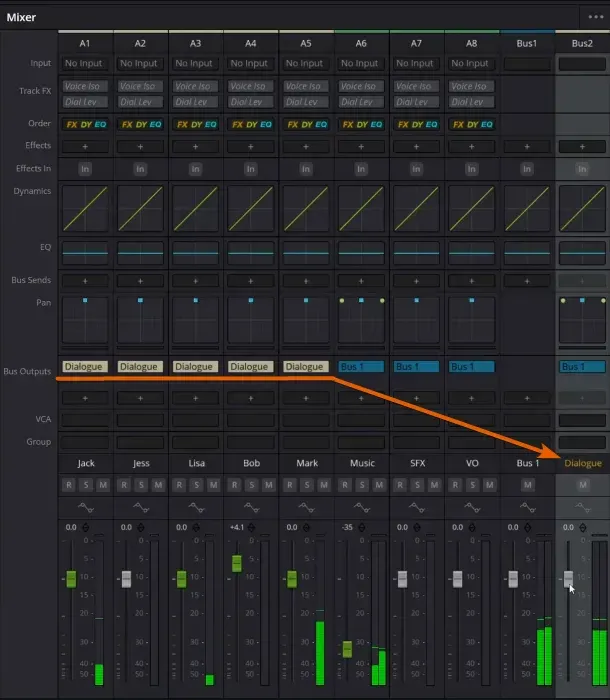
You can assign routing in the Mixer or open Fairlight, then Bus Assign. In the Mixer, expose Bus Outputs from the Mixer Options menu if that section is hidden. Assign all dialogue tracks to DX, music tracks to MX, and effects tracks to FX.
Bus assignments can be additive. After assigning a source to DX, inspect Bus Outputs or Bus Assign and remove a direct Stereo route only if both paths reach the same destination unintentionally. The recommended house path is VO 1 > DX > Stereo; a deliberate parallel route is valid when its purpose and destination are documented.
4. Route the submix buses to Stereo
Select the DX, MX, and FX bus channel strips and add Stereo in their Bus Outputs. Now play a section containing every category. The source-track meter should move, then its submix meter, then the Stereo meter. If one stage stops, the fault is immediately upstream of that meter.
Bus Output vs Bus Send: the difference that prevents doubling
A Bus Output is the normal destination. A Bus Send is an additional feed. That distinction matters more than the names on the buses.
For shared reverb, keep VO 1’s normal output on DX. Add VERB under Bus Sends, place the reverb plug-in on the VERB bus, and route VERB to Stereo. Adjust the wet amount with the send level or the VERB bus fader. This preserves the dry dialogue path and adds the processed return in parallel.
A post-fader send follows later moves to the source fader, which is usually sensible for reverb: lower the voice and its reverb falls with it. A pre-fader send remains independent of the source fader and is useful for specialized cue or monitoring feeds. Pick deliberately; neither mode is universally “more professional.”
Shared processing that should affect the entire group belongs on the submix, not on an aux return. For example, use the Fairlight dialogue EQ workflow and dialogue compression guide to shape DX. Use a send for reverb or delay that must sit beside the dry sound.
Verify the route before mixing
Use three short tests before inserting more plug-ins. They reveal routing errors faster than staring at a large mixer.
- Meter test: play one source at a time and follow its meters from track to submix to Stereo.
- Mute test: mute DX. Every dialogue track should disappear, while music and effects remain. Repeat for MX and FX.
- Unity test: bypass bus processing, set the relevant faders to unity, and compare the rebuilt route with the original. A sudden level jump often means a duplicate direct path is still active.
- Speaker/device test: if track, submix, and Stereo meters all move but the speakers are silent, stop rebuilding buses. Check Bus Outputs, Control Room or monitor selection, Resolve audio I/O, the operating-system output device, and any required patching.
Don't confuse routing, monitoring, and delivery. If the Stereo meter moves, the track-to-bus chain is passing signal. Silence after that point belongs to Bus Outputs, Control Room or monitor selection, Resolve's audio I/O/output-device configuration, operating-system audio, or patching. The monitoring choice also doesn't select the Deliver output.
Export the full mix and stems on the Deliver page
Open Deliver and choose an audio-capable preset or Audio Only. For lossless handoff, Wave with Linear PCM is a common choice; the required bit depth and channel layout still come from the client or platform specification.
- Choose Single Clip so every output spans the same render range.
- Under Audio, set Output Track 1 to the final Stereo bus.
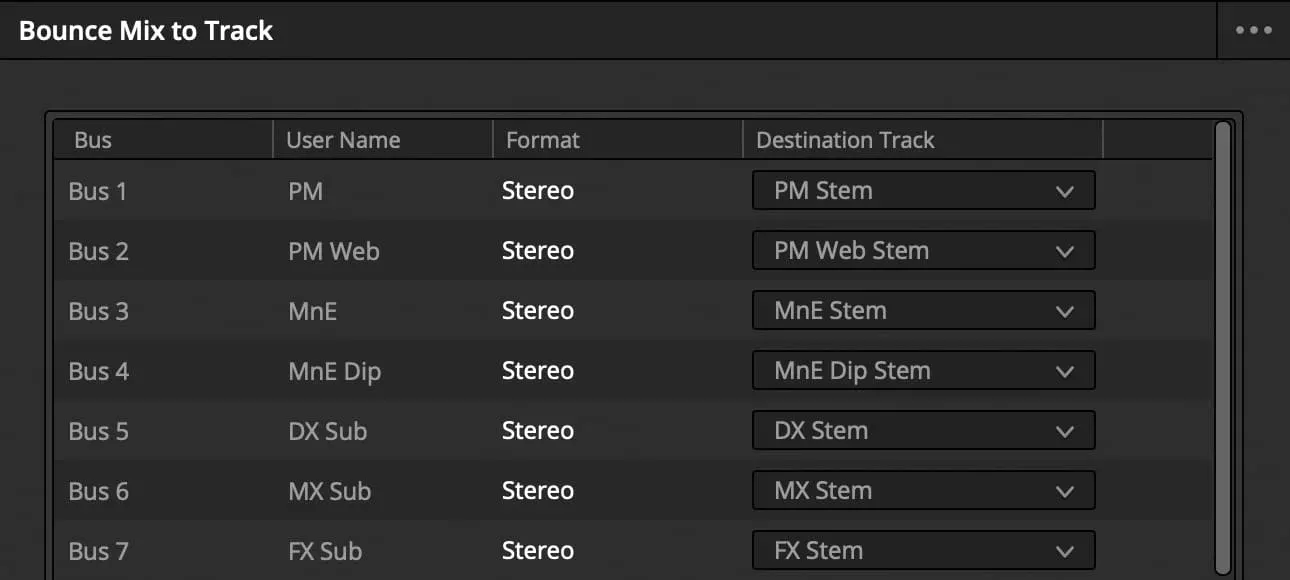
- Use the plus button to add DX, MX, and FX as additional Output Tracks when stems are required.
- Confirm each displayed format, Mono, Stereo, 5.1, or another layout, before queuing the render.
- Render a short test, then reimport it into a blank timeline and check the start time, duration, channel count, and content.
The Deliver page can output several buses in the same render job. That's different from choosing “All Timeline Tracks,” which prints timeline tracks rather than the processed submix structure. If the stem must contain the EQ, compression, automation, and other processing on DX, export the DX bus.
Real broadcast deliveries can require empty channels, multiple language mixes, or a precise interleaved layout. A useful community routing example for an eight-channel broadcast file illustrates why the bus names, formats, Output Track order, and “Render one track per channel” choice must follow the delivery sheet rather than a generic preset.
For a normal web upload, export the final Stereo bus and check its loudness after all submix processing. The targets and measurement workflow are covered in our Fairlight LUFS and audio levels guide. For codec and file settings, use the separate DaVinci Resolve audio export guide.
Fairlight bus routing troubleshooting
The track meter moves, but the bus is silent
Check the track’s Bus Outputs as well as its sends. Confirm the playhead is over an audible clip, the destination bus isn't muted, and the source fader or automation hasn't pulled the signal down. Then open Bus Assign in List view and verify the output abbreviation beside that track.
The submix moves, but Stereo is silent
If the submix meter moves but Stereo does not, inspect the submix Bus Output, fader, mute, automation, and Stereo mute state.
If Stereo also moves but the speakers are silent, routing has passed the meter test: inspect Control Room or monitor selection, Bus Outputs, Resolve audio I/O, the OS output device, and patching instead of recreating the submix.
The full mix is louder after adding submixes
The source tracks probably still feed Stereo directly while also feeding submixes that feed Stereo. Remove the direct Stereo output from those source tracks. Don't fix a duplicated route by arbitrarily lowering the master fader; repair the signal flow.
The stem is missing bus effects
You exported timeline tracks or the wrong bus. Choose the processed DX, MX, or FX bus in Output Track. If an effect lives on a separate aux return, decide whether the delivery specification expects that return folded into the stem, delivered separately, or only present in the full mix.
The export is mono when the mix should be stereo
Inspect the format at every stage: source track, submix, final bus, and selected Output Track. One mono bus in the chain can collapse the result. Change formats intentionally in Bus Format and confirm the Deliver dropdown reports the expected channel layout.
Does Fairlight bus routing require Resolve Studio?
No. Standard FlexBus routing, buses, sends, channel mapping, mixer processing, and stereo stem workflows are available in DaVinci Resolve Free. Studio adds tools and formats that may matter for advanced immersive work, but you don't need Studio to build a clean DX/MX/FX mix.
Checked September 5, 2026, this guide targets DaVinci Resolve 21. The current Fairlight overview confirms the channel-strip processing model. Interface placement can shift, so use the documented names, Bus Format, Bus Assign, Bus Outputs, Bus Sends, Control Room, and Output Track, as anchors.
A routing checklist I would trust at delivery
- Every source track has a clear name and the intended mono, stereo, or multichannel format.
- Every source has one normal output path unless duplication is deliberate and documented.
- DX, MX, and FX reach the final Stereo bus.
- Aux buses such as VERB also reach Stereo and contain only the intended parallel return.
- Mute tests isolate exactly one family at a time.
- The Stereo bus and every requested stem are selected explicitly under Deliver, then Output Tracks.
- A rendered test has been reimported and checked outside the live routing session.
Routing is the backbone of the Fairlight audio hub and the broader DaVinci Resolve tutorial roadmap. If every bus meter moves but no speaker output exists, use the no-audio device and monitoring checklist before changing the routing graph.
Fairlight bus routing FAQ
What is a bus in DaVinci Resolve Fairlight?
A bus is a signal path that sums one or more tracks or other buses into a new mixer channel. It lets you control, process, monitor, route, or export those sources as a group.
Should every audio track go to its own bus?
No. Create buses for useful groups and deliverables. Multiple dialogue tracks can share DX, music tracks can share MX, and effects can share FX. A tiny project may route tracks directly to Stereo.
What is the difference between a bus output and a bus send?
A Bus Output is the track’s normal destination. A Bus Send is an additional parallel feed with its own level and pre- or post-fader behavior. Sends are commonly used for shared reverb, delay, or cue mixes.
Why does audio get louder after I route it to a submix?
The source is often reaching Stereo twice: once directly and once through the submix. Remove the direct Stereo output from the source so it travels only through the intended submix.
How do I export dialogue, music, and effects stems?
Route those families to named DX, MX, and FX buses. On Deliver, use the plus button under Output Tracks to add each bus, verify its channel format, render the same range, and reimport the files for an alignment check.
Can I route one Fairlight track to more than one bus?
Yes. FlexBus supports multiple bus outputs and sends. Use them only when the design requires parallel paths, and trace every path to its destination; unintended routes that rejoin can raise level or bypass group processing.
