Home Tutorials
DaVinci Resolve topic library
Tutorials
Step-by-step DaVinci Resolve tutorials covering editing, color, Fusion, and audio.
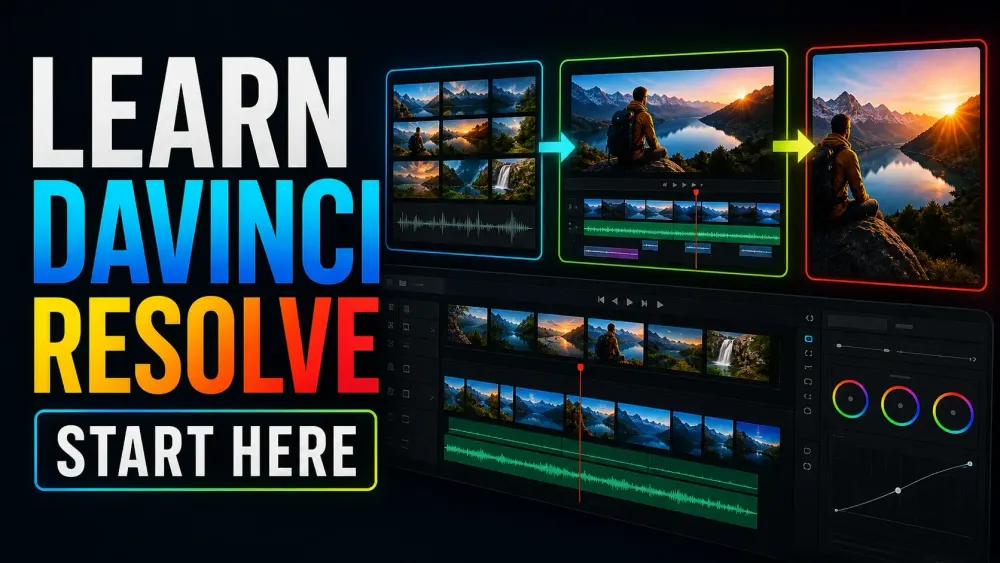
What this library covers
Choose the task, then open one focused guide
Choose by the result you need, not by the name of a Resolve page or tool. Each card takes one job from the first setting to a result you can check.
Start with the resultPick the card that matches what you need to finish, fix or understand.
Use one guide at a timeEach article owns one task, so you do not have to decode a giant index.
Move to the next real stepRelated tasks stay visible without repeating every link on the page.
Choose the task
Guides in this library
One card opens one focused guide. Covers stay visible, and the same article is not repeated in a second link list.
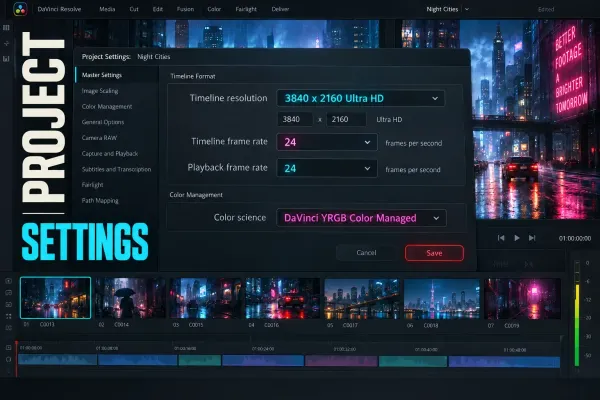 DaVinci Resolve Project Settings: What to Set Before You Edit
Set the DaVinci Resolve Project Settings that affect your timeline before editing, then separate adjustable playback settings from final delivery checks.
DaVinci Resolve Project Settings: What to Set Before You Edit
Set the DaVinci Resolve Project Settings that affect your timeline before editing, then separate adjustable playback settings from final delivery checks.
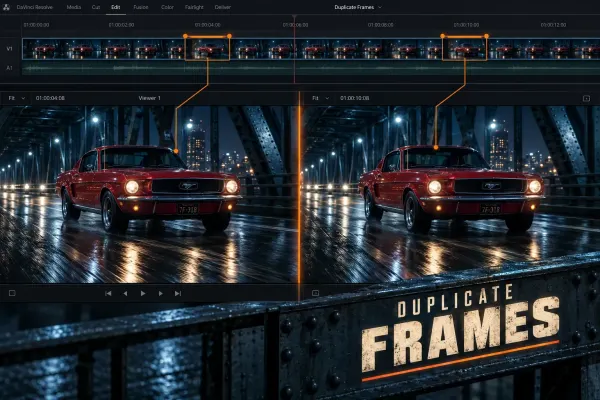 How to Find Duplicate Frames in DaVinci Resolve
Turn on duplicate-frame detection, read the colored bars correctly, remove accidental reused ranges, and avoid confusing timeline duplicates with repeated frames inside a source file.
How to Find Duplicate Frames in DaVinci Resolve
Turn on duplicate-frame detection, read the colored bars correctly, remove accidental reused ranges, and avoid confusing timeline duplicates with repeated frames inside a source file.
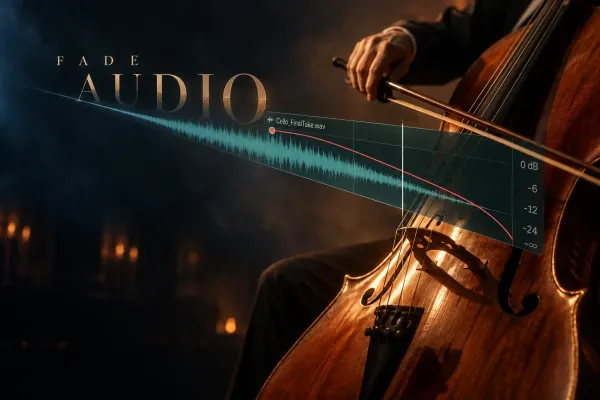 How to Fade Audio In and Out in DaVinci Resolve
Choose the right DaVinci Resolve audio fade: fast clip handles, precise volume keyframes, clip-to-clip crossfades, or consistent Fairlight batch fades.
How to Fade Audio In and Out in DaVinci Resolve
Choose the right DaVinci Resolve audio fade: fast clip handles, precise volume keyframes, clip-to-clip crossfades, or consistent Fairlight batch fades.
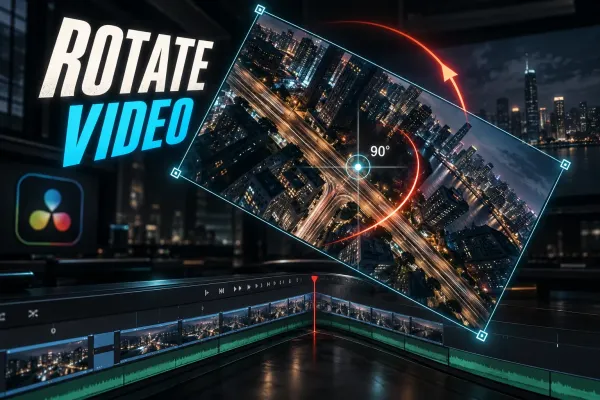 How to Rotate Video in DaVinci Resolve: Fix Sideways Clips
Fix sideways or upside-down footage with Clip Attributes, rotate a shot intentionally in the Inspector, and solve black bars, framing and export problems.
How to Rotate Video in DaVinci Resolve: Fix Sideways Clips
Fix sideways or upside-down footage with Clip Attributes, rotate a shot intentionally in the Inspector, and solve black bars, framing and export problems.
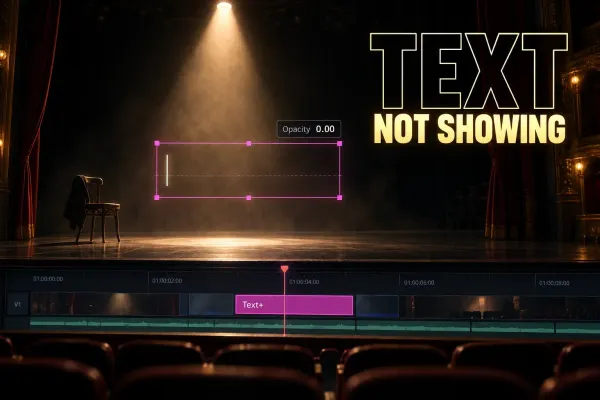 DaVinci Resolve Text Not Showing: Viewer and Export Fixes
Separate title, subtitle and Fusion failures, then follow the missing text from the timeline to the Viewer and final render.
DaVinci Resolve Text Not Showing: Viewer and Export Fixes
Separate title, subtitle and Fusion failures, then follow the missing text from the timeline to the Viewer and final render.
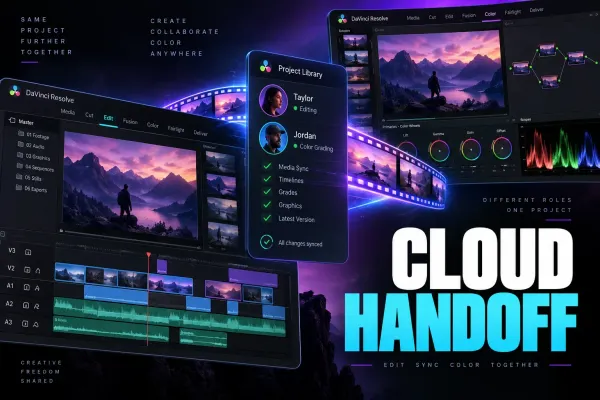 DaVinci Resolve Cloud Collaboration: Media Sync and Handoff
A practical DaVinci Resolve Cloud collaboration plan for shared project libraries, local media copies, proxies, relinking, timeline updates, and final handoff.
DaVinci Resolve Cloud Collaboration: Media Sync and Handoff
A practical DaVinci Resolve Cloud collaboration plan for shared project libraries, local media copies, proxies, relinking, timeline updates, and final handoff.
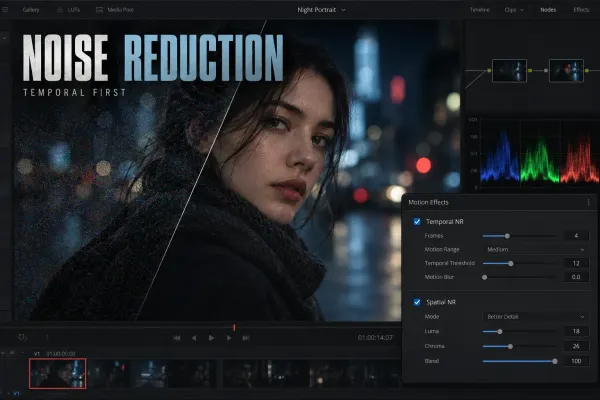 Video Noise Reduction in DaVinci Resolve: Temporal vs Spatial NR
A practical Studio workflow for reducing image noise with Temporal NR first, Spatial NR only where needed, and clear checks for lost detail or motion artifacts.
Video Noise Reduction in DaVinci Resolve: Temporal vs Spatial NR
A practical Studio workflow for reducing image noise with Temporal NR first, Spatial NR only where needed, and clear checks for lost detail or motion artifacts.
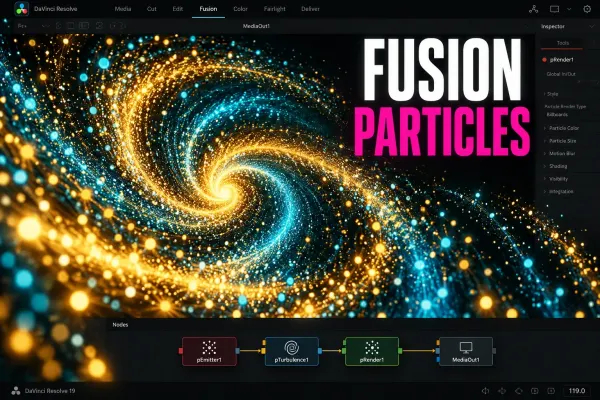 Fusion Particles in DaVinci Resolve: A Beginner Workflow
Build a first Fusion particle system with pEmitter and pRender, shape its motion, add forces, composite it over footage, and fix blank or sluggish results.
Fusion Particles in DaVinci Resolve: A Beginner Workflow
Build a first Fusion particle system with pEmitter and pRender, shape its motion, add forces, composite it over footage, and fix blank or sluggish results.
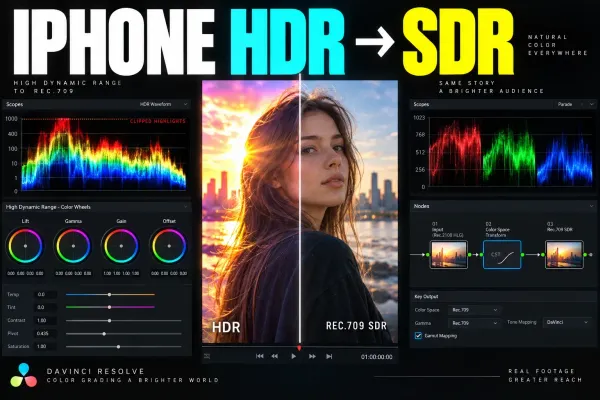 iPhone HDR to SDR in DaVinci Resolve
A source-aware workflow for converting iPhone Dolby Vision HDR, HLG, Apple Log, and Apple Log 2 footage into a controlled Rec.709 SDR delivery.
iPhone HDR to SDR in DaVinci Resolve
A source-aware workflow for converting iPhone Dolby Vision HDR, HLG, Apple Log, and Apple Log 2 footage into a controlled Rec.709 SDR delivery.
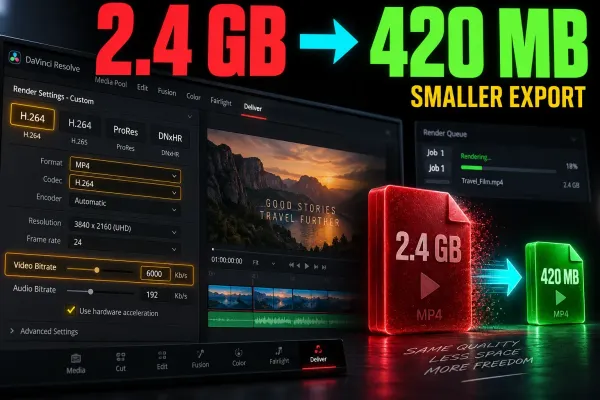 How to Reduce Export File Size in DaVinci Resolve
A practical workflow for working backward from an MB or GB limit, setting a video bitrate in Resolve, and checking the final export with enough margin.
How to Reduce Export File Size in DaVinci Resolve
A practical workflow for working backward from an MB or GB limit, setting a video bitrate in Resolve, and checking the final export with enough margin.
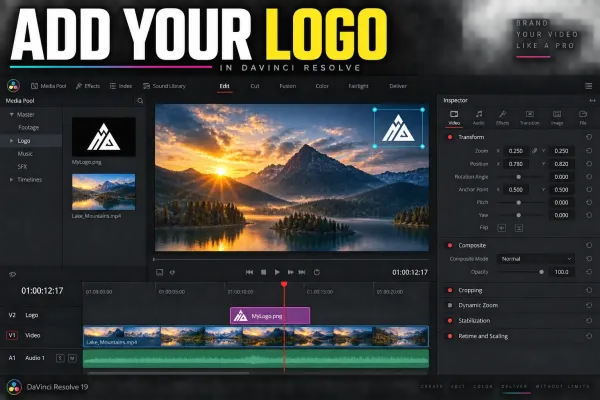 How to Add a Logo or Watermark in DaVinci Resolve
Place a transparent logo above your video, size and position it, set watermark opacity, animate it, and fix black backgrounds or dark edge halos.
How to Add a Logo or Watermark in DaVinci Resolve
Place a transparent logo above your video, size and position it, set watermark opacity, animate it, and fix black backgrounds or dark edge halos.
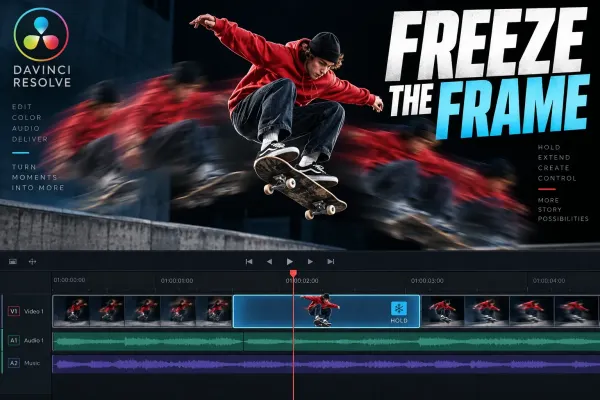 How to Freeze a Frame in DaVinci Resolve
Choose the right freeze-frame method, hold a precise moment, continue playback cleanly, protect linked audio, and export a still when the timeline is not the final destination.
How to Freeze a Frame in DaVinci Resolve
Choose the right freeze-frame method, hold a precise moment, continue playback cleanly, protect linked audio, and export a still when the timeline is not the final destination.