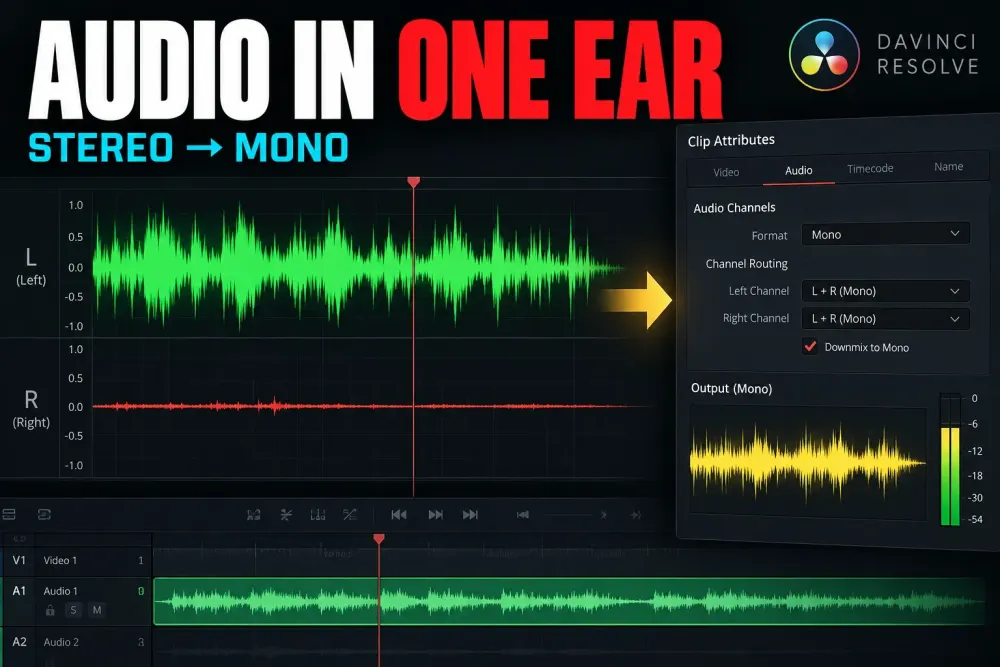
Quick answer: right-click the affected clip, open Clip Attributes > Audio, set the clip format to Mono, and map the channel that contains the recording. Choose Embedded Channel 1 when the useful signal is on the left channel, or Embedded Channel 2 when it is on the right. Put that clip on a mono timeline track, center its pan, and confirm that the stereo output bus shows activity on both sides. This is one part of the larger Fairlight audio hub.
Do not apply that fix blindly to music, ambience, or any recording with meaningful left-right information. A mono microphone saved inside a two-channel file is a mapping problem. A real stereo recording is supposed to have two different channels. The first job is to identify which kind of file you have.
Identify Where the One-Ear Problem Starts
Play the affected clip and watch the smallest useful signal path. Start with the clip or track meters, then the stereo bus meter. This gives you a better diagnosis than moving pan controls until sound appears. For the next mix check, use the audio levels guide.
| What you see and hear | Likely cause | First place to check |
|---|---|---|
| Only the left source channel has a waveform or meter activity | Mono recording stored in a stereo container | Clip Attributes > Audio |
| Both source channels contain different useful sound | Genuine stereo or dual-mono recording | Listen to each channel before remapping |
| A mono clip meter moves, but the stereo bus moves on one side | Pan, track format, or routing problem | Fairlight mixer and pan |
| The stereo bus moves on both sides, but one headphone side is silent | Monitoring device, cable, operating-system, or interface problem | Output device and a known-good stereo file |
| No meters move at all | This is broader than a one-ear mapping issue | DaVinci Resolve No Audio |
A waveform drawn on one half of a stereo clip is a strong clue, not final proof. Some stereo recordings deliberately contain quiet or empty passages on one side. Solo or monitor the source channels before you discard one.
Fix Left-Only or Right-Only Audio in Clip Attributes
- Select the problem clip in the Media Pool or timeline.
- Right-click and choose Clip Attributes.
- Open the Audio tab.
- Set Format to Mono.
- Under Source Channel, choose the embedded channel that contains the recording.
- Apply the change and play the clip through a centered mono track.
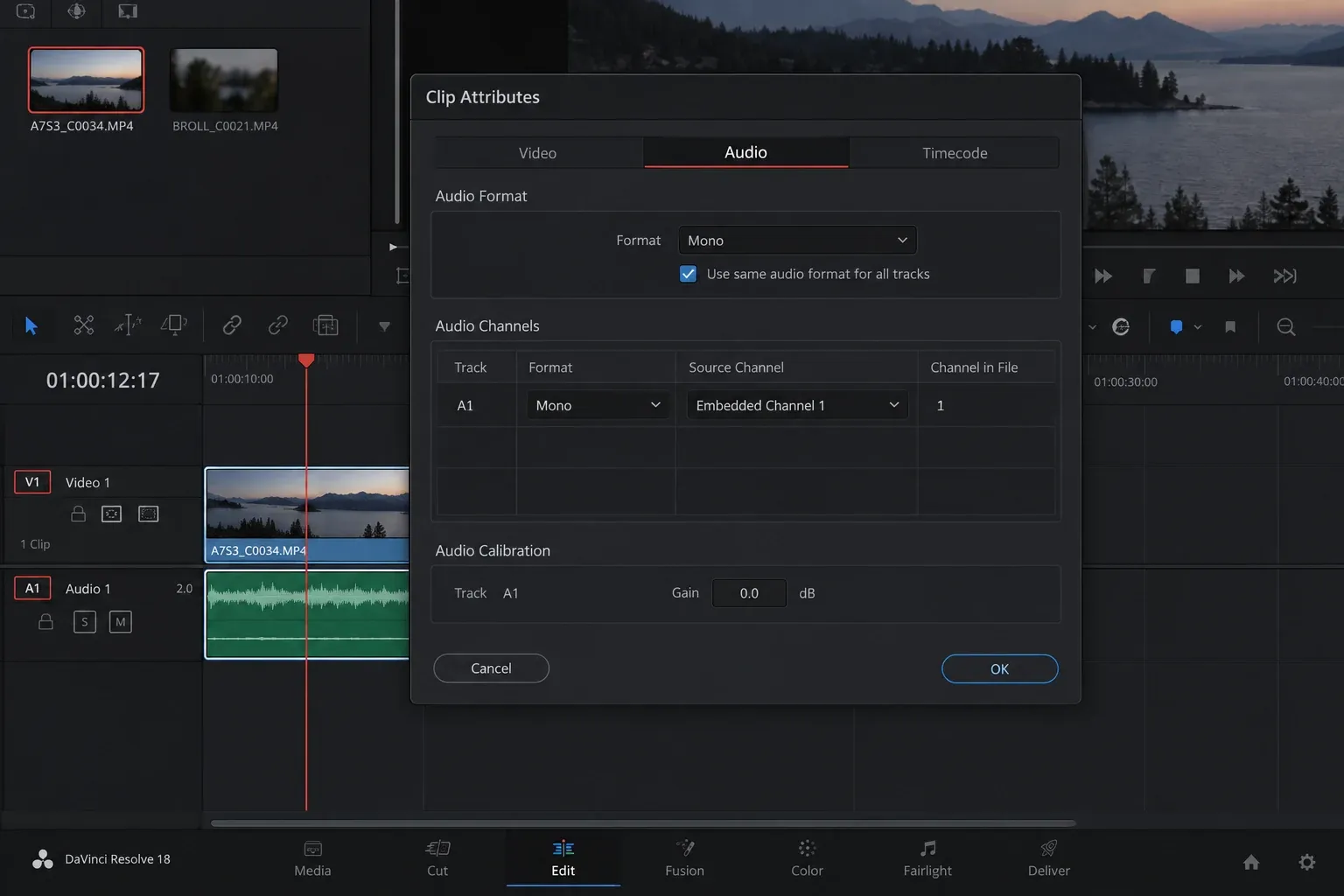
If the clip originally played only on the left, start with Embedded Channel 1. If it played only on the right, use Embedded Channel 2. Those labels describe channels inside the media file. They do not mean timeline track A1 or A2.
After the change, one mono signal should feed the center of a stereo mix and reach both speakers. You are not creating stereo detail. You are telling Resolve to interpret one recorded channel as a mono source and place it through the normal mix path.
Why Panning Is Not the First Fix
A pan control positions a correctly interpreted signal in the mix. It does not repair a stereo clip whose useful recording exists on only one embedded channel. If you pan that broken stereo interpretation toward the empty side, the result may get quieter or disappear. If you pan toward the active side, you still have a one-sided signal.
Source mapping comes first. Once the clip is mono, center the pan. A centered mono track feeding a stereo bus should contribute equally to left and right. Use creative panning only after the source behaves correctly.
Blackmagic's Fairlight overview describes the mixer, track formats, panning, and multichannel workflow. The practical rule is simple: interpret the file correctly at the clip, position it at the track, and deliver it through the intended bus.
Source Channel, Clip Format, Track Format, and Bus Are Different Layers
These controls can all say mono or stereo, but they solve different problems.
| Layer | Question it answers | Typical one-ear fix |
|---|---|---|
| Embedded source channel | Which recorded channel contains the useful signal? | Select Channel 1 or Channel 2 |
| Clip format | How should Resolve interpret the selected source channel or channels? | Interpret one active microphone channel as Mono |
| Timeline track format | How should clips on this track be mixed and panned? | Use a mono track for a mono voice or microphone |
| Bus format | What channel layout leaves the mixer? | Keep the main delivery bus stereo for a normal stereo program |
| Monitoring device | Where do the bus channels reach your speakers or headphones? | Check hardware only when the bus meters are correct |
Changing the main bus to mono may make both speakers produce sound, but it also collapses the whole program. That can hide the source problem while damaging music and ambience. Fix the clip that is wrong instead of flattening every other element in the mix.
Choose the Correct Embedded Channel Without Guessing
For a simple left-only file, Channel 1 is usually the useful channel. For a right-only file, Channel 2 is usually the useful channel. External recorders and cameras can be less obvious. One channel may hold a boom microphone while another holds a lavalier, scratch audio, a safety level, or silence.
Listen to each embedded channel separately before committing:
- Use the channel with the intended microphone and cleanest intelligible recording.
- Do not combine a normal level and a safety channel merely because both exist.
- Do not collapse two different microphones together before checking phase, noise, and editorial purpose.
- Keep a note of the source channel choice when multiple clips from the same recorder use the same layout.
If the camera and external recorder need to be associated first, use the audio and video sync workflow. Retaining camera audio and production sound can create several embedded channels; mapping them deliberately is safer than assuming the first channel is always the keeper.
Handle Dual-Mono Files as Two Mono Sources
A dual-mono file stores two independent mono recordings in a two-channel container. That is common when one input carries a boom and the other carries a lav, or when two speakers were recorded to separate inputs. It looks like stereo at the file level, but it is not a stereo scene.
In Clip Attributes > Audio, create or preserve separate mono mappings: one mono track sourced from Embedded Channel 1, and another mono track sourced from Embedded Channel 2. Then edit, mute, level, EQ, or pan those recordings independently. Do not force both microphones into one centered clip before you know which one belongs in the mix.
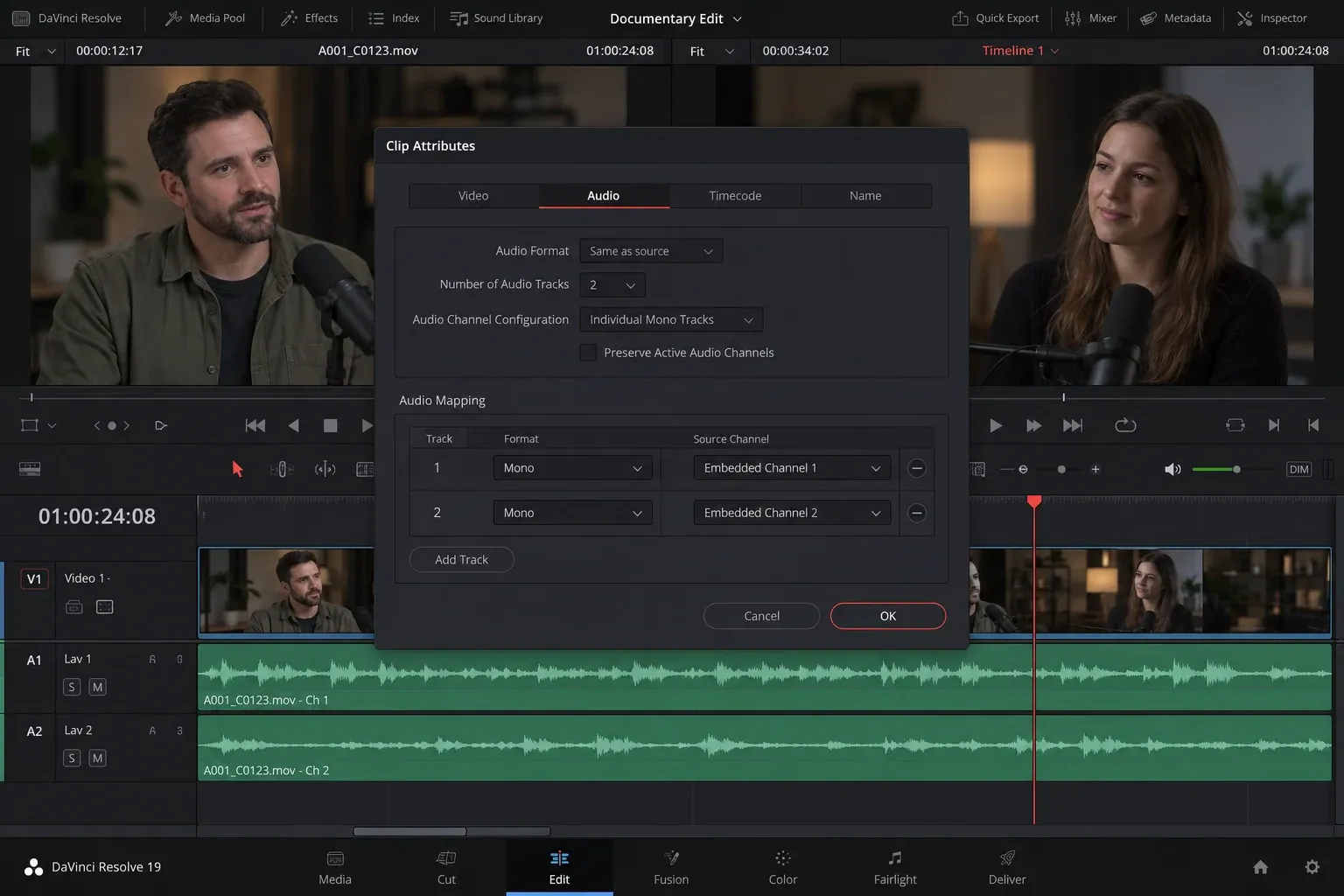
If both channels are copies of the same microphone at different levels, pick the version that gives usable headroom and noise performance for the passage. Mixing both identical or near-identical recordings can change level and sometimes introduce phase problems. Separate mapping keeps the choice reversible.
Do Not Collapse a Real Stereo Recording by Accident
Music masters, stereo ambience, audience recordings, and many sound effects contain intentional differences between left and right. Converting them to one mono channel throws away spatial information and may remove elements that exist only on the discarded side.
Before changing a stereo clip to mono, ask:
- Do both channels contain useful but different material?
- Does the image or sound field move naturally between left and right?
- Is the clip a finished music mix rather than a single microphone?
- Does the file remain balanced when auditioned in another trusted player?
If the answer points to real stereo, leave the clip stereo and diagnose the track, pan, bus, or monitoring path instead. A one-ear problem can happen downstream even when the source is correct.
Check the Timeline Track Format and Pan
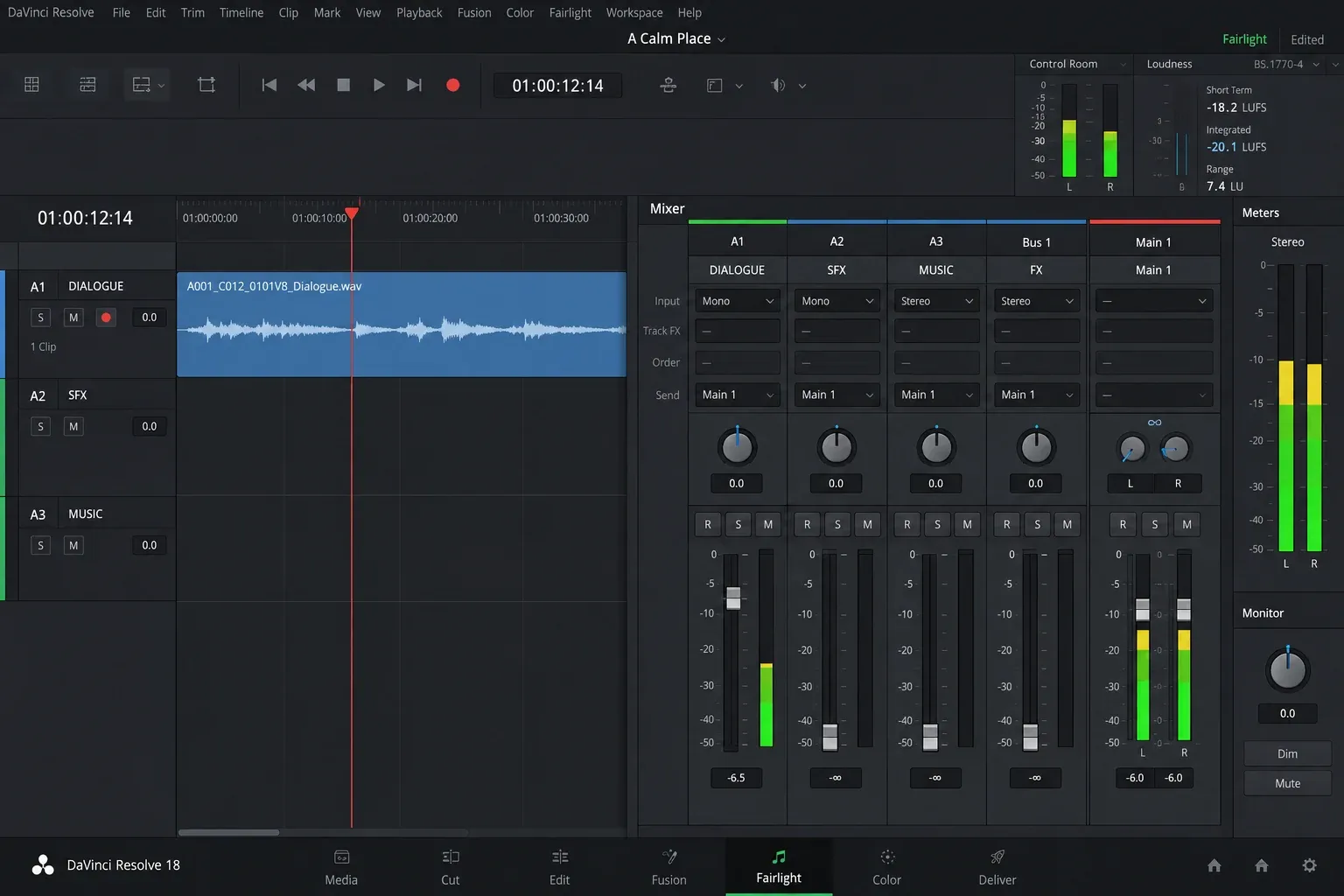
After fixing Clip Attributes, place the mono source on a mono track. In Fairlight, inspect the track header or mixer channel and keep the pan centered for dialogue, narration, or a microphone that should sit in the middle.
If a clip still appears on one side:
- Confirm the timeline track is mono rather than an unintended stereo or adaptive format.
- Reset the track pan to center.
- Bypass unusual track plug-ins temporarily.
- Confirm the track outputs to the intended stereo bus.
- Watch the bus meter, not only the track meter.
Use the Fairlight bus routing guide when the track meter is healthy but the intended bus is silent or one-sided. The clip-mapping fix ends once the mono source reaches the track correctly.
Fix Several Clips From the Same Recorder Layout
When a camera or recorder saved an entire shoot with the microphone on the same embedded channel, make the mapping consistent before the edit becomes complex. Select the matching source clips in the Media Pool, open Clip Attributes, and apply only a setting that is genuinely shared by all selected media.
Do not include clips from a different camera, recorder, day, or input layout merely because their filenames look similar. Check a representative file from each setup. Batch changes are efficient when the source configuration is consistent and destructive when it is not.
Existing timeline edits may require a separate check after source-level changes. Reopen the affected sequence, verify channel count and sync, and listen across edit points. If the material is a recorded voiceover rather than imported media, the voiceover guide explains why recording to a mono destination track prevents the same one-ear symptom at capture.
Audio Still Plays in One Ear After Mapping
The clip looks mono, but the stereo bus is still one-sided
Reset the track pan, verify the track format, and inspect routing. A plug-in with channel-specific processing can also create an imbalance. Bypass processors one at a time while watching the bus meter.
The stereo bus meter is balanced, but headphones are one-sided
Stop changing the clip. Test a known-good stereo file, reconnect the headphones, check the interface output assignment, and inspect operating-system balance controls. Correct bus meters with incorrect physical playback point beyond the timeline mix.
The active channel changes between clips
Do not batch one mapping across the whole bin. Split the clips by recorder layout or inspect them individually. Channel 1 and Channel 2 are file-specific source assignments, not a universal left-ear repair switch.
Both channels contain different voices
Treat the file as dual mono. Map each channel separately so you can edit and mix the voices without collapsing them together.
The timeline is balanced, but the export is one-sided
Check the selected output bus and channel layout on the Deliver page. Do not render a single source track when you intend to deliver the stereo mix. Follow the audio-only export guide for mix-versus-track output choices.
Verify the Fix Before Export
- Play the beginning, middle, and end of the affected clip.
- Confirm the mono track meter behaves as one source.
- Confirm the stereo bus meter responds on both sides with centered pan.
- Listen on headphones and speakers at a safe level.
- Check nearby music and ambience to make sure you did not collapse genuine stereo material.
- Render a short proof and audition it in another player before the final export.
The clean result is not “stereo voice.” It is a correctly interpreted mono recording placed in a stereo program. That distinction keeps dialogue centered while preserving the real stereo elements around it.
DaVinci Resolve One-Ear Audio FAQ
Why does my DaVinci Resolve audio play only in the left ear?
The common cause is a mono recording stored as the left channel of a stereo file. Set the clip to Mono in Clip Attributes and map Embedded Channel 1. Verify the source first because pan, routing, or hardware can produce a similar symptom.
How do I fix audio that plays only in the right ear?
Open Clip Attributes > Audio, set the clip format to Mono, and choose Embedded Channel 2 when that is where the recording lives. Then use a centered mono track feeding a stereo bus.
Should I convert every one-sided clip to mono?
No. Convert a file when it contains one intended mono source inside a multichannel container. Preserve genuine stereo and split dual-mono files into separate mono sources.
Do I need to duplicate the left channel to the right?
No. Correct mono mapping sends one source through the center of the stereo mix. Duplicating clips adds complexity and can change level without fixing the interpretation of the file.
Can a mono track feed a stereo bus?
Yes. That is the normal path for centered dialogue and voiceover: a mono source on a mono track, positioned with pan, then mixed into the stereo output bus.
