DaVinci Resolve gives you several ways to fade audio, and the quickest method depends on where the volume change belongs. Drag a clip’s fade handle when you need a simple fade at its edge. Add volume keyframes when the change starts or ends inside the clip. Place an audio crossfade when two clips need to overlap smoothly. Use Fairlight’s batch fade commands when many selected clips need the same short cleanup. Audio fades fit into the larger workflows in the Fairlight audio hub.
I would choose the method before adjusting the duration. That keeps a small edit from turning into a complicated automation pass, and it prevents a crossfade from being used where one clip should simply fade to silence.
Choose the right kind of audio fade
| What you need | Best control | Where to work |
|---|---|---|
| Fade one clip from or to silence | Clip fade handle | Edit or Fairlight page |
| Lower or raise volume inside one clip | Volume keyframes | Edit or Fairlight page |
| Blend outgoing and incoming clips | Audio crossfade | Edit or Fairlight page |
| Add short edge fades to many clips | Batch fades | Fairlight page |
| Change a track continuously during playback | Automation | Fairlight page |
The distinction matters. A fade handle changes one clip from its boundary. A keyframed envelope can begin anywhere. A crossfade combines two clips around a cut. Automation records a changing fader over time and is better suited to a broader mix move than a single clip correction.
Method 1: use the clip fade handles
This is the fastest way to fade music in, fade ambience out, or remove a hard start or stop from a clip.
- Open the Edit page or the Fairlight page.
- Make the audio track tall enough to see the waveform and the top corners of the clip clearly.
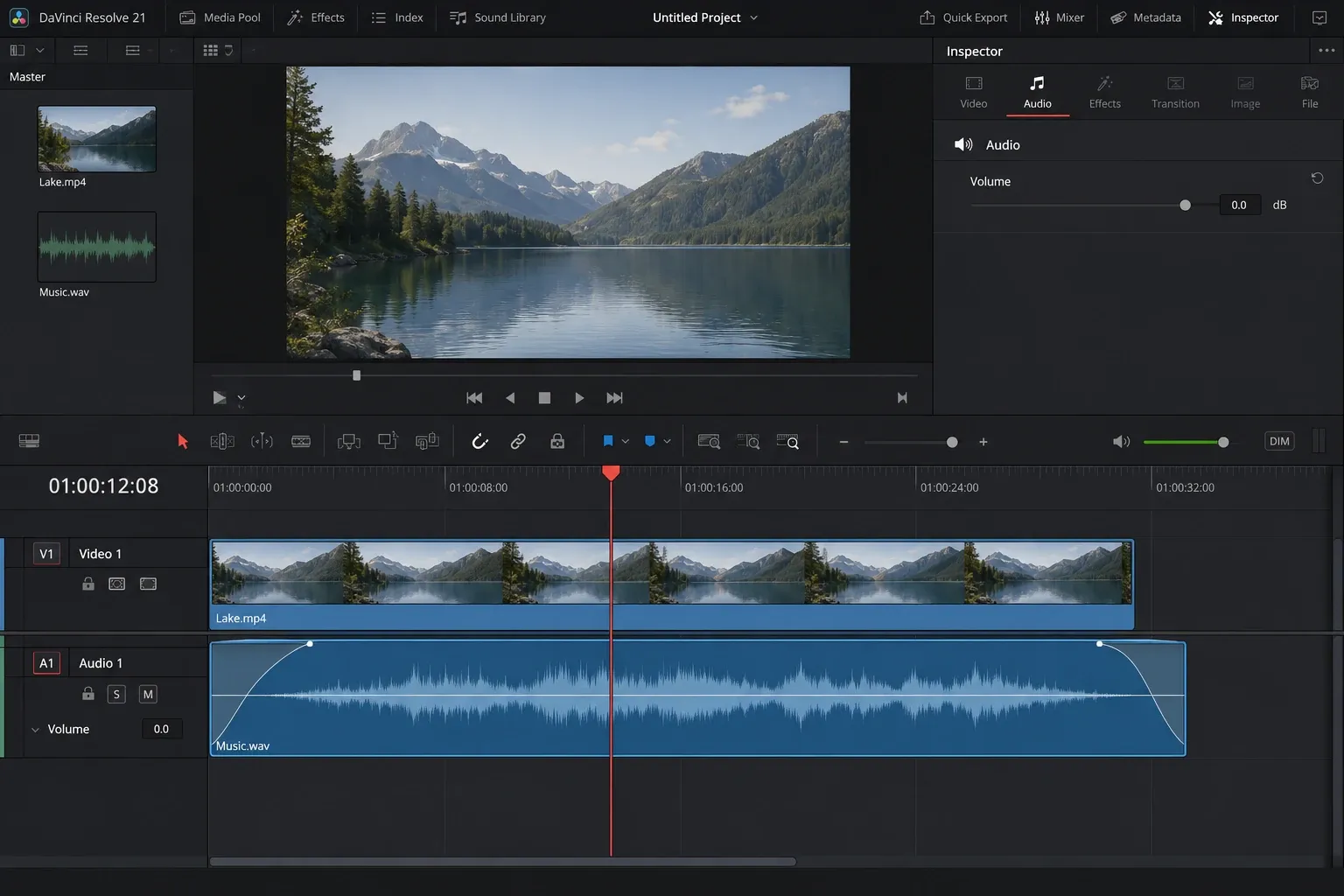
- Move the pointer over the upper-left corner for a fade-in or the upper-right corner for a fade-out.
- Drag the small handle toward the center of the clip. The shaded curve shows the fade region.
- Play from before the fade through its endpoint. Adjust the length by dragging the handle again.
Blackmagic describes these side handles as the quick way to add fade-ins and fade-outs in Fairlight. The same idea is available while editing on the timeline, so you do not need to build keyframes for a basic edge fade. Blackmagic’s Fairlight overview also places clip gain, fade handles, keyframes, and automation in the broader mixing workflow.
Adjust the shape, not only the duration
After creating a fade, Resolve can show a curve control inside or near the fade region. Dragging it changes how quickly the level rises or falls. A straight-looking fade is predictable, while a bowed curve keeps more level near one end and changes more rapidly near the other.
There is no useful universal curve. For music, listen for whether the fade feels like a musical ending instead of a volume control being pulled down. For room tone, listen for a noticeable hole. For dialogue edits, the important test is whether the consonant, breath, or noise floor changes unnaturally.
Set the length by sound
A short fade can hide a click at an edit. A longer fade can introduce or end a music bed. Those are different jobs, so copying one duration across both rarely works. Start with the smallest fade that solves the audible problem, then lengthen it only when the transition still sounds abrupt.
Zoom into the timeline when the fade is only covering a small transient. Zoom out when you are shaping a longer musical entrance or exit. The control is the same, but the useful visual scale is different.
Method 2: create a fade with volume keyframes
Use keyframes when the volume change needs to start or finish away from the edge of the clip. This is the better choice for lowering a music bed under one sentence, fading before the picture cut, or preserving a tail after the visible edit.
- Expand the audio track until the horizontal volume line is easy to grab.
- Add a keyframe where the current level should begin changing. On Windows and Linux, this is commonly Alt-click on the line; on macOS, use Option-click.
- Add a second keyframe where the fade should end.
- Drag the second point down for a fade-out or up toward the normal level for a fade-in.
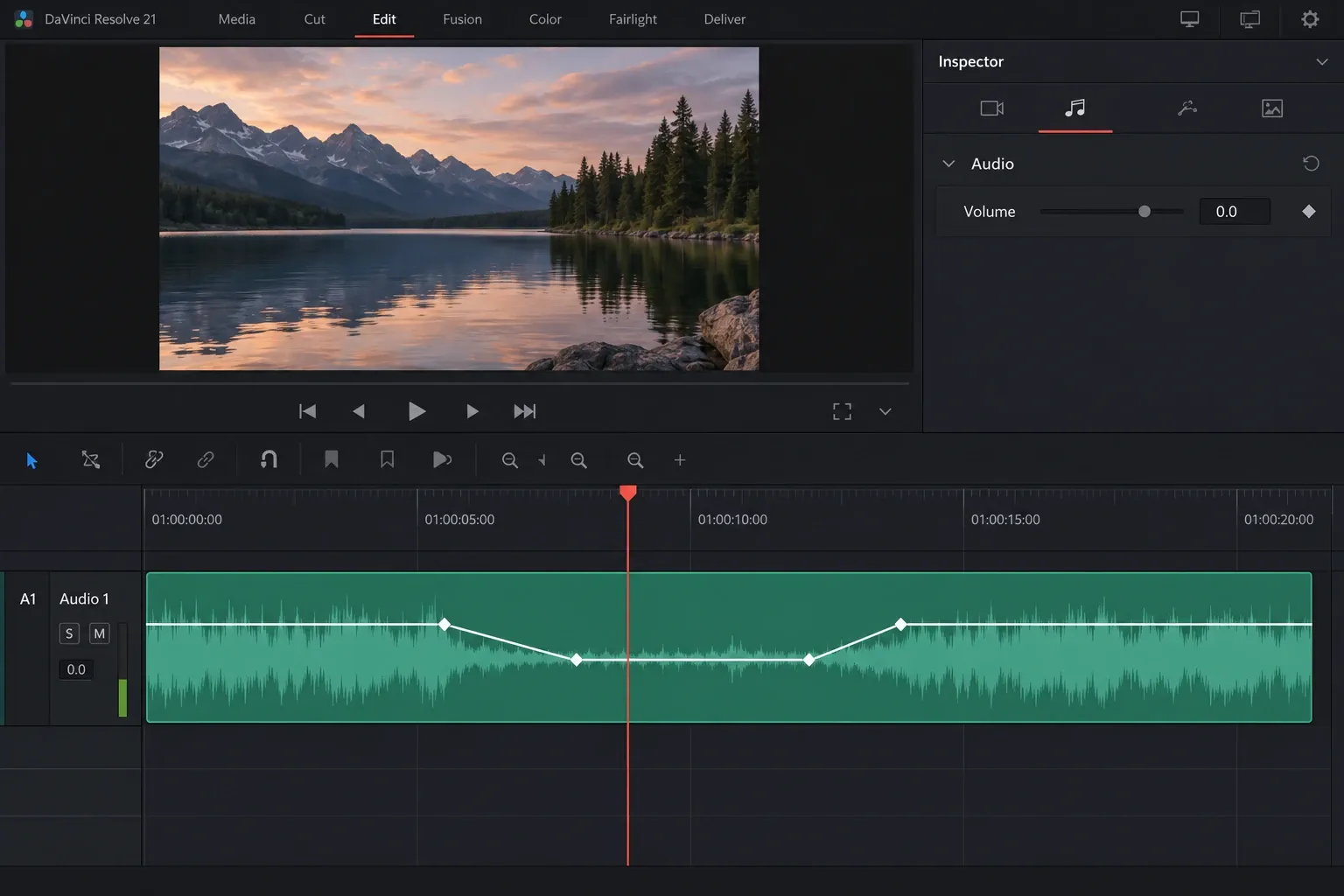
- Add two more points if you need the level to stay lower for a section and then return.
If your installed build or keyboard mapping uses a different modifier, open Resolve’s keyboard customization and search for the relevant keyframe action rather than assuming the shortcut is missing. The visible line and points are the important result.
When two keyframes are enough
Two points create one ramp. Put the first at the unchanged level and the second at the destination level. This works for a fade that starts in the middle of the clip and continues to its end.
When four keyframes are better
Four points create a temporary dip: normal level, ramp down, lower section, ramp back up. That is a manual form of ducking. If you need the same response repeatedly under dialogue, the dedicated tools in our DaVinci Resolve audio ducking guide are easier to maintain. Keyframes remain useful when the timing is unusual or you want to shape one passage by hand.
Use the Inspector for exact values
The timeline is best for placing the change against the picture and waveform. The Inspector is useful when you need to confirm the clip volume or edit a selected keyframe more deliberately. Blackmagic’s Edit page overview explains that clip level can be changed directly on the clip and that parameters can be animated with keyframes.
Do not confuse clip volume with the track fader. Clip keyframes travel with that clip. A track fader or automation pass affects the track at timeline positions and may influence different clips that occupy it later.
Method 3: crossfade between two audio clips
A crossfade is for a cut between clips. It lowers the outgoing clip while raising the incoming clip across the same edit region. Use it to smooth room tone, ambience, dialogue takes, or music edits where a hard cut exposes a sudden change.
- Place the two audio clips on the same track so their edges meet.
- Select the edit point between them.
- Open the audio transitions in the Effects Library and apply a crossfade, or use the current audio crossfade shortcut assigned in your keyboard setup.
- Drag the transition edges to change its duration.
- Listen through the center of the transition for a dip, bump, phasey sound, or doubled transient.
Resolve includes different crossfade shapes. The best choice depends on whether the clips contain related audio and whether the center sounds too loud or too quiet. The names describe the mathematical level relationship, but your ears decide whether that relationship works for the material.
Our broader DaVinci Resolve transitions guide covers adding, trimming, and repairing transitions. For audio, the extra question is whether both clips have usable material beyond the visible cut.
Why a crossfade may refuse to extend
A transition needs media on both sides of the edit. If one source clip begins exactly at its first recorded sample or ends at its final sample, Resolve has no hidden material to overlap. Trim the edit to create handles, choose a shorter crossfade, or place the clips on separate tracks and shape their edges independently.
Separate tracks are also clearer when you need an asymmetric overlap. You can let the outgoing ambience continue while the incoming clip enters slowly, instead of forcing both sides into one centered transition.
Method 4: apply fades to multiple clips in Fairlight
When a timeline contains many dialogue clips with hard micro-cuts, adding every short edge fade by hand is slow and inconsistent. Fairlight provides batch fade controls for selected clips in recent Resolve versions.
- Open the Fairlight page.
- Select only the audio clips that should receive the same treatment.
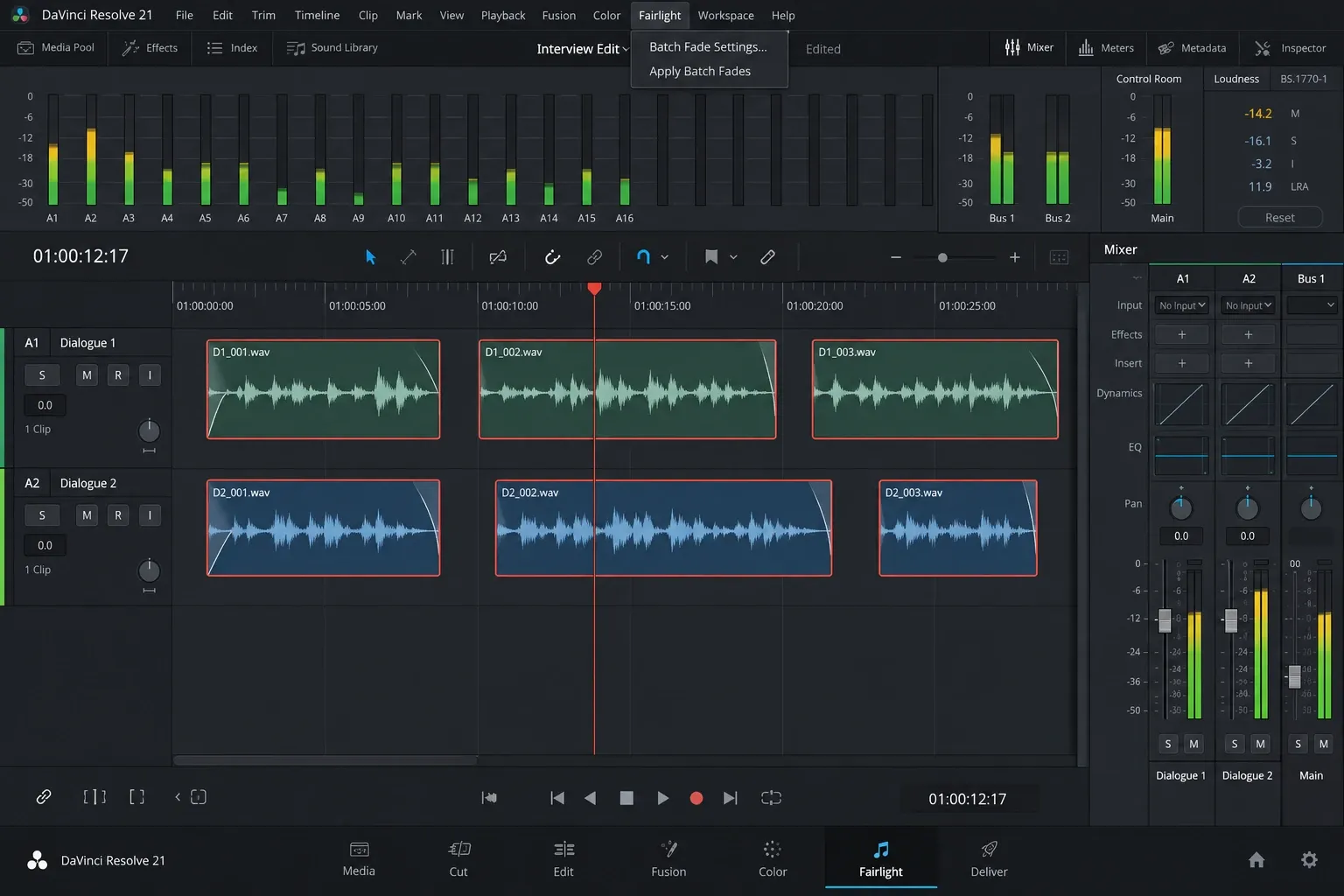
- Open the Fairlight menu and review Batch Fade Settings.
- Set the fade-in, fade-out, or crossfade values appropriate for this pass.
- Choose Apply Batch Fades.
- Spot-check the busiest edit, the quietest edit, and any clip with a very short usable edge.
The exact menu wording can shift between builds, so search the Fairlight menu if the label is not in the expected position. Batch fades are a starting pass, not a reason to skip listening. A setting that hides a click on one edit can remove a consonant or soften a wanted transient on another.
What batch fades do not replace
Batch fades do not create one continuous fade across a whole program simply because several clips are selected. For a long music fade spanning edits, place the music in a stable track layout and use clip keyframes or Fairlight automation. For a broad mix move across several sources, consider track or bus automation instead of stamping identical clip-edge shapes everywhere.
Use Fairlight automation for a performed mix move
Automation is useful when you want to ride a fader while the timeline plays and keep that motion. Blackmagic’s current Fairlight page states that Resolve can record changes made over time, including fader moves. This suits an evolving mix balance or a long passage with several adjustments.
Automation also carries more state than a clip fade. Before recording, check the automation mode, the armed parameter, and the track you are controlling. Afterward, switch back to a safe read mode so an accidental move does not overwrite the pass. For a single entrance or exit, clip handles or keyframes are easier to inspect.
Fix missing fade handles or a fade that does not work
The handles are not visible
Increase the audio track height and zoom in. Very short clips or collapsed tracks can hide the corner controls. Confirm that you are pointing at the audio clip rather than a linked video clip above it. If the video and audio need different edits, our guide to muting and splitting audio in DaVinci Resolve explains the basic clip relationship.
The wrong line moves
Resolve timelines can display several overlays. Make sure the visible line represents volume rather than another parameter. If dragging affects the whole clip but you expected one section, add keyframes first. If moving a mixer fader changes every clip on the track, you are working at track level rather than clip level.
The fade sounds abrupt even when it looks long
Check the curve and the source material. A fade can occupy many frames while most of the audible level change is compressed near one end. Reshape the curve or move the endpoint. With dialogue and ambience, listen for the noise floor as well as the voice.
The crossfade creates a bump or hollow center
Shorten the overlap, try another crossfade shape, or separate the clips onto two tracks. Similar signals can reinforce or cancel around the center. Unrelated sounds may simply feel too busy when both are present. A transition is not automatically smoother because it is longer.
A click remains at the edit
Move the edit away from the sharp transient, create a small fade on each side, and inspect whether one clip has an offset or sudden waveform jump at the boundary. Use the shortest change that removes the click. A long fade can hide the defect while damaging the start of the next word or sound.
Linked stereo channels behave unexpectedly
Confirm the clip attributes and channel format before repairing one side. A stereo clip, dual-mono recording, and multichannel clip can expose different controls. Changing the interpretation after keyframing can also make the envelope harder to read, so establish the channel layout before the detailed fade pass.
A practical fade workflow
- Name the boundary. Decide whether the change belongs at one clip edge, inside a clip, between two clips, or across a track.
- Use the lightest control. Start with a handle, keyframes, a crossfade, or batch fades according to that boundary.
- Listen in context. Start playback before the transition and continue past it. A fade judged from the isolated center can sound wrong in the sequence.
- Check both ends. Confirm that no consonant, breath, transient, reverb tail, or room tone was cut too aggressively.
- Spot-check after later edits. Trimming, slipping, relinking, or changing clip speed can move the useful material under a fade.
If you are still learning the timeline, the DaVinci Resolve beginner tutorial provides the larger edit-page workflow. For this task, remember one rule: the location of the change chooses the tool. Clip edge means handle, inside the clip means keyframes, between clips means crossfade, and repeated cleanup means batch fades.
