
Quick answer: choose Filmora 16 if ready-made titles, templates and guided creator tools already fit the videos you publish. Choose DaVinci Resolve 21 if you need normal watermark-free exports from a free editor, deeper color and audio work, Fusion compositing or a project that may later move into professional finishing. Either way, cut a minute of your own footage before paying for either.
The cheapest editor and the easiest first edit are two different decisions. Filmora lets you edit for free, but its free exports carry a watermark. Resolve Free can deliver a finished video without one, as long as your footage and effects fit its limits. And you don't have to learn every Resolve page to cut a short video.
This desktop comparison follows both developers' documentation and their US plans. The Filmora version details come from the 16.0 release notes, and the recommendations are my calls about workflow. Prices vary by platform, region and checkout offer, so let a representative project make the final call.
DaVinci Resolve vs Filmora at a glance
| Decision | Practical difference |
|---|---|
| Best first fit | Filmora 16: template-led creator edits, stock assets and guided tools. Resolve 21: editing that can grow into color, VFX, audio, collaboration and finishing. |
| Free export | Filmora 16: available, but carries a Filmora watermark. Resolve 21: no built-in watermark for normal exports within Free-edition limits. |
| Paid model | Filmora 16: subscription or perpetual license tied to a major version. Resolve 21: Studio is a one-time purchase. |
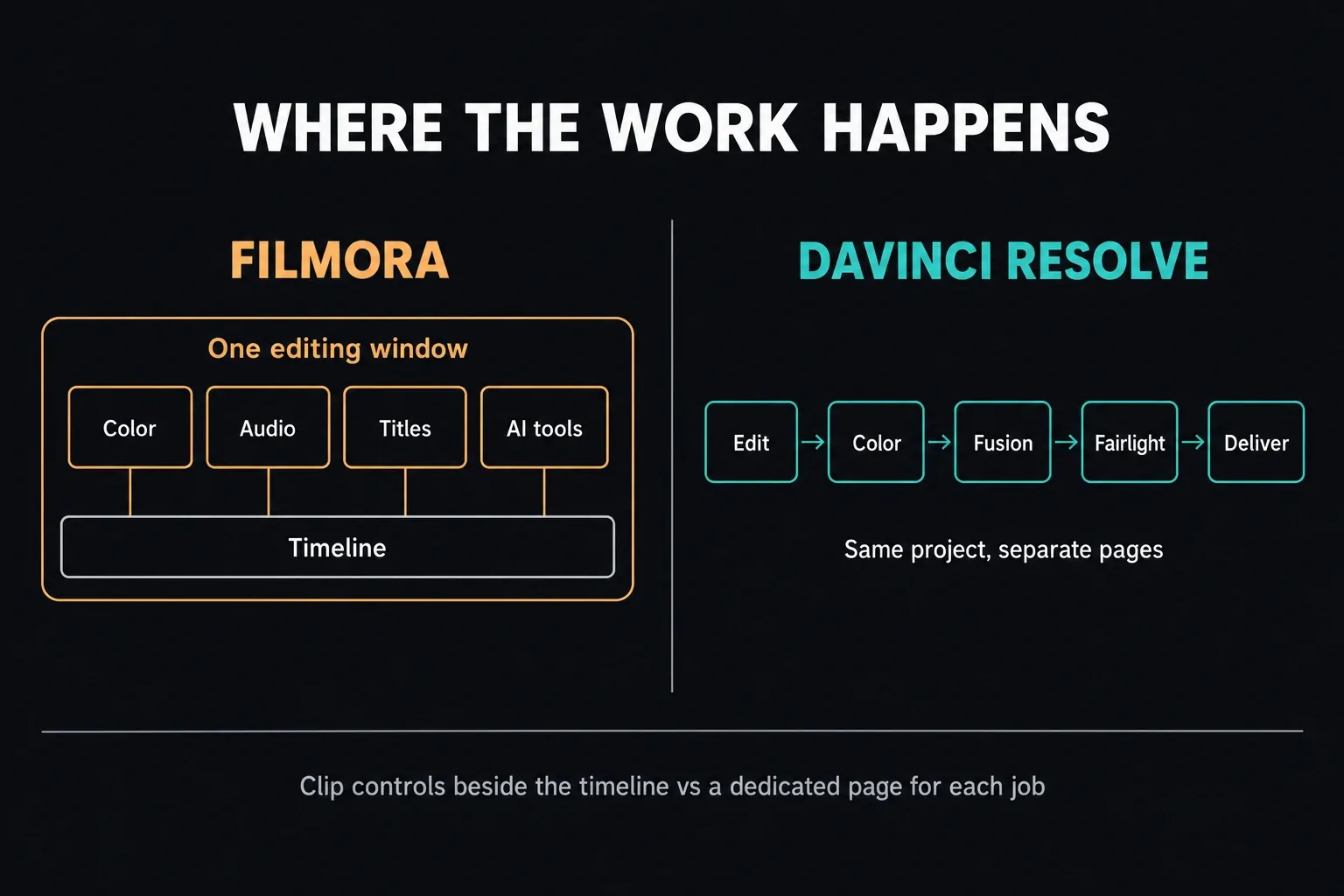
| Learning curve | Filmora 16: integrated creator controls beside a conventional timeline. Resolve 21: specialist workspaces to learn as the project needs them. |
| Templates and stock | Filmora 16: central part of the workflow. Resolve 21: available, but not the core reason to choose Resolve. |
| Color, VFX and audio | Filmora 16: useful integrated creator tools. Resolve 21: dedicated Color, Fusion and Fairlight environments. |
| Desktop platforms | Filmora 16: Windows and macOS. Resolve 21: Windows, macOS and Linux. |
| Project handoff | Filmora 16: native .wfp projects stay in Filmora; the Windows guide documents Final Cut Pro 7 XML export. Resolve 21: built for broader post-production and interchange workflows. |
That table is a starting point, not a ranking. Filmora has moved well beyond basic trimming: the 15 series brought source and timeline preview, dual timelines, imported subprojects and a Pen tool, and version 16.0 adds camera tracking, a Color Mask, 360° video reframing and XML import and export. Resolve has quick workflows too, but its advantage shows up when the same project needs a serious grade, a complex composite, a controlled mix or a reliable handoff.
The DaVinci Resolve comparisons hub connects this decision to CapCut, Premiere Pro, Final Cut Pro and Resolve Free versus Studio. Use this page only for the Filmora decision.
Price: free, subscription and “perpetual” mean different things
Blackmagic's current Resolve product page lists DaVinci Resolve Free at $0. It works with virtually all 8-bit formats up to Ultra HD 3840 × 2160 at 60 fps, subject to the documented format and platform limits. Normal exports don't receive a Resolve watermark. The separate Resolve Free feature guide maps the features that are actually locked.
On Blackmagic's US page, DaVinci Resolve Studio is $295 as a one-time purchase. Studio raises the format and resolution ceiling and adds the DaVinci AI Neural Engine, extra Resolve FX, advanced noise reduction, Magic Mask and other professional tools. The Resolve cost guide covers license details and the checkout traps that a headline price hides.
Filmora's official pricing page lists the Windows offer as Basic at US$49.99/year, Advanced at US$59.99/year and Perpetual at US$79.99 once. Basic matters if you mainly want paid export rights without Advanced's monthly AI allowance. Read these as offer prices, not a quote for every license or a guaranteed renewal rate. The pricing page is inconsistent about cross-platform rights: one FAQ says Basic and Advanced cover Windows and Mac, while another says a Windows license works only on Windows. The Perpetual FAQ is OS-specific. Before paying for a mixed Windows/Mac setup, confirm the exact plan's platform entitlement with Wondershare, along with the renewal total, tax and any Creative Assets add-on.
Before you pay for Filmora
First, Filmora Free is fine for editing, but anything you export from it carries a watermark. Resolve Free is the stronger zero-dollar option when its codec, resolution and feature limits fit the project.
Second, Filmora Perpetual means you keep using the major version you bought, not free upgrades forever. The plan table now reads "Updates Within Filmora 16", and Wondershare's own FAQ uses Filmora 15 to Filmora 16 as its example of an upgrade the plan doesn't include. Subscription plans include future version upgrades while the subscription stays active.
Advanced showed 1,000 AI credits per month; Perpetual showed 1,000 one-time credits. The subscription allowance is issued every 30 days from purchase, and unused credits from the previous period are reclaimed. Basic doesn't come with that monthly allowance. Buying the editor also doesn't make every AI tool unlimited: the pricing FAQ's normal-mode entitlement belongs to eligible legacy users who held unlimited AI rights in version 13, not to every new plan.
Treat the Creative Assets trial as its own checkout decision. The offer I saw included a free seven-day trial that renews monthly as an add-on. Check whether each stock item or effect you pick needs that subscription, and whether its license covers your intended use. Paying for the editor doesn't automatically give you every asset or a team-wide license.
Editing workflow: integrated controls or specialist workspaces?
Filmora keeps media, titles, effects and most clip controls close to a conventional timeline. If you mainly want to arrange clips, add a title, clean up dialogue and publish, that layout is easy to walk into. It isn't stuck with a single simplified preview window either: Filmora has source/timeline previews and dual-timeline editing.
A ready-made title helps when it already matches the result you need. Include a revision in your trial: change the aspect ratio, match two camera shots, adjust dialogue and replace the title. That tells you more about the workflow than getting one preset onto the timeline.
Resolve gives editing, compositing, color, audio and delivery their own workspaces. Start on Edit; move to Color, Fusion or Fairlight when the job needs them. The tradeoff is more systems to learn as your work expands, rather than a requirement to master them all before the first export.
If the Resolve interface is the only thing stopping you, use the Resolve beginner tutorial to finish one short video before deciding. Twenty minutes of clicking around isn't a fair comparison with an editor you already know.
Filmora 16 is not a toy, but Resolve has the deeper finishing path
Wondershare's Filmora 16 feature guide lists what 16.0 adds: camera tracking, AI media analysis, 360° video reframing, smart text correction, a Color Mask and multi-source recording. Its wider Filmora guide covers multicamera editing, compound clips, proxies, keyframes, masks, color controls, scopes, a mixer, EQ, denoise and ducking. Its LUT documentation also confirms export of compatible color adjustments as a .cube file. A LUT carries a color transform, not the timeline or every effect.
That is enough for a large amount of YouTube, course, product and social work. A beginner doesn't outgrow Filmora merely because they learn keyframes or start using scopes.
Where Resolve separates itself
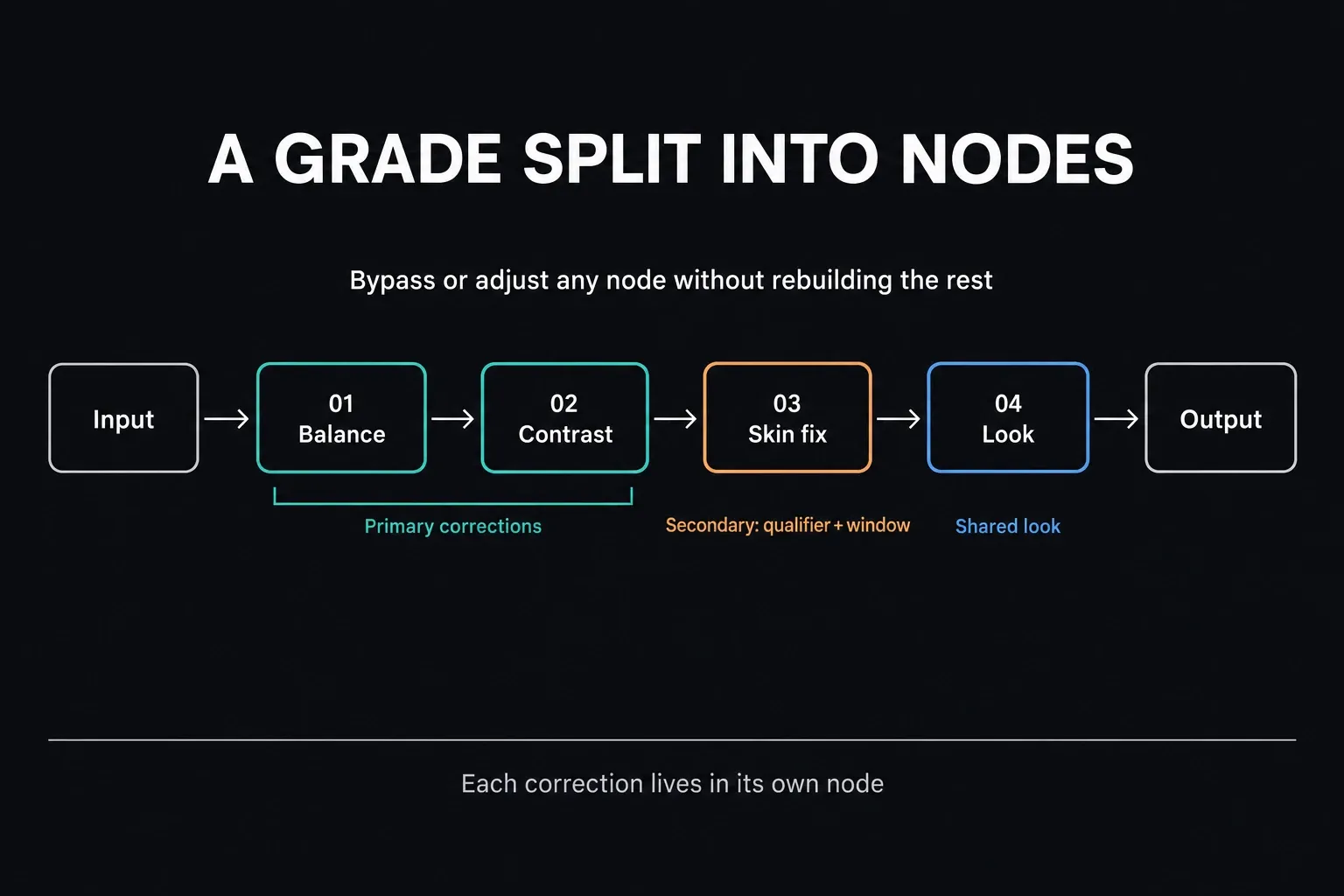
Resolve's Color page combines node trees, tracked Power Windows, groups, versions, galleries, color management and professional monitoring. Those tools help keep corrections consistent across a sequence and separate a shared look from shot-specific fixes. Filmora has capable color controls too; Resolve's advantage here is how much of the finishing workflow you can organize in one dedicated workspace.
Fusion gives Resolve a node-based compositor inside the same project. Fairlight supplies buses, automation, routing, meters, plug-ins and delivery tools for mixes that go beyond balancing a voiceover against music. Filmora's integrated tools are easier to reach; Resolve's architecture handles more demanding revisions.
This distinction doesn't guarantee a prettier export. A bad color pipeline in Resolve can look worse than a careful Filmora grade. The advantage is control, diagnosis and repeatability, not magic image quality.
AI: compare the repeated task, not the feature count
Filmora packages many AI actions around creator output: short-form extraction, generation, enhancement, text and speech tools, removal and translation. That can be the shorter route when the weekly task is “turn this talking-head video into several social cuts.” Some of those actions consume credits or use different processing tiers, so the workflow has an operating cost even when the editor license is paid.
Resolve 21 also has AI-assisted editing, audio, masking and analysis, with important features reserved for Studio. Its strength is how those tools feed the rest of the post pipeline. A mask can continue into a grade or composite; dialogue work can continue inside Fairlight; transcription can drive an edit.
Write down the three AI operations you'll repeat every month. Then check whether each is included, credit-metered, local, cloud-processed or Studio-only. “More AI” isn't a decision until the recurring task and recurring cost are named.
Performance: test your codec and effect stack
Filmora is often recommended for modest computers and Resolve is often called demanding. Both statements can be directionally useful and still fail on your footage. H.265 10-bit camera files, screen recordings with variable frame rate, noise reduction, generated media, multicam and third-party effects stress different parts of a system.
Use the same 60-second sample in both editors:
- Import the camera file you actually use, not a downloaded demo.
- Build the same timeline resolution and frame rate.
- Add one title, one speed change, one color correction and the audio cleanup you expect.
- Scrub, play and edit for ten minutes before generating proxies.
- Export the same H.264 or H.265 delivery file and record time, failures and visible differences.
The Resolve 21 system requirements guide explains why operating system, codec, GPU memory and edition matter together. Don't buy an editor because somebody else's gaming PC exported one sample faster.
Which editor should you choose?
Choose Filmora when publishing speed is the product
Filmora is the practical choice when you want a guided timeline, ready-made titles, stock assets and AI-assisted social output in one creator-focused environment. It fits solo YouTube channels, course videos, family edits and small marketing jobs where the template or preset is already close to the approved result.
If your shortlist also includes a phone-first social workflow, read DaVinci Resolve vs CapCut. This comparison concerns Filmora desktop; do not assume a desktop license, mobile app and cloud service have identical features or entitlements.
Choose Resolve when the project must grow
Resolve is the better long-term choice when you expect camera-format variety, controlled color, motion graphics, complex audio, multi-user work or professional delivery. Its Free edition makes that path unusually accessible, provided the footage and hardware fit its limits.
Resolve Free already supports multi-user collaboration. Studio is not required merely because another editor joins the project; hosted project libraries, storage and other services may have their own charges. Choose the software edition and the shared-project service separately.
If your real alternative is an established professional subscription workflow, the more useful next comparison is DaVinci Resolve vs Premiere Pro. Filmora and Premiere solve different collaboration, ecosystem and interchange problems.
Choose neither until one controlled test is complete
Install both, finish the same short project and count the actions that mattered: media organization, rough cut, captions, title, audio cleanup, color match, revision and export. Keep the editor that removes friction from the tasks you actually repeat. A long feature list can't tell you which interface makes you miss a deadline.
Switch from Filmora to DaVinci Resolve without losing the project
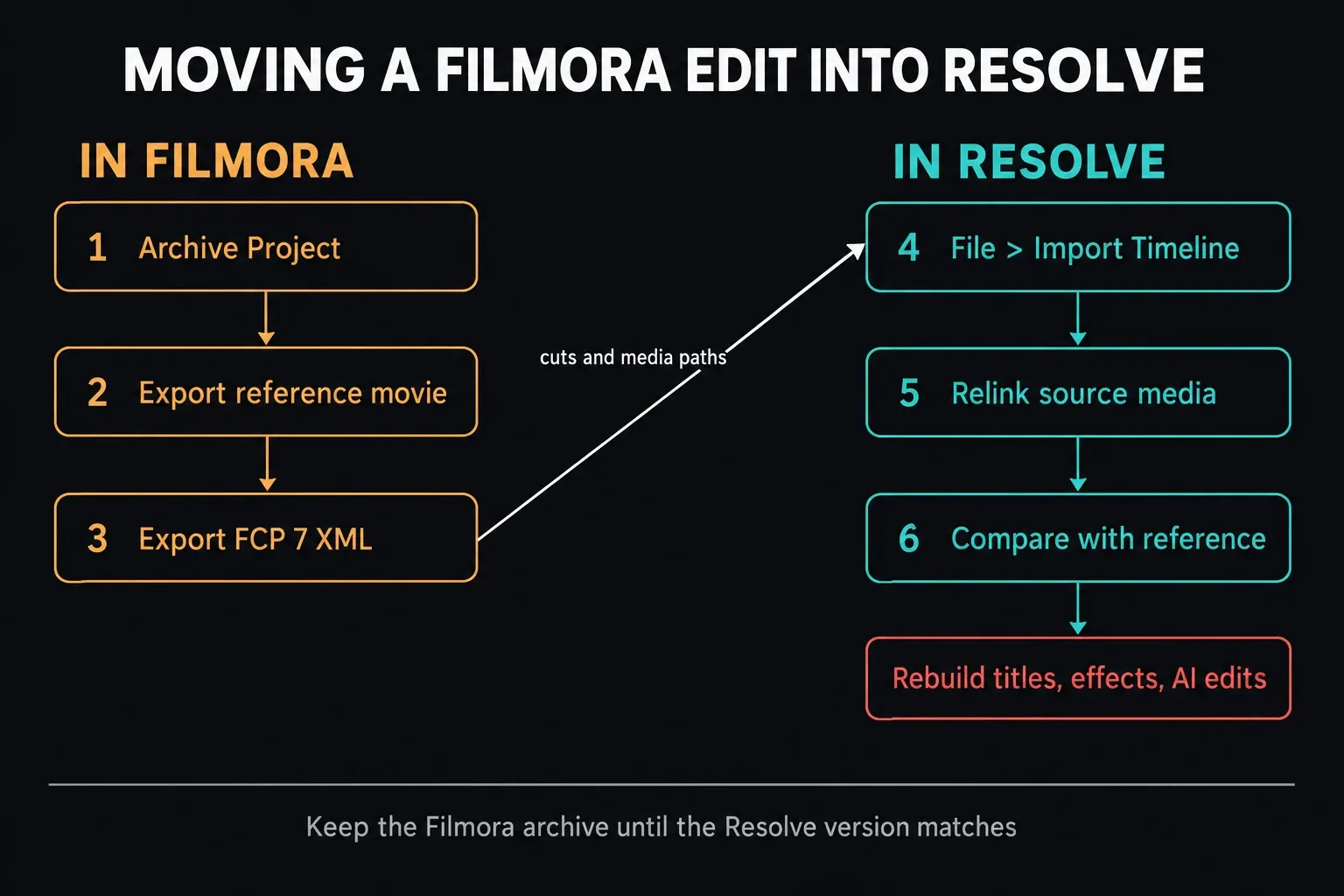
Wondershare's project guide says an ordinary .wfp stores editing decisions and references to source media, and only Filmora recognizes and opens it. There is a bridge now, though. Filmora's Windows export guide documents File > Export > Final Cut Pro 7 XML, and the Resolve 21.1 manual lists Final Cut Pro 7 XML among the formats File > Import Timeline can conform. Treat that XML as a cut list pointing at your source files: neither guide promises that Filmora titles, templates, effects or AI edits survive, so plan to rebuild them. Archiving is a backup step, not a conversion. Keep Filmora and the original project until the Resolve version passes your checks.
- Duplicate the Filmora project, then follow File > Archive Project to package it with its referenced source files. Open the archive in Filmora to confirm it is usable.
- Export a high-quality reference movie with the original timeline's resolution and frame rate. Keep it separate from the source media.
- Preserve the original video, audio and permitted graphics. On Windows, also export a Final Cut Pro 7 XML of the timeline; the Mac guide I checked doesn't describe that menu entry, so confirm it in your build. Export isolated audio where your setup allows it, and plan to rebuild titles or effects that won't transfer. Don't assume transparent-title export is available in every configuration.
- Create a Resolve project and set the intended timeline frame rate before importing media.
- Import the XML with File > Import Timeline, or rebuild from original media when future revisions matter. Compare every cut, crop, speed change, title and mix decision with the reference movie.
- Keep the Filmora archive until the Resolve export passes your visual and audio comparison. A matching picture alone does not confirm the mix or the underlying editable media.
For a simple locked edit, a high-quality master may be all you need for color or delivery. For an edit that will keep changing, an XML conform or a rebuild from source media takes longer, but it's far safer than cutting a compressed master into pieces and pretending the original timeline transferred.
DaVinci Resolve vs Filmora FAQ
Is DaVinci Resolve better than Filmora?
Resolve is the stronger fit for dedicated color work, Fusion compositing, Fairlight mixing and post-production handoff. Filmora may fit better when its templates, stock assets and integrated creator controls already match the job. Choose by completing a representative project, not by assuming either editor wins every task.
Which is easier for beginners, Filmora or DaVinci Resolve?
Filmora may be easier to approach if its templates and integrated clip controls match the job. Resolve has more specialist workspaces, but beginners can start on Edit and learn Color, Fusion or Fairlight as needed. Finish the same short project in both; neither interface guarantees a faster first edit for everyone.
Is DaVinci Resolve Free better than Filmora Free?
Resolve Free is the stronger choice when you need a finished export without a built-in watermark and its codec, resolution and feature limits fit the job. Filmora Free allows editing and export, but the official plan page says exported videos carry a Filmora watermark.
Is Filmora 16 good enough for YouTube?
Yes, for many channels. Filmora 16 gives you a multitrack timeline, titles, templates, stock assets, color and audio controls, captions and creator-focused AI tools, and version 16.0 adds camera tracking. Resolve becomes more attractive when the channel needs deeper grading, compositing, mixing, collaboration or demanding delivery formats.
Does Filmora have color grading?
Yes. Filmora documents HSL, curves, color wheels and scopes, plus export of compatible adjustments as a .cube LUT. Resolve offers a deeper dedicated architecture for nodes, shot matching, color management and finishing. A Filmora LUT is not a transfer of its complete edit or every effect.
Can Filmora projects open in DaVinci Resolve?
Not natively. Wondershare says .wfp files can only be recognized by Filmora, so Resolve won't open the project file itself. On Windows, Filmora's export guide documents a Final Cut Pro 7 XML export, and Resolve imports that format through File > Import Timeline. Treat the XML as a cut list: archive the Filmora project and sources, export a reference movie, then conform or rebuild in Resolve without assuming effects and titles will translate.
Is Filmora a one-time purchase?
Filmora offers a Perpetual plan alongside the subscriptions. The official plan page says Perpetual covers continued use and updates within the purchased major version, currently Filmora 16, but not future major-version upgrades, and the license only works on the operating system you bought it for. Prices and bundled trials change, so verify the checkout terms.
My pick: Filmora for a template-led creator workflow that already fits the brief, and Resolve for projects that need more control over color, compositing, audio or handoff. If both fit, test the same edit in the free editions before buying a license. Put Filmora's free watermark and Resolve's edition limits into that test, so neither turns into a surprise at delivery.
