The DaVinci Resolve scripting API lets a Python or Lua script control Resolve: create and load projects, import media, build timelines, add markers and queue renders. Its official documentation installs with the app. Choose Help > Documentation > Developer and open the Scripting folder for the bundled reference files, the import module and example scripts. An older README is mirrored in X-Raym's public copy on GitHub if you want to read it in a browser.
Since 21.1, the full API belongs to Studio. The Free 21.1 release notes say "Advanced scripting now requires DaVinci Resolve Studio" and move Python to the paid version, and running scripts from outside Resolve was already a Studio feature in 2024, as Blackmagic’s Shrinivas Ramani explained on the forum. Free 21.1 keeps Lua in the Console. Menu-launched Lua has more restrictions, and access to the Resolve object differs between reported builds; a listed .lua file alone does not prove the API works in that context.
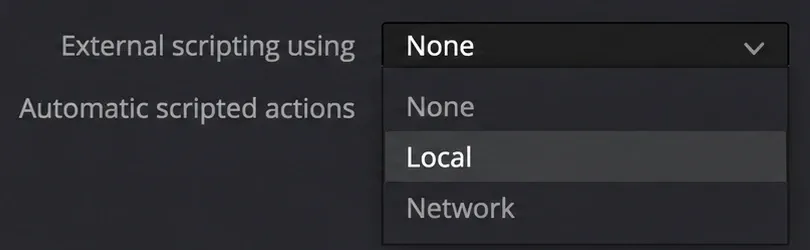
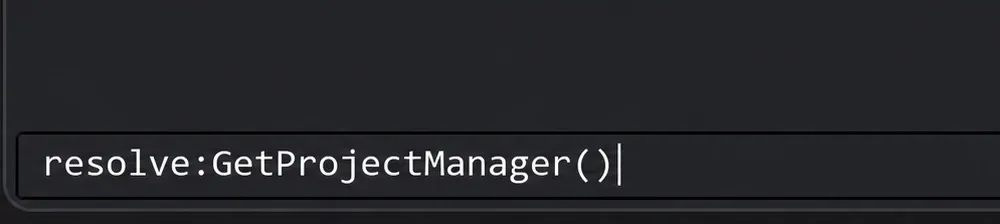
On Studio, setup takes three steps: set External Scripting Using to Local, point three environment variables at the API, and call scriptapp("Resolve") while Resolve is open. If your tool needs Python or has to run from a terminal, I'd budget for the regular $295 US Studio license before writing the first line, because Free 21.1 closes every Python route. For small Free Lua utilities, I'd start in Workspace > Console and check that its resolve object can reach the current project. Confirm menu execution separately before building a tool around it.
Where the official scripting documentation lives
The reference installs with Resolve, in the folder the README's own setup section names as RESOLVE_SCRIPT_API:
- macOS:
/Library/Application Support/Blackmagic Design/DaVinci Resolve/Developer/Scripting - Windows:
%PROGRAMDATA%\Blackmagic Design\DaVinci Resolve\Support\Developer\Scripting - Linux:
/opt/resolve/Developer/Scripting, with/home/resolvein place of/opt/resolveon some ISO installs
Inside you'll find the README, a Modules folder with the import module your scripts load as DaVinciResolveScript, and an Examples folder of sample scripts. For your installed build, use its bundled reference files. The older README mirrored here documents objects from Resolve and ProjectManager down to TimelineItem, Graph and ColorGroup, with each function's arguments and return type. The mirror quoted on this page is dated 24 Jul 2026 and opens by calling itself "the Scripting API for DaVinci Resolve Studio".
Two things shifted around 21.1. A community knowledge-base thread on the Blackmagic forum reports that the definitions moved into a DaVinciResolveScript.pyi stub with README.md and CHANGELOG.md beside it. The thread marks itself as community-sourced, so check what your own Developer folder contains. Some README lines are also older than 21.1: it still says the Console accepts Python 2.7, Python 3.6 and Lua, while the Studio 21.1 release notes drop Python 2 and add built-in Python support for console scripting. Where the two disagree, go with the release notes.
What Free 21.1 and Studio can run
This split combines Blackmagic's release notes and manual with the build-specific reports below. Studio supports Python, Lua and external connections. Free keeps in-app Lua, but the Console and Scripts menu do not expose the same capabilities in every reported build.
| Scripting route | Free 21.1 | Studio 21.1 |
|---|---|---|
| Lua typed into the Console (Workspace > Console) | API access is reported on Windows 21.1.0.14, Linux 21.1.1.0010 and macOS 21.1.2.10; available libraries differ. | Runs, even with External Scripting Using set to None |
| Python in the Console | Missing in the three original reports that checked; Python moved to Studio in 21.1. | Built-in Python console support, new in 21.1 |
| .lua files from Workspace > Scripts | Listed, but sandbox and API access vary by build/context. Positive API reports exist for initial 21.1 builds and Linux 21.1.1; a macOS 21.1.2.10 report could not obtain the Resolve object. | Listed and run as the README describes |
| .py files from Workspace > Scripts | Not listed, and no error explains why | Listed and run |
| External scripts from a terminal, IDE or another app | Refused: scriptapp("Resolve") won't hand an outside process the Resolve object | Allowed with External Scripting Using set to Local or Network |
| Built-in MCP server for AI assistants | No. The manual describes it as a Studio integration. | File > Setup AI Assistants |
| Workflow Integration plugins | No | Workspace > Workflow Integrations, marked Studio Version Only in the manual |
| Studio-only and AI functions called from a script | Can return False or an error status | Run when the computer meets the minimum requirements and the needed Extras are installed |
The External Scripting Using preference itself is marked Resolve Studio only in the 21.1 Reference Manual. Workflow Integrations, the Electron panels that talk to Resolve through its JavaScript API plus Python or Lua, are Studio only as well. Their documentation and sample code sit in a Workflow Integrations folder next to Scripting under Help > Documentation > Developer.
Set up the scripting API on DaVinci Resolve Studio
- Choose DaVinci Resolve > Preferences, open System > General and set External Scripting Using to Local. None limits scripting to the Console, and Network lets other computers on the network or the internet control Resolve, so leave Network off unless a second machine has to drive this one.
- Install 64-bit Python 3 for all users. The README's minimum is Python 3.6, and Studio 21.1 drops Python 2. The davinci-resolve-mcp project calls 3.10 to 3.12 the lowest-risk range and warns that older Resolve builds may fail to connect on Python 3.13 or later.
- Set the three environment variables below for your system.
- Start Resolve, open a project and run the test script from the next section in a terminal. Resolve has to be running before any script can connect.
On macOS, add these lines to ~/.zshrc so every new terminal has them:
export RESOLVE_SCRIPT_API="/Library/Application Support/Blackmagic Design/DaVinci Resolve/Developer/Scripting"
export RESOLVE_SCRIPT_LIB="/Applications/DaVinci Resolve/DaVinci Resolve.app/Contents/Libraries/Fusion/fusionscript.so"
export PYTHONPATH="$PYTHONPATH:$RESOLVE_SCRIPT_API/Modules/"
Linux takes the same three lines in ~/.bashrc, with the Linux paths:
export RESOLVE_SCRIPT_API="/opt/resolve/Developer/Scripting"
export RESOLVE_SCRIPT_LIB="/opt/resolve/libs/Fusion/fusionscript.so"
export PYTHONPATH="$PYTHONPATH:$RESOLVE_SCRIPT_API/Modules/"
Windows users add them as user or system variables under System Properties > Advanced > Environment Variables. If PYTHONPATH already exists, append the Modules entry to it after a semicolon.
RESOLVE_SCRIPT_API = %PROGRAMDATA%\Blackmagic Design\DaVinci Resolve\Support\Developer\Scripting
RESOLVE_SCRIPT_LIB = C:\Program Files\Blackmagic Design\DaVinci Resolve\fusionscript.dll
PYTHONPATH         = %PYTHONPATH%;%RESOLVE_SCRIPT_API%\Modules\
Open a new terminal after saving so the variables load. On a Mac, an editor started from the Dock doesn't read ~/.zshrc, so if a script connects from the terminal but fails inside the editor, set the same variables in the editor's run configuration.
Your first script: connect and create a project
This is the README's own example. It connects to the running copy of Resolve, grabs the Fusion object and the project manager, and creates a project called Hello World:
#!/usr/bin/env python
import DaVinciResolveScript as dvr_script
resolve = dvr_script.scriptapp("Resolve")
fusion = resolve.Fusion()
projectManager = resolve.GetProjectManager()
projectManager.CreateProject("Hello World")
Run it twice and the second run does nothing visible, because CreateProject() returns None when the name already exists. The resolve object is the starting point for everything else, and you can explore it with dir(resolve) or help(resolve) in Python, or with table iteration and getmetatable in Lua.
A more useful second script renders the current timeline with a preset saved on the Deliver page. Replace Client H.264 with an existing preset name and /Volumes/Renders/Client with an accessible output folder on the computer running Resolve. The checks stop the example if it cannot connect, find an open timeline, apply settings or start its render job:
import time
import DaVinciResolveScript as dvr_script

resolve = dvr_script.scriptapp("Resolve")
if resolve is None:
    raise SystemExit("No Resolve connection; open Studio and enable Local scripting")
manager = resolve.GetProjectManager()
if manager is None:
    raise SystemExit("Project manager unavailable")
project = manager.GetCurrentProject()
if project is None:
    raise SystemExit("Open a project first")
timeline = project.GetCurrentTimeline()
if timeline is None:
    raise SystemExit("Open a timeline first")

# Replace these with a saved preset and an accessible output folder
if not project.LoadRenderPreset("Client H.264"):
    raise SystemExit("Render preset not found")
if not project.SetRenderSettings({
    "SelectAllFrames": True,
    "TargetDir": "/Volumes/Renders/Client",
    "CustomName": timeline.GetName(),
}):
    raise SystemExit("Render settings were rejected")
job_id = project.AddRenderJob()
if not job_id:
    raise SystemExit("Could not add a render job")
if not project.StartRendering([job_id]):
    raise SystemExit("Could not start the render job")

while project.IsRenderingInProgress():
    time.sleep(2)
print(project.GetRenderJobStatus(job_id))
AddRenderJob() returns a job id string, and the README says the old index-based calls such as StartRendering(1) are no longer supported, so keep the id. SelectAllFrames makes Resolve ignore any MarkIn and MarkOut values. For Quick Export presets there's a shorter route: GetQuickExportRenderPresets() lists them, and RenderWithQuickExport(name, {...}) takes TargetDir, CustomName, VideoQuality and EnableUpload.
To change a format and codec without loading a preset, first choose the wanted format on the Deliver page. Read its identifier with GetCurrentRenderFormatAndCodec(), then ask GetRenderCodecs() for the available codecs. The README's return types distinguish format names mapped to extensions in GetRenderFormats() from codec descriptions mapped to codec identifiers. Reusing the current format avoids guessing which string to pass:
# Continue after obtaining the current project as above
selection = project.GetCurrentRenderFormatAndCodec()
if not selection or not selection.get("format"):
    raise SystemExit("Select a render format on the Deliver page first")
format_id = selection["format"]
codecs = project.GetRenderCodecs(format_id)
if not codecs:
    raise SystemExit("No codecs returned for the current format")
print(format_id)
print(codecs)  # description: codec identifier
Pass format_id and the codec identifier you want from the dictionary's values to SetCurrentRenderFormatAndCodec(format_id, codec_id), then check that it returned True. The codec description printed as a dictionary key is its display label.
How the API is organized
Every call hangs off a short chain of objects. You start at Resolve, ask it for the project manager, get the current project, and from the project reach the Media Pool, the timelines and the render queue. Fusion sits on a separate branch: resolve.Fusion() opens all of Fusion's own scripting, and each timeline item can hold Fusion compositions.
| Object | How you reach it | Calls you'll use first |
|---|---|---|
| Resolve | scriptapp("Resolve") from outside, or the resolve object inside Resolve | GetProjectManager(), GetMediaStorage(), Fusion(), OpenPage("edit"), GetVersionString() |
| ProjectManager | resolve.GetProjectManager() | CreateProject(name), LoadProject(name), GetCurrentProject() |
| Project | GetCurrentProject() | GetMediaPool(), GetCurrentTimeline(), GetTimelineByIndex(1), GetSetting(name), the render calls above |
| MediaStorage | resolve.GetMediaStorage() | GetMountedVolumeList(), AddItemListToMediaPool([paths]) |
| MediaPool and Folder | project.GetMediaPool(), then GetRootFolder() | AddSubFolder(folder, name), ImportMedia([paths]), CreateEmptyTimeline(name), AppendToTimeline([clips]), GetClipList() |
| MediaPoolItem | folder.GetClipList() or mediaPool.GetSelectedClips() | GetName(), GetClipProperty(), AddMarker(...) |
| Timeline | project.GetCurrentTimeline() | GetTrackCount("video"), GetItemListInTrack("video", 1), AddMarker(...), GetMarkers() |
| TimelineItem | timeline.GetItemListInTrack(...) | GetName(), AddFusionComp(), GetFusionCompByIndex(1), GetNodeGraph() |
| Gallery, Graph and ColorGroup | project.GetGallery(), item.GetNodeGraph(), item.GetColorGroup() | GetGalleryStillAlbums(), ApplyGradeFromDRX(path, gradeMode), GetName() |
The Timeline, TimelineItem and MediaPoolItem versions of AddMarker() take the same arguments: frame, color, name, note, duration and optional custom data. For effects you want to reuse by hand, you don't need a script at all. Fusion macros and templates cover that job with less maintenance.
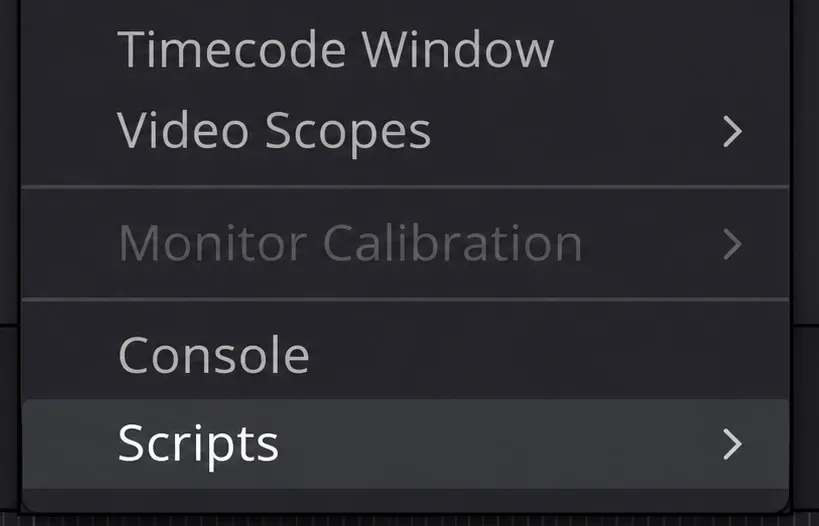
Add scripts to the Workspace > Scripts menu
For a script you run often, the Scripts menu beats a terminal. Resolve scans its Scripts folders at startup and lists what it finds under Workspace > Scripts, so restart Resolve after adding a file. The subfolder decides where the script shows up:
- Utility: listed on every page
- Comp and Tool: on the Fusion page
- Edit, Color and Deliver: on that page only, and Deliver scripts also appear under render jobs
The all-users folders are /Library/Application Support/Blackmagic Design/DaVinci Resolve/Fusion/Scripts on macOS, %PROGRAMDATA%\Blackmagic Design\DaVinci Resolve\Fusion\Scripts on Windows and /opt/resolve/Fusion/Scripts on Linux. Per-user folders are the same path under /Users/<you>/Library/Application Support/... on a Mac and the Fusion/Scripts folder inside $HOME/.local/share/DaVinciResolve on Linux.
The README's Windows per-user path has a slip. It reads %APPDATA%\Roaming\Blackmagic Design\..., but %APPDATA% already points inside AppData\Roaming. A Windows 11 user in a GitHub issue on Free 21.1 placed scripts in %APPDATA%\Blackmagic Design\DaVinci Resolve\Support\Fusion\Scripts\Utility, and that's the folder to use.
Package managers use the same folders. Reactor files the Python and Lua scripts it installs under Scripts, which is why a Python package from Reactor stops appearing in the menu on Free 21.1.
Run Resolve headless for batch jobs
Start the Resolve executable from a terminal or a scheduled task with the -nogui option, and it runs without its interface while the scripting APIs keep working. Pair that with the render script above and a machine can work through a render queue overnight with nobody at the desk. Because the script connects from outside Resolve, this is a Studio workflow with External Scripting Using set to Local.
Fix the errors that stop most first scripts
| What you see | Likely cause | Fix |
|---|---|---|
| No module named DaVinciResolveScript | PYTHONPATH doesn't include the Modules folder, or the terminal started before you set it | Set PYTHONPATH as shown above and open a new terminal |
| The module imports but can't load fusionscript | RESOLVE_SCRIPT_LIB points to the wrong file, or the Python install is 32-bit | Point it at fusionscript.so or fusionscript.dll from the README and use 64-bit Python 3 |
| The script connects to nothing and the next call fails | Resolve isn't running, External Scripting Using is None, or the copy is Free, which refuses outside scripts | Open Resolve and a project first, set Local, and use Studio for external scripts |
| A .py file never appears in Workspace > Scripts | Free 21.1 hides Python files, or the file went in while Resolve was open | Restart Resolve. On Free 21.1, check a Lua equivalent in the Console and verify menu/API access on that build, or use Studio for Python. |
| A call returns False with no message | A Studio-only function on Free, a computer below the minimum requirements, or missing Extras | Run the same action from the interface once, as the README suggests, and install missing models from the Extras Download Manager |
| Format or codec settings change nothing | Guessed format or codec names | Read the current format with GetCurrentRenderFormatAndCodec(), then use a codec identifier from the values returned by GetRenderCodecs(format). |
| StartRendering or GetRenderJobStatus fails when given a job number | Index-based render calls were retired | Keep the job id string that AddRenderJob() returns |
The Extras-dependent functions the README names are AnalyzeForIntellisearch, AnalyzeForSlate, the extended transcription models and GenerateSpeech. Robert Niessner’s April 2026 Blackmagic forum wishlist thread describes calls returning a bare False without a reason and script edits that do not collapse into one undo step. Check every return value in your code, and save the project or work on a duplicate timeline before running anything that edits in bulk.
What 21.0.4 through 21.1.2 added to the API
The 21.0.4 update added calls to get the clip selection on a timeline and a timeline object from a Media Pool timeline entry, plus SetRenderSettings options for handles, extents and data burn. Free 21.0.x users reported in-app Python scripting through Workspace > Scripts; this does not make external scripting a Free feature.
Studio 21.1 lists three policy lines (advanced scripting needs Studio, built-in Python console scripting, no more Python 2) and 19 API additions after them:
- Render: update render presets, add a render preset to Quick Export, and query codecs and get or set formats for audio renders
- Media: Media Pool clip transcriptions with speaker and timing data, clone media files, and source audio mapping
- Timeline: create and flatten multicam clips, trigger multicam SmartSwitch, auto align timeline clips, add transitions, more Inspector properties, fades, speed changes and audio normalization
- Project and system: create, update, delete, import and export project setting presets, manage keyboard customization presets, and query or set output blanking
- Color: validate and encrypt DCTL files
The same release added the native MCP server for AI assistants. 21.1.1 followed with an ApplyGradeFromDRX option that applies changes to all node layers. Its notes do not announce a change to the Free scripting policy. Studio 21.1.2 lists only "multiple scripting API improvements" without naming the calls, and the free 21.1.2 notes don't mention scripting. Both updates keep libraries compatible with 20.3.2, while projects created or opened in them no longer open there. The rest of the version 21 changes are in our DaVinci Resolve 21 overview.
The later Studio 21.2 notes again list multiple scripting API improvements without naming individual calls. They expand AI assistant capabilities in Color and Fusion and let assistants download Extras for advanced features, export frames and arrange thumbnails in a grid. Both those notes and the Free 21.2 notes list updated Fusion tool and scripting reference developer documents. Read the developer documents bundled with the installed build before relying on a new call; the short release note doesn't define its arguments or return type.
Connect an AI assistant through the built-in MCP server
Studio 21.1 can be driven by an AI assistant such as Claude Desktop or Claude Code through its built-in MCP server. Choose File > Setup AI Assistants and wait for the confirmation, which also tells you which other AI agents it found on your system. The manual adds that the assistant may launch Resolve when it needs to and may need a restart after setup. Its sample prompts include rendering the current timeline in three formats, renaming the clips on V1 in sequence and exporting colored markers to a CSV file.
The same page warns that scripts the assistant creates share the assistant's access to your disk, network and other resources. I'd point an assistant at a duplicated project until you know how it handles your prompts, for the same reason you'd test any script you didn't write. Python-based third-party MCP servers have the same Python restriction: the maintainers of the dcc-mcp Resolve adapter concluded in a pull request that Free 21.1 leaves neither of its Python transports usable, external or in-process.
Free 21.1: published reports by build
The original six-source comparison below combines dated reports from September 9 to October 20, 2026 with the AutoSubs v3.11.0 integration notes: the xere.my write-up on an Apple Silicon Mac, three users in issue #203 on Fedora 44, macOS 26.6.2 and Windows 11, the AutoSubs integration notes, and an October MCP bridge report. The stated point builds in those reports run from 21.1.0 to 21.1.0.17; some entries specify only 21.1. Each denominator counts explicit Free observations for that finding; general debugging advice is not an additional Free measurement.
| Finding in the original Free 21.1 reports | Report count | Who reported it |
|---|---|---|
| .py files missing from Workspace > Scripts, with no error | 4 of 4 | xere.my, the Fedora and Windows reports in #203, the October bug report |
| No Python in the Console | 3 of 3 | Fedora and Windows reports in #203, the October bug report |
| .lua files still listed in Workspace > Scripts | 4 of 4 | xere.my and all three #203 reports |
| print() from a menu-launched script shows nothing | 3 of 3 | xere.my, the macOS and Windows reports in #203 |
| io, os.execute and require unavailable | 3 of 3 | xere.my, AutoSubs, the Windows report in #203 |
| Menu-launched Lua still does API work such as creating bins, render jobs and preference files | 2 confirmations; 2 inconclusive probes | Confirmed by xere.my and AutoSubs. The macOS and Windows reports in #203 saw no print/file output; those probes did not establish whether an API call could change the project. |
| Console Lua is live, with the resolve, bmd and fusion objects available | 1 of 1 | Windows report in #203 |
| UIManager returns nil, so scripts can't open dialogs | 1 of 1 | xere.my |
The print/file probes cannot settle API access: io was unavailable, and output behavior also differs between sources. AutoSubs' debugging notes explicitly say print output appears in the Console. A separate October 8 Linux test on Free 21.1.1.0010 reports Console access, a bin created from the Scripts menu and ProRes export. A November 1 report on Free 21.1.2.10, macOS 27.0.1 and Apple Silicon found working project/timeline calls through the Console's injected resolve object, while menu-launched Lua executed but Resolve() and bmd.scriptapp("Resolve") returned nil. That report also found io, dofile, require and ffi absent in the Console. These are different builds and platforms; they do not establish which difference caused the change.
My starting point on Free 21.1 is the Console, because its injected resolve object is confirmed across the Windows, Linux and later macOS reports. Check a harmless change in a spare project before relying on a menu script, and inspect the actual API return value. The AutoSubs v3.11.0 integration uses loadfile plus saved Fusion preferences for its mailbox and warns against long loops through fusion:Execute. A build that removes loadfile or the needed API object cannot use that same mechanism; the free auto-subtitles guide covers the tool setup.
Staying on 21.0.4 to keep free Python scripting
Free builds up to 21.0.x still ran Python from Workspace > Scripts, and the davinci-resolve-mcp maintainer measured that menu route working on Free 21.0.3.7. An editor quoted in the xere.my write-up rolled back to 21.0.4 on the same machine, with the same Python 3.11.7 runtime, and every script reappeared. Puget Systems gives the same two options for its benchmark, which no longer runs on Free 21.1: stay on Free 21.0 or move to Studio.
Back up before opening an older working project in a newer build. Blackmagic's 21.1.2 compatibility note keeps project libraries compatible with 20.3.2 but says individual projects created or opened in 21.1.2 cannot be opened there. It recommends both a full library backup and individual project backups. That statement does not establish project compatibility with 21.0.4. I'd keep a separate backed-up library and untouched project copies for a rollback; the safe update routine explains the backup order.
I'd keep 21.0.4 only for a Python tool that requires it and plan the move to Studio, because the old build limits which newer projects it can open. Blackmagic's stated reason for the change, that the Python API was being used to hack Studio features into Free, doesn't read like a decision that will be reversed. The Free version features guide covers what else separates the editions, and the Free vs Studio comparison helps decide whether the license pays for itself beyond scripting.
Questions about the DaVinci Resolve API
Can I use JavaScript with DaVinci Resolve?
Only inside Workflow Integration plugins. These are Electron apps that use Resolve's JavaScript API alongside Python or Lua, they load from Workspace > Workflow Integrations, and the manual marks them Studio only. Ordinary scripts are Python or Lua.
Which Python version works with the Resolve API?
A 64-bit Python 3 installed for all users. The README's floor is 3.6, Python 2 support ended in 21.1, and the davinci-resolve-mcp project reports 3.10 to 3.12 as the safest range, with 3.13 and 3.14 confirmed on Studio 20.3.2 and possible connection failures on older builds.
Can I script Fairlight or the AI tools?
Partly. Studio 21.1 added audio normalization, audio render formats and transcriptions with speaker data, and the README lists Extras-based calls for IntelliSearch analysis, AI Slate ID and the AI Speech Generator. A wishlist thread written before 21.0.4 listed most of Fairlight and many AI tools as out of reach for scripts. 21.1 filled some of those gaps, so check the README for the exact call before you plan a tool around it.
My verdict
The Studio API is broad enough to build real ingest, conform and delivery tools, and the 21.1 additions for multicam, fades, speed changes and render presets widen it further. If Python, terminal runs, the built-in AI assistant integration or a Workflow Integration panel is part of the plan, buy Studio and set External Scripting Using to Local. On Free 21.1, start with Lua in the Console and verify the current build's menu access before writing a utility around it. Check return values and the resulting project change; a listed script or silent output alone does not prove success or failure.