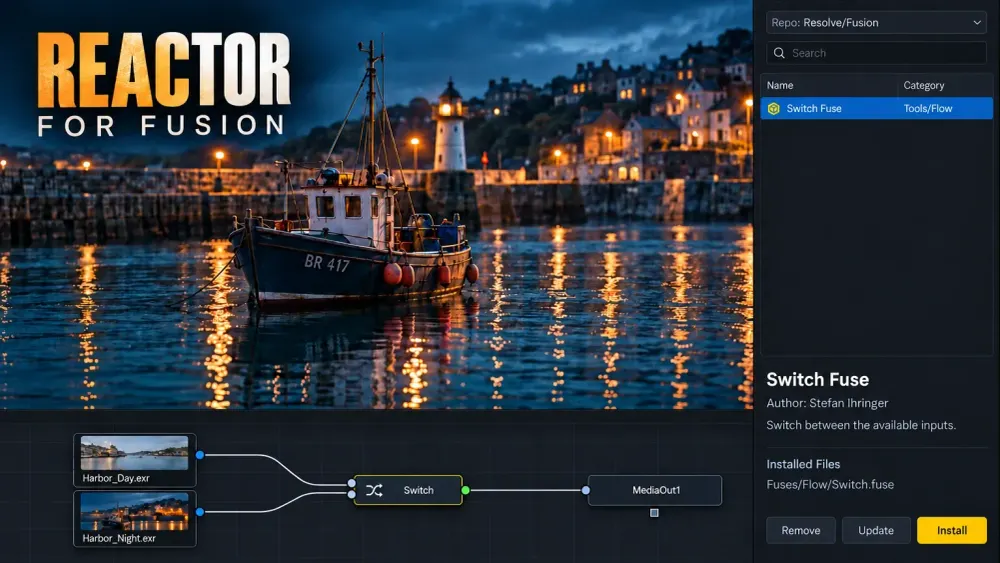
Reactor is a free package manager for third-party Fusion tools, macros and scripts. For a new installation in DaVinci Resolve Free, I’d start with Reactor Standalone. Install the separate app, connect its content folder to Fusion, then choose only the packages you need. The older Reactor installer runs its manager inside Resolve, and that’s where many tutorials and current Free installations part company.
Each installable package in Reactor is called an atom. The manager is free, but that doesn’t tell you whether a particular package works in your edition, runs on your computer or permits commercial use. Those are package-level checks. Here’s how to make the connection, find the installed tools and remove them without stripping dependencies out of an existing composition.
Which Reactor version should you use?
Reactor Standalone has its own desktop window on macOS, Windows and Linux. The project’s current documentation describes it as compatible with Resolve Free and Studio, and it specifically names Standalone as the way around the UIManager dependency problem that affects Free from version 19.1. The compatibility statement says “20+”. That describes the manager and doesn’t guarantee every atom in the catalog.
Reactor Classic is the older manager that opens inside Fusion or Resolve. I wouldn’t replace a working Classic installation in Studio just to follow this guide. For a fresh Free installation, use the Standalone instructions below, and don’t assume an older drag-and-drop installer tutorial still applies.
The current Standalone release is Reactor 4 Beta 37, with the release tag 4.0.5. The official release page offers a Mac universal archive plus separate Windows x64 and Linux x64 archives. Before downloading, check the release name and your computer’s architecture. The beta label and the version tag are different identifiers.
Reactor distributes tools and isn’t a single visual effect. If you need node basics before adding tools, start with our Fusion learning hub. For an ordinary .ofx.bundle, follow the OpenFX plugin folder guide instead. Don’t copy an entire Reactor content folder into a generic OFX destination.
Install the Standalone app
Use the project’s own release assets, and skip any repackaged installer from a download site. The Standalone installation instructions describe a portable ZIP installation:
- Open the release page, expand Assets and choose the archive for your operating system and architecture.
- Extract the ZIP. On macOS, copy
Reactor.appto Applications. On Windows, keep the extracted Reactor folder intact and move that folder to your chosen program location. On Linux, keep the application folder intact too; the documentation uses/opt/Reactoras an example location. - Launch the app and read the terms. If the operating system blocks it, verify the download’s origin and the applicable OS instructions before deciding to allow it. Disabling system protection is not an installation step.
- Allow the catalogue to synchronize. Initial startup can take time; avoid opening several copies because the first window is slow to appear.
The application folder and the downloaded content folder do different jobs. By default, Standalone keeps its packages in ~/Reactor/ on macOS/Linux or %USERPROFILE%\Reactor\ on Windows, which is a Reactor folder inside your user home folder. Moving the app into Applications or Program Files doesn’t mean Fusion is already connected to those packages.
Connect Reactor to DaVinci Resolve Fusion
This step tells Fusion where to find the content. Installing the desktop app on its own doesn’t complete the connection.
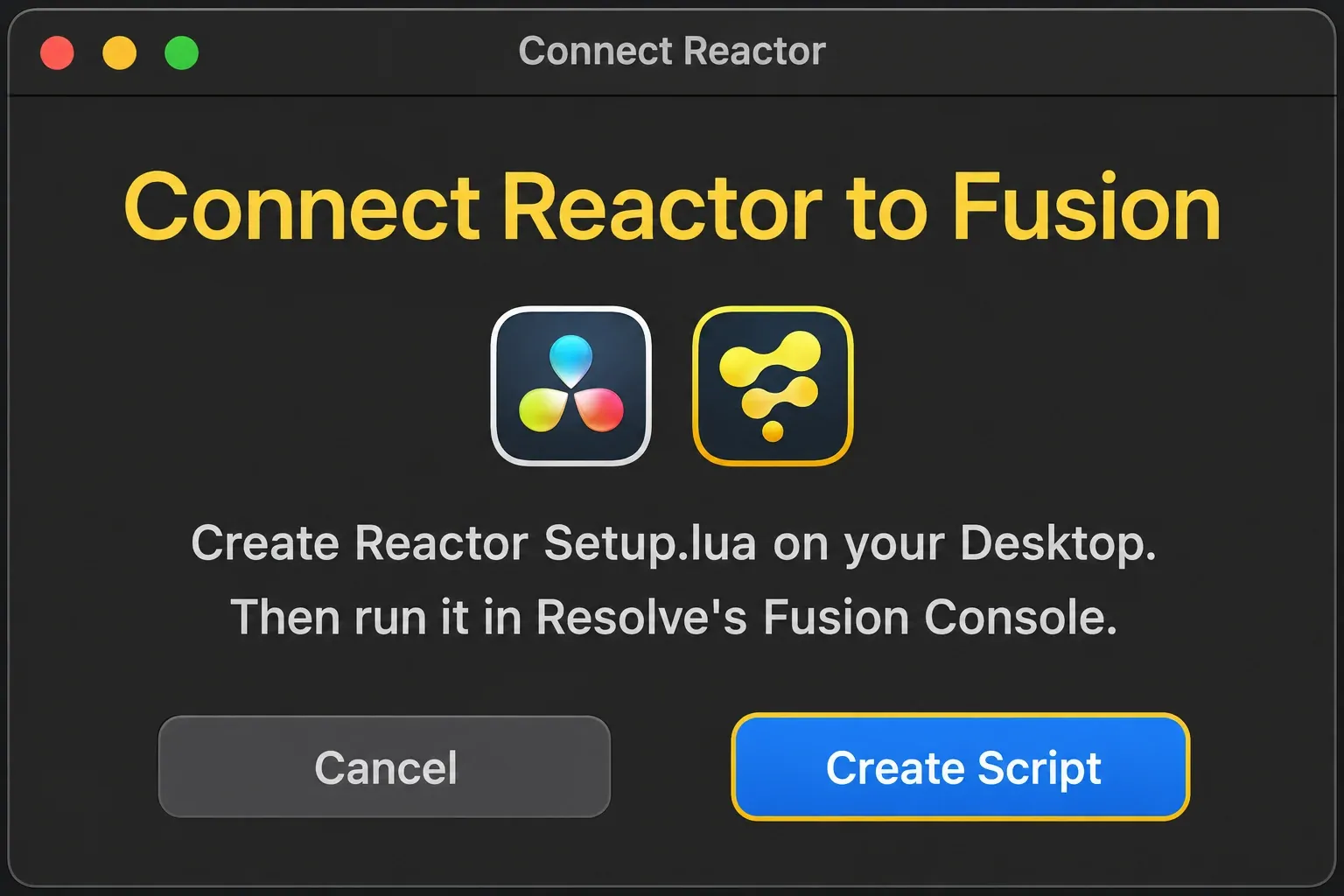
- In Reactor, choose File → Connect Reactor to Fusion….
- Click Create Script. Reactor creates
Reactor Setup.luaon your Desktop. - Open a project in Resolve and go to the Fusion page. Choose Workspace → Console.
- Drag
Reactor Setup.luainto the Console to run the connection script. Use the script created by your own Reactor installation, not unrelated Lua code from a forum reply. - Read the Console message; the documentation notes that you may need to reopen the Console to see it. Once the connection is reported, quit and relaunch Resolve.
After restarting, open Fusion → Fusion Settings… → PathMap. In the User section, find Reactor: and check that its destination is the same content folder Standalone uses. The setup also adds Reactor references to UserPaths: and Scripts:. The connection works through paths, so the separate Reactor app doesn’t have to become a menu command inside Resolve.
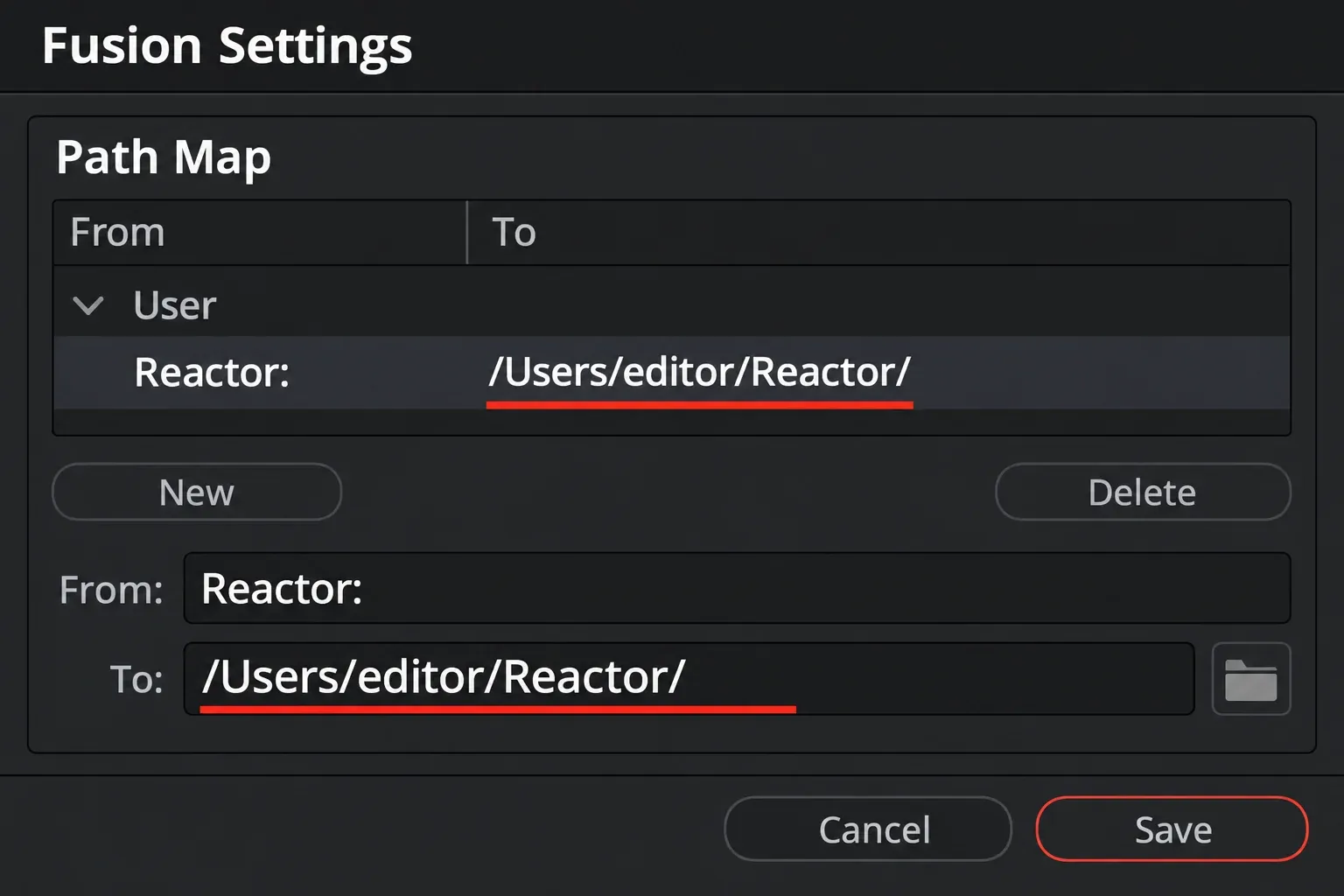
If you used Classic before, check the actual destination and don’t assume the two managers share a folder. Classic’s documented Resolve paths are shared system locations, while Standalone defaults to your user home folder. If you point Resolve at one while installing packages into the other, you can easily end up with an “installed” tool you can’t find.
Choose an atom before installing it
In Standalone’s left panel, set Repo to Resolve/Fusion. The app also has repositories for other software, so searching the wrong repository can send you toward a package that has nothing to do with your Resolve project.
Narrow the list with the search field or category filters. The package browser documentation puts macros, Fuses and plugins under Tools, and Python/Lua scripts under Scripts. Click the row’s text to read its details. The checkbox beside the name installs or removes the package, so it isn’t just a harmless selection toggle.
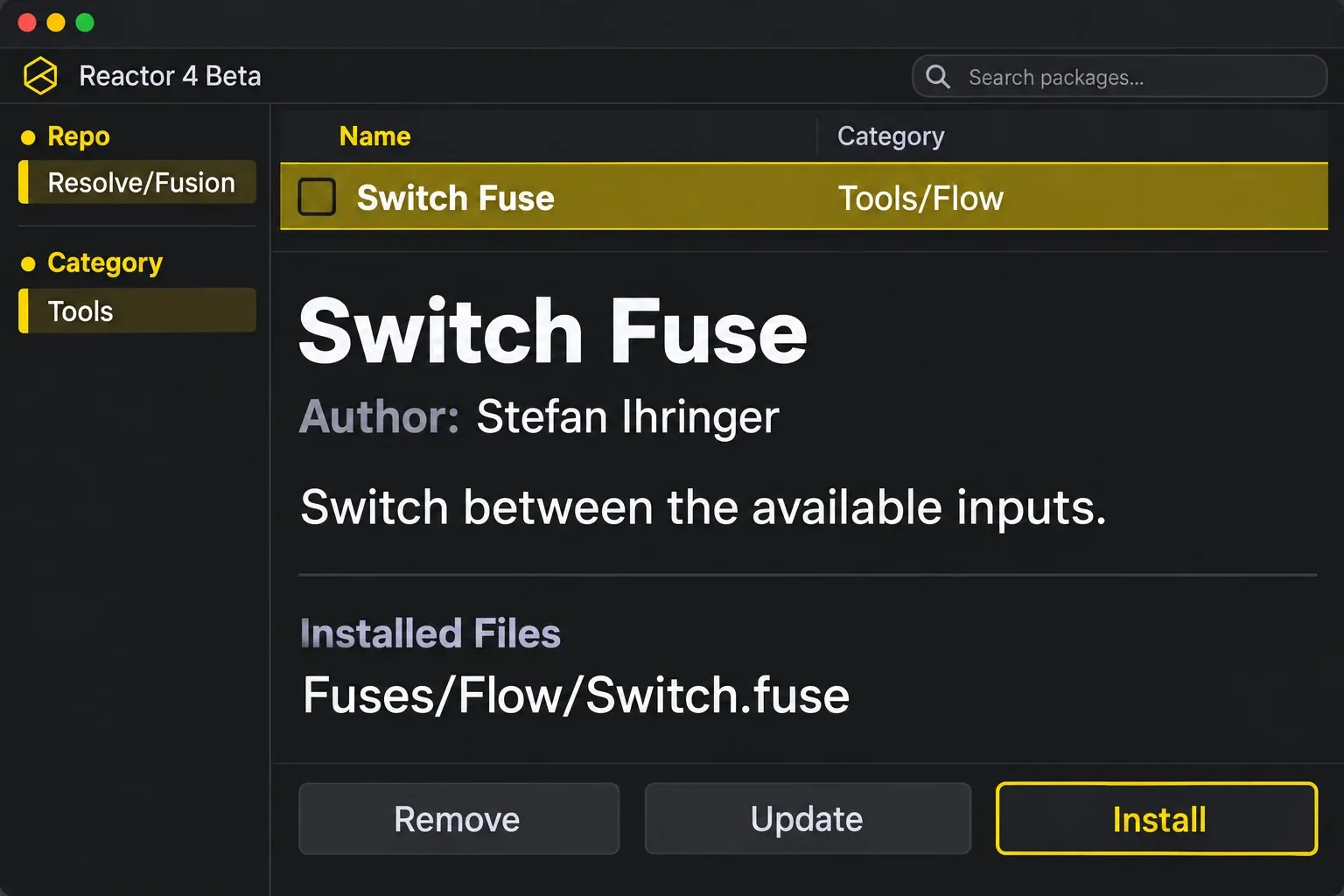
Read these details before adding a package:
- Host and edition: does it support Resolve, standalone Fusion, Free or Studio? Standalone can distribute a script even when that script’s own UI requires Studio.
- Platform and architecture: a compiled plugin may ship only for particular operating systems or processors. A manager that opens on your Mac does not make a Windows binary compatible.
- Files and dependencies: inspect the listed files and required atoms. Reactor installs declared dependencies automatically, so one selection may add several packages.
- License: look for the author’s usage terms, especially for paid work and redistribution. A zero-price download, a donation request and permission for commercial use are separate questions.
I’d install one tool for one immediate job, then keep its name and version with the project notes. A large collection means more dependencies to account for when another editor opens the composition.
Where do installed Reactor tools appear?
Select the package and choose Install, then restart Resolve if the package requires it. The Classic usage documentation specifically calls for a restart for packages that contain .fuse, .fu or .plugin files. A restart after installing is a useful first check before you decide a missing entry means a failed download.
The destination depends on what the atom deploys:
- Fuses and node tools: look in Fusion’s tool-selection workflow for the documented tool name. The manager’s package name and the node name may differ.
- Macros: use the macro’s installed category or location. Our Fusion macros and templates guide covers how those files and exposed controls fit into a composition.
- Scripts: use the script location or menu specified by its package. A script is not a node you connect to MediaOut.
- Example compositions and templates: open or import them as instructed by their author. They appear in Edit-page Titles only if the package actually includes and installs that kind of template.
For example, the Switch Fuse atom describes switching between inputs and deploys Fuses/Flow/Switch.fuse. That file list tells you much more about where to look than the word “plugin.” It doesn’t establish compatibility or a license that the atom doesn’t state.
Update packages without changing more than you intended
Updating the Reactor app and updating its atoms are separate jobs. Get the application build from the release page. For atoms, check the manager’s update state and the package author’s changes before you update an established project.
Beta 37 comes with an important exception. The Standalone README’s update warning says the Update button currently updates all installed atoms that are out of version. The Essentials page describes actions in terms of the active selection, but here the build-specific warning is the one to follow. Don’t assume that selecting one row limits this beta’s update to that row.
Before a broad update, save a separate project backup, write down the installed package versions and back up the Reactor content folder itself. Keep the earlier content around until you’ve checked the affected compositions. A project export on its own doesn’t back up the third-party tools it references.
Fix “installed, but not showing”
Work from the point that failed, and don’t delete all preferences to start over.
The older installer cannot open its manager in Free
Use Standalone and its connection script. A tutorial for the older embedded manager covers a different installation route, and copying more files into an OFX folder won’t resolve the manager’s UI dependency.
The package is installed, but its tool is missing
Compare Standalone’s content location with Fusion’s Reactor: PathMap. Restart Resolve, check the atom’s installed-file list, and search the correct tool, macro or script category. Then check the package’s host, edition, OS and dependencies. Each of those is its own check, because a finished package download doesn’t prove the host can load every file.
The catalogue looks empty
Confirm Resolve/Fusion is the active repository, clear the search text and relax the State and Category filters. Let the initial synchronization finish, and check network access if it doesn’t. Don’t apply a Classic-only resync or Linux library fix to Standalone without confirming that the advice matches your manager.
Reactor reports a write or path error
Check the folder selected under Reactor Install PathMap in File → Settings… on macOS or File → Preferences on Windows/Linux. Your account must be able to write to that folder. If you change the content location, reconnect Resolve and verify the new PathMap so it isn’t left pointing at the old folder.
When you ask the package author for help, include your Resolve build and edition, OS and architecture, Standalone or Classic version, atom ID/version, actual content path and the exact Console error. Those details separate a path problem from an unsupported package. For Mac App Store installations or a custom setup, verify the mapping itself. Don’t assume an old Classic sandbox path is the current Standalone destination.
Remove one package or uninstall Reactor
For a single atom, check which saved compositions depend on it first, then select it in the manager and use Remove. Removing a tool doesn’t replace it with built-in Resolve nodes, so a project that uses the tool can be left with missing functionality.
Don’t assume that removing the original atom also removes everything it brought in. The dependency documentation says dependencies stay installed when their parent atom is removed. If you want to clear out an unused dependency, remove it separately, and only after you’ve checked that no other package or project still needs it.
For a complete Standalone uninstall, first record the content destination and back up that folder along with your relevant Fusion preferences. Quit both Reactor and Resolve. The documented removal has three parts: the Reactor preferences file, the downloaded content folder itself, and the app or program folder. The preferences file sits in these locations:
- macOS:
~/Library/Application Support/Reactor/Reactor.json - Windows:
%AppData%\Reactor.json - Linux:
~/.config/Reactor/Reactor.json
Move only those identified Reactor items to Trash or the Recycle Bin. Don’t delete an entire Blackmagic Design, Fusion or user-preferences folder. If you chose a custom content location, that location takes the place of the default home-folder path.
Also look through Fusion’s PathMap for references to the removed content. Deleting the app isn’t a substitute for checking that connection. If you remove Reactor’s entries, leave every unrelated destination in UserPaths: and Scripts: in place, then save the settings and restart Resolve. If you still use Classic, keep the mappings it needs.
Classic has its own manual uninstall procedure, which covers its shared content folder and Reactor-only PathMap entries. Follow that procedure for a Classic install. Deleting Standalone’s home folder won’t make Classic disappear.
