If a DCTL is not showing in DaVinci Resolve, first identify what is missing. Is the DCTL effect itself absent, is your file missing from DCTL List, or can you select the file and see no controls? Each of those has a different cause. For a newly installed file, I'd check the Resolve edition, open Resolve's own LUT folder, confirm the file extension and restart the application. Reload DCTL won't make a new file appear in the list.
If the DCTL belongs to a grade you need to keep, save a project backup before moving files or replacing a node. A missing transform can change the look of a shot, and guessing with a different DCTL may only hide the problem.
Start with the symptom you can see
- The DCTL effect itself is absent: check your Resolve edition. The Resolve 21.1 Reference Manual labels the DCTL ResolveFX effect “Studio Version Only.” No installation step will add that Studio effect to the free edition.
- The effect is present, but your file is not in DCTL List: check the active LUT folder and the file's name, then restart Resolve. That's a file-discovery problem.
- The file is selectable, but the controls area is empty: find out whether that particular DCTL is supposed to expose controls. A basic transform can process the image without custom sliders.
- Resolve reports a build or processing error: keep the exact message. The file may be present but fail when Resolve tries to use it.
- An existing project reports a missing DCTL: recover the same file and any files it depends on. Another DCTL with a similar name is a risky stand-in for a technical transform.
Blackmagic describes the DCTL effect, its list and its reload control in the Resolve 21 Reference Manual available from its support page. I rechecked those entries on October 5, 2026 against the 21.1 manual; 21.1.1 build 10, posted October 2, was the current update. Knowing the difference between the list and the loaded file will help you more than memorizing an operating-system path.
Your DCTL is missing from the list
- Check the edition and where you are looking. On the Color page, add the DCTL ResolveFX effect to a node if it isn't there already, open its controls and look at DCTL List. If the DCTL ResolveFX effect is unavailable, first confirm that you're running Studio, since Blackmagic marks this effect Studio only in the Resolve 21 manual. A regular LUT showing up elsewhere in Resolve tells you nothing about whether the DCTL effect is available.
- Open the folder from Resolve. Go to Project Settings → Color Management → Open LUT Folder; the button sits in the Lookup Tables section. Put the vendor's DCTL file in that folder or a suitable subfolder, following the vendor's package instructions. The button opens the active folder Resolve uses, which is safer than copying a Windows, macOS or Linux path from the web that may not match your installation.
- Inspect the actual file. Blackmagic specifies .dctl for a plain-text DCTL. A downloaded archive has to be extracted first, and a file named
something.dctl.txtis still a text file with the wrong final extension. Some vendors distribute an encrypted .dctle file; keep its package structure and supporting files intact, and don't rename it to imitate a plain-text DCTL. - Quit and reopen Resolve, then check DCTL List again. In the Resolve 21 manual, Reload DCTL reloads the currently selected file's content; it explicitly does not refresh the list. The manual says to restart Resolve for a new list entry. Update Lists is documented for LUT dropdown menus, so I wouldn't lean on it as a substitute for this DCTL-list restart.
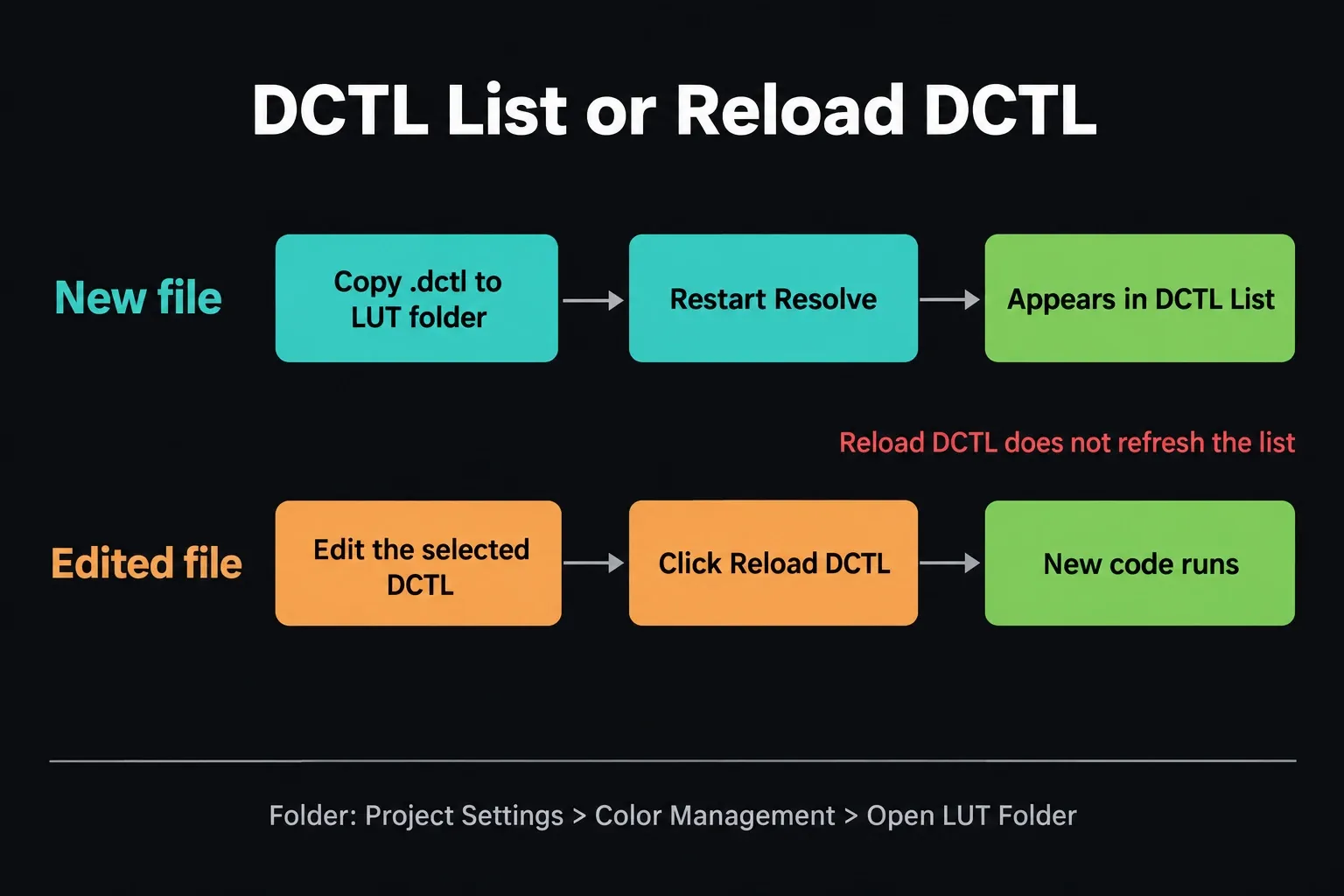
If the entry still doesn't appear, check that you copied the file into the folder opened by this installation of Resolve. In a Blackmagic forum case about DCTLs that were visible but would not load, the author's Windows folder configuration turned out to be the issue; another participant later reported success after moving files to the LUT folder opened from Resolve. Those are individual reports, and they don't prove the same Windows path will fix every machine.
The file appears, but its controls are blank
First ask what the DCTL should show. A simple color transform may have no user-facing parameters. Blackmagic's DCTL syntax chapter starts with a transform function, while tools that offer sliders need their own parameter definitions. If the image responds as the tool's documentation describes and the creator promises no controls, an empty controls area may be normal.
If the creator shows controls for this exact version and yours are missing, compare the installed file with the original package. Was it extracted completely? Did you move it out of a companion folder or copy an older edition over a newer one? Reopen the active LUT folder from Resolve, restore the matching vendor package without altering an important project copy, restart Resolve, and select the file again. Try one other known compatible DCTL with documented controls: if its controls appear, investigate the first file and its dependencies; if none appear, note the Resolve build, edition and OS before escalating.
The reported empty-controls case on the Blackmagic forum involved Resolve Studio 20.1 on Windows 11. Its author eventually got the files working with a different folder arrangement. It's a useful path check, but I wouldn't call it a confirmed Resolve 21 bug or tell everyone to change system folders.
Resolve shows a DCTL build or processing error
A file can be listed and still fail when Resolve processes it. Keep the exact error text and look at whether it mentions a missing file, an included header, or compilation. If the DCTL came as a folder with .h files or other dependencies, restore the package in the arrangement its author specified. If it's encrypted, request the matching release from the vendor; editing an encrypted file won't repair it.
An ACESCentral discussion of Resolve 15 on macOS shows the difference well: a self-contained DCTL loaded, a version using #include failed to find a header, and other attempts produced Metal or OpenCL compilation errors. That old thread names the kinds of failure; it gives you no GPU settings to copy into Resolve 21. For today's build error, compare the file's stated Resolve and OS compatibility with your installed version, then send the actual message and package version to its creator or Blackmagic support.
Hold off on switching GPU backends, reinstalling Resolve or deleting cache folders. None of those actions follows from the words “DCTL not showing,” and each one can make a recoverable project harder to diagnose.
An existing project says a DCTL is missing
Treat this as a dependency problem first. According to Blackmagic's 21.1 release notes, missing DCTLs show as a viewer overlay and in the LUT Manager, which can also relink missing LUTs and DCTLs. Note the missing name and any path in the warning, then locate the same licensed DCTL release used for the grade, including companion files. Place it where the current Resolve installation expects it, restart, and reopen a backup of the project to check the affected nodes. If the file came from a vendor, use that vendor's installation and license instructions. A different revision can change a grade even when the filename looks familiar.
If you can't recover the original file, keep the project backup and record which shots and nodes rely on it before rebuilding the look. The node guide helps trace where a transform sits in the grade. The LUT guide covers ordinary LUT installation and placement; that's a neighboring task, and it won't fix every DCTL error.
What to record if it still fails
Write down the Resolve version and build, Free or Studio edition, operating system, the DCTL's source and version, whether the file appears in DCTL List, and the exact error or missing-control behavior. Also record whether a second, documented DCTL works. Those details separate an installation problem from a broken package or a project dependency without guessing from the appearance of one node.
For the wider grading workflow, the Color Grading hub connects this problem with node order, LUTs and color management. Fix the missing transform first; only then judge the shot's look.
