
Yes, you can import 3D models into DaVinci Resolve on the Fusion page. What matters is what you need to bring across: one static object, an animated scene with separate parts, or a prepared USD scene. Each of those uses a different import route, and the wrong one can leave you with a single mesh when you expected editable objects and animation.
I’d start with a modest FBX or OBJ prop and get it through the camera, Renderer 3D and MediaOut before rebuilding its materials. That separates a visibility problem from a texture problem. The steps below follow Blackmagic’s desktop Resolve 21.1 documentation, and a successful import doesn’t promise that the original shaders, rig or whole source project will transfer.
Choose the format and import route first
Fusion has a true 3D environment for geometry, cameras and lights. Blackmagic’s Fusion feature overview describes FBX and Alembic scene import, and the detailed node reference explains the limitations that matter once you choose a file.
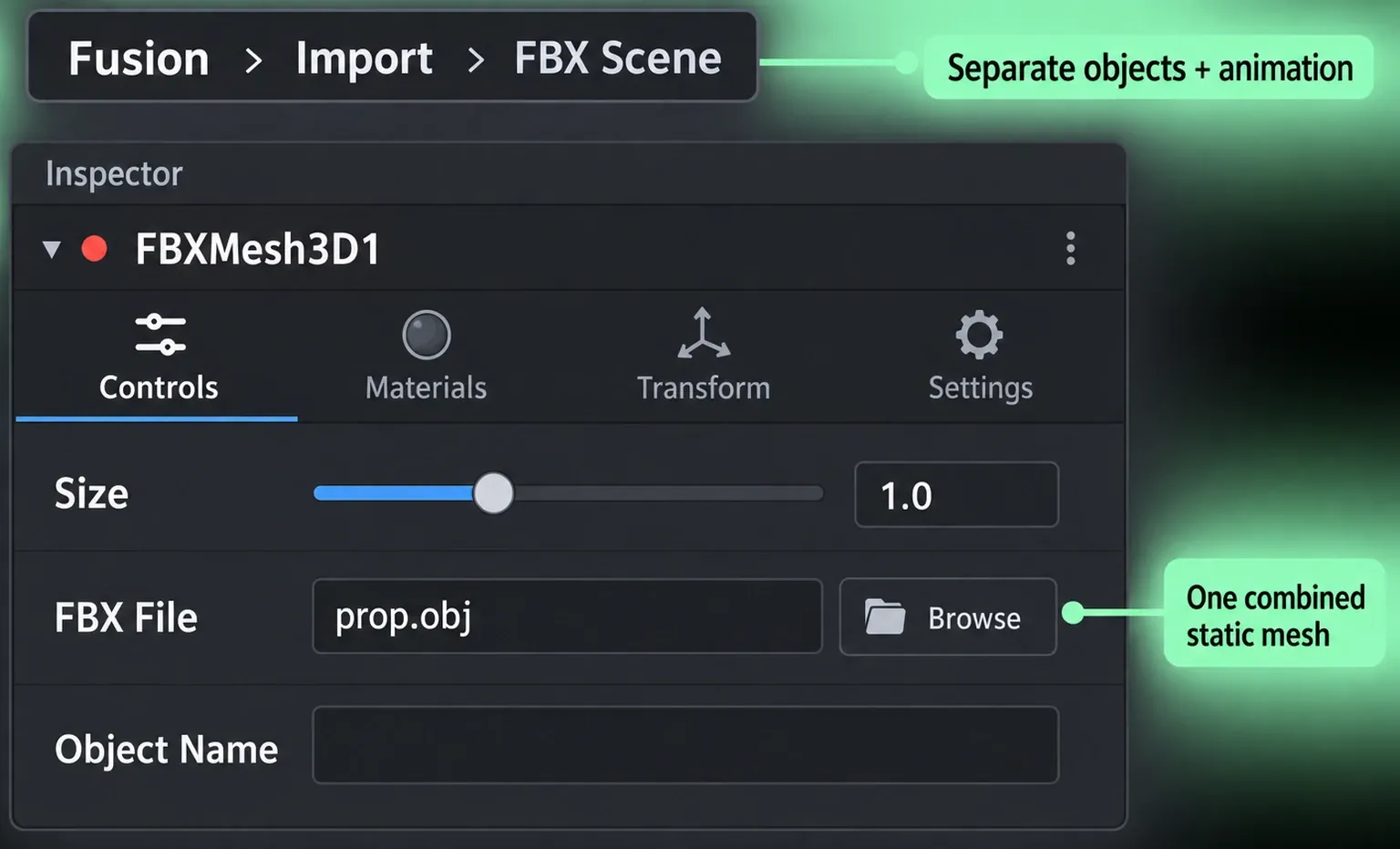
- One static prop: use FBX Mesh 3D. Despite its name, the node reads FBX, OBJ, 3DS, DAE and DXF. Adding it directly combines the file’s geometry into one mesh with one pivot and ignores animation applied to that geometry.
- Separate objects, cameras, lights or object animation: use Fusion > Import > FBX Scene from Resolve’s top menu. It creates individual nodes for the scene’s cameras, lights and meshes and can preserve object animation. This is the route I would choose before spending time repairing a scene imported as one object.
- Baked geometry animation: an Alembic
.abcfile is another option. Prefer Fusion > Import > Alembic Scene when you need the imported objects and transforms separated. Alembic carries baked animation, rather than an editable copy of the source rig. - A prepared USD scene: use uLoader for
.usd,.usda,.usdcor.usdz, followed by the USD nodes and uRenderer. Keep this branch separate from the classic Merge 3D/Renderer 3D workflow described below.
The FBX Mesh 3D reference spells out the difference between a directly added mesh node and scene import. Tutorials for the separate Fusion Studio application may say File > Import. Inside Resolve, use the Fusion menu instead.
GLB, GLTF and native Blender, Cinema 4D or 3ds Max projects aren’t among the formats documented for these classic mesh nodes. If that’s all your download contains, ask for a supported interchange export, or export one from the source application if you already have access to it. Renaming the extension doesn’t convert the file. Keep the supplied texture images with the model, and check its usage license before it goes into a finished video.
Import a model and get it back to the timeline
Save the project before changing an existing comp. You can work on a timeline clip’s Fusion page or in a Fusion Composition. If the Node Editor is unfamiliar, the Fusion beginners guide explains selection, viewers and the MediaOut return path.
- Load the geometry. For a single static object, add FBX Mesh 3D through the Select Tool dialog. Choose the file when prompted, or use the Browse control in the FBX File area in its Inspector. For a scene, use Fusion > Import > FBX Scene instead and inspect the nodes it creates.
- View the model before building the composite. Select the mesh or its Merge 3D and press 1 or 2 to send it to a Fusion viewer. Check whether geometry exists, where its pivot sits and how large it is. A model that fills the entire viewer may simply be enormous in Fusion’s units. Use the mesh’s Size control to bring it into a manageable scale.
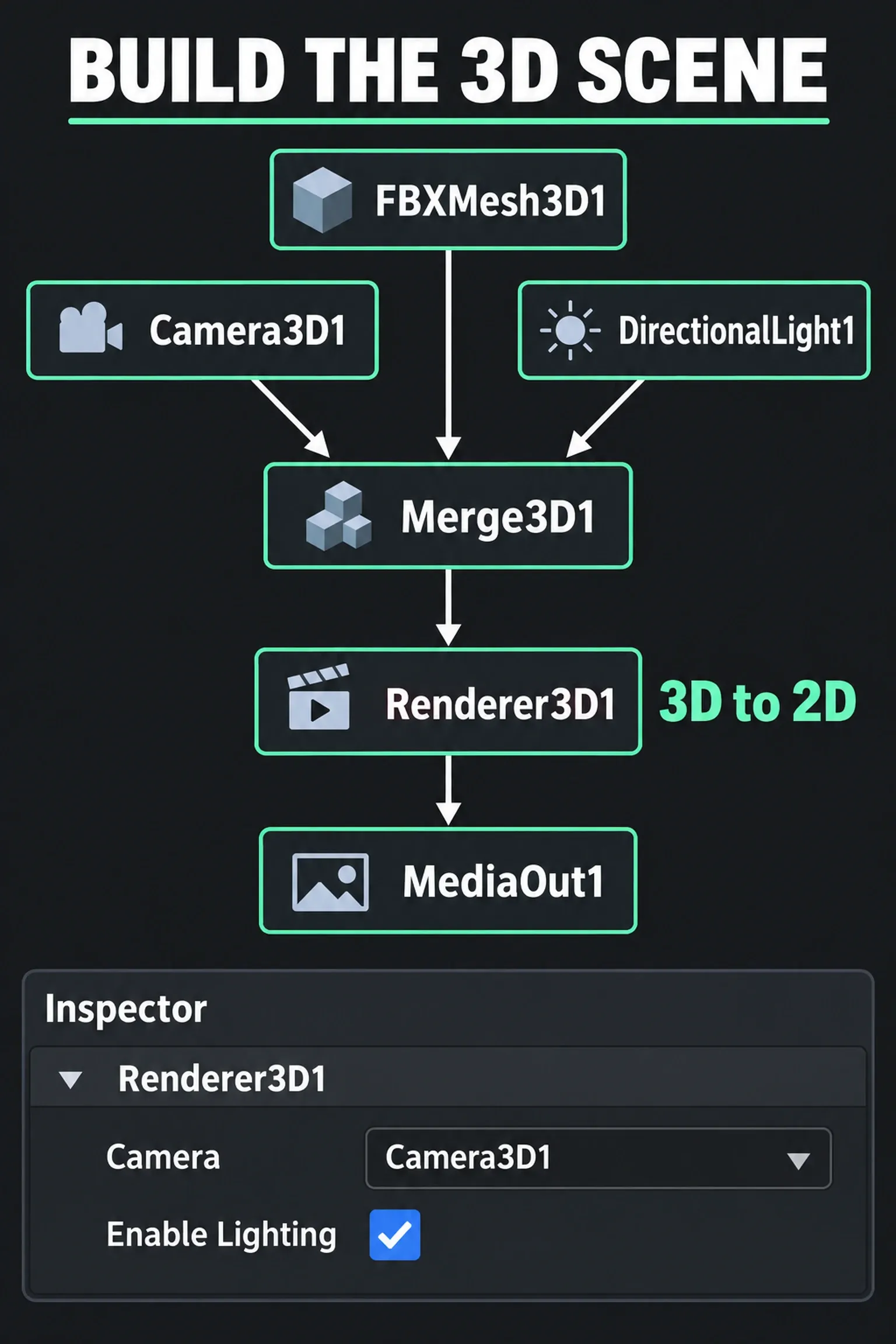
- Assemble one 3D scene. Connect the mesh, a Camera 3D and a light such as Directional Light into Merge 3D. If scene import already supplied a camera, lights and a Merge 3D, inspect that graph before adding duplicates. Position the camera to face the object; keep geometry placement and camera movement as separate adjustments.
- Render the scene to an image. Connect Merge 3D to the orange scene input on Renderer 3D. In the renderer’s Camera menu, select the camera you intend to use. View Renderer 3D in the other viewer so you can compare the scene with its rendered framing.
- Choose the output. For a model-only comp, connect Renderer 3D to MediaOut. To place it over a timeline clip, connect MediaIn to a regular Merge’s orange background input, Renderer 3D to its green foreground input, and that Merge to MediaOut.
Merge 3D assembles the scene, a regular Merge composites images, and Renderer 3D is the bridge between them. Selecting a mesh in a viewer doesn’t send it to the Edit timeline. The branch has to reach MediaOut.
Check the camera and lighting before chasing missing textures
A freely navigable 3D viewer and the renderer’s chosen camera can show different views. Set to Default, the Renderer 3D Camera control uses the first camera in the scene; with no camera, it falls back to a default perspective view. I’d pick the camera explicitly, because that makes the output easier to reason about.
If the object appears in Merge 3D but disappears in Renderer 3D, check the selected camera, its direction and the model’s scale and position. Geometry that cuts off as it approaches or recedes points to Camera 3D’s near/far clipping controls. Adaptive Near/Far Clip overrides the manual range when enabled, so changing the manual distances alone may not affect the result.
For a lit scene, turn on Enable Lighting in Renderer 3D and make sure a light reaches the same Merge 3D. Blackmagic documents that enabling lighting without any lights makes objects black, so check illumination before you call a black object a missing-texture error. The viewer’s lighting preview is separate from the renderer’s lighting setting, too.
Restore bitmap textures and materials
A white object with the right shape tells you the geometry arrived, but not the material package. Find the actual image files first. A model file, a material-description file and the bitmap textures do different jobs, and no renderer setting can bring back an image that isn’t there.
Blackmagic notes that the first texture applied to an imported FBX mesh is brought across if available. That’s narrower than “every material transfers.” I’d get one diffuse texture working before trying specular, bump or more elaborate shading.
- Bring a supplied bitmap into the Fusion comp as an image source—for example, drag the image from the Media Pool into the Node Editor to create a MediaIn node.
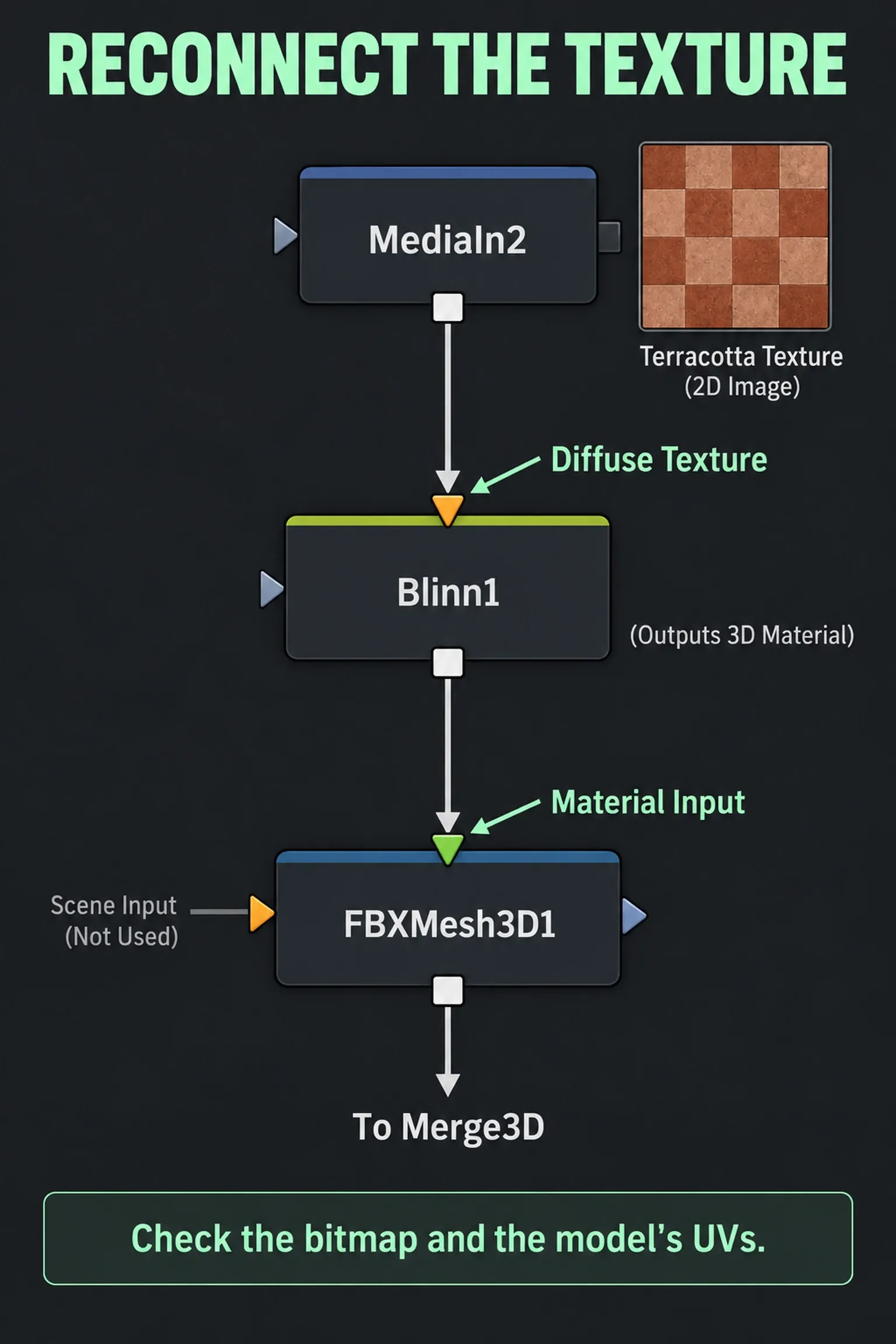
- For a basic diffuse map, connect that image to the mesh’s green Material Input. FBX Mesh 3D accepts a 2D image there and uses it as the diffuse texture for its basic material.
- For separate material controls, add Blinn. Connect the bitmap to Blinn’s orange Diffuse Texture input, then connect Blinn’s output to the mesh’s green Material Input. With a 3D material connected, the mesh’s basic Materials tab is disabled.
- Inspect the object through Renderer 3D with suitable lighting. If the image loads but stretches or lands in the wrong places, check the model’s UV coordinates and the intended texture assignment before changing the light.
The Blinn material reference separates its diffuse and specular inputs. Don’t connect every map to Diffuse Texture just because it accepts a wire. A source application’s procedural shader isn’t a supplied bitmap either, so request baked texture maps or rebuild the look with Fusion’s material tools.
Fusion’s UV Map 3D node can replace texture coordinates using a mapping mode, but it doesn’t edit individual vertex UVs. When a model’s intended unwrap is missing or damaged, I’d fix the export in the source 3D application, which is the more direct next step.
What to do with animation, Alembic and USD
If an FBX model arrives without animation, check the import route first. A directly added FBX Mesh 3D deliberately ignores geometry animation, so revisit scene import before you decide the source file is broken. Even FBX Scene won’t guarantee that every rig, constraint or application-specific effect survives. Confirm what was exported and whether the required motion was baked.
Alembic is useful when the handoff is baked geometry motion. Its documented import limitations include no lights, materials, curves, multiple UV sets or velocities, so plan to build materials separately. Check the detected sampling rate, and keep Resample Rate aligned with the export when you want the original timing.
For USD, load the file in uLoader, combine USD scene elements with uMerge, and convert that scene to a 2D image with uRenderer before MediaOut or a regular 2D Merge. The USD renderer reference documents its own Camera and Lighting controls. A USD scene isn’t an input for classic Renderer 3D, so pick one complete route instead of mixing the two node families.
Putting a model into a moving filmed shot is a further task, and it needs a proper camera match on top of a successful import. The Fusion tracking guide explains when a 3D solve is appropriate. Importing geometry and solving a camera are separate capabilities: Camera Tracker requires Studio according to Blackmagic’s edition feature comparison.
Diagnose the symptom you actually have
- The file cannot be selected: check its extension against the chosen importer. Obtain an interchange export if you have a native project or a GLB/GLTF file for the classic mesh route.
- The model exists in 3D but the output is empty: trace the scene through Merge 3D, Renderer 3D and MediaOut. Then check the renderer’s camera, object scale, position and clipping.
- The shape is correct but white: locate the bitmap files and inspect material connections. Reconnect one diffuse map first; do not assume the source shader transferred.
- The object becomes black with lighting enabled: confirm that scene lights are connected and positioned to illuminate it. For USD, check uRenderer’s own lighting mode.
- All the parts behave as one object: check whether you added a mesh node directly. Use scene import when separate objects or their animation are required.
- The scene is too heavy to work with: ask for a simpler export or render the complex asset in its source 3D application and composite the resulting images in Resolve. I would choose that handoff when preserving a sophisticated shader or rig matters more than editing the geometry in Fusion.
Once the model renders through the intended camera, add the remaining materials and the composite’s finishing work. The Fusion learning hub keeps the related tracking, keying and node workflows together so you can take on the next part of the shot.
