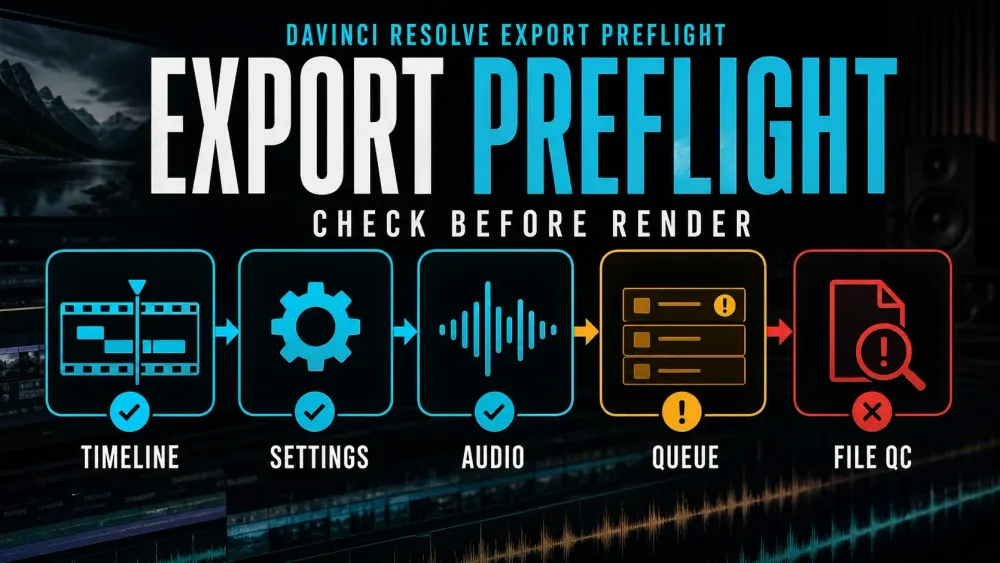
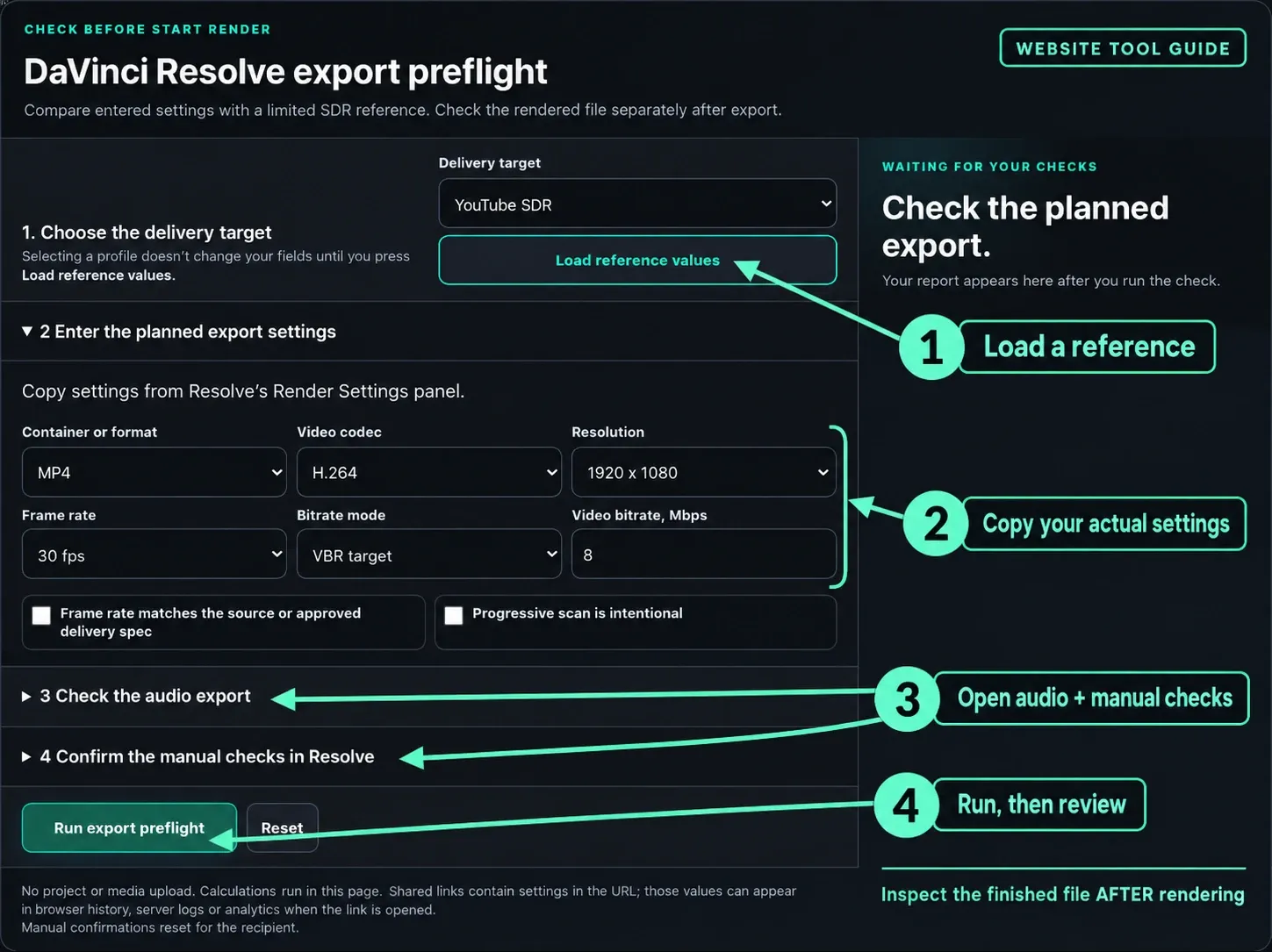
Keep this free checklist open beside Resolve's Deliver page. Enter the settings you plan to use, confirm what you've already checked in the project, then read the report before you start a long render. It cannot look inside your project, and it can't prove the finished file is correct.
Start here: choose a destination, open the video and audio sections, then work through the manual checks. Reference values are examples, and nothing here measures your timeline.
Check before Start Render
DaVinci Resolve export preflight
Compare the settings you enter with a limited SDR reference. Check the rendered file separately once the export finishes.
Waiting for your checks
Check the planned export.
Your report shows up here after you run the check.
No project or media upload. The calculations run in this page. Shared links carry the settings in the URL, so those values can show up in browser history, server logs or analytics when someone opens the link. Manual confirmations reset for the recipient.
After rendering: play the exported file outside Resolve before you deliver it. A finished browser checklist isn't file QC, a codec-support check or an upload guarantee.
What this preflight checks—and what it cannot
The report compares selected fields with a small set of YouTube SDR or Vimeo recommendations and lists the manual items you haven't confirmed yet. It doesn't read Resolve, spot offline clips or validate every codec/container combination. HDR metadata, bit depth, chroma subsampling, encoder support, loudness, disk space and actual file size still need their own checks.
It works in two stages: before rendering, you review the settings and the queued job; after rendering, you inspect the output. Change any field and the previous report no longer counts. Loading a reference or opening a shared link resets the confirmations, so someone else's ticks can't sign off on your project.
Inspect the Render Queue before Start Render
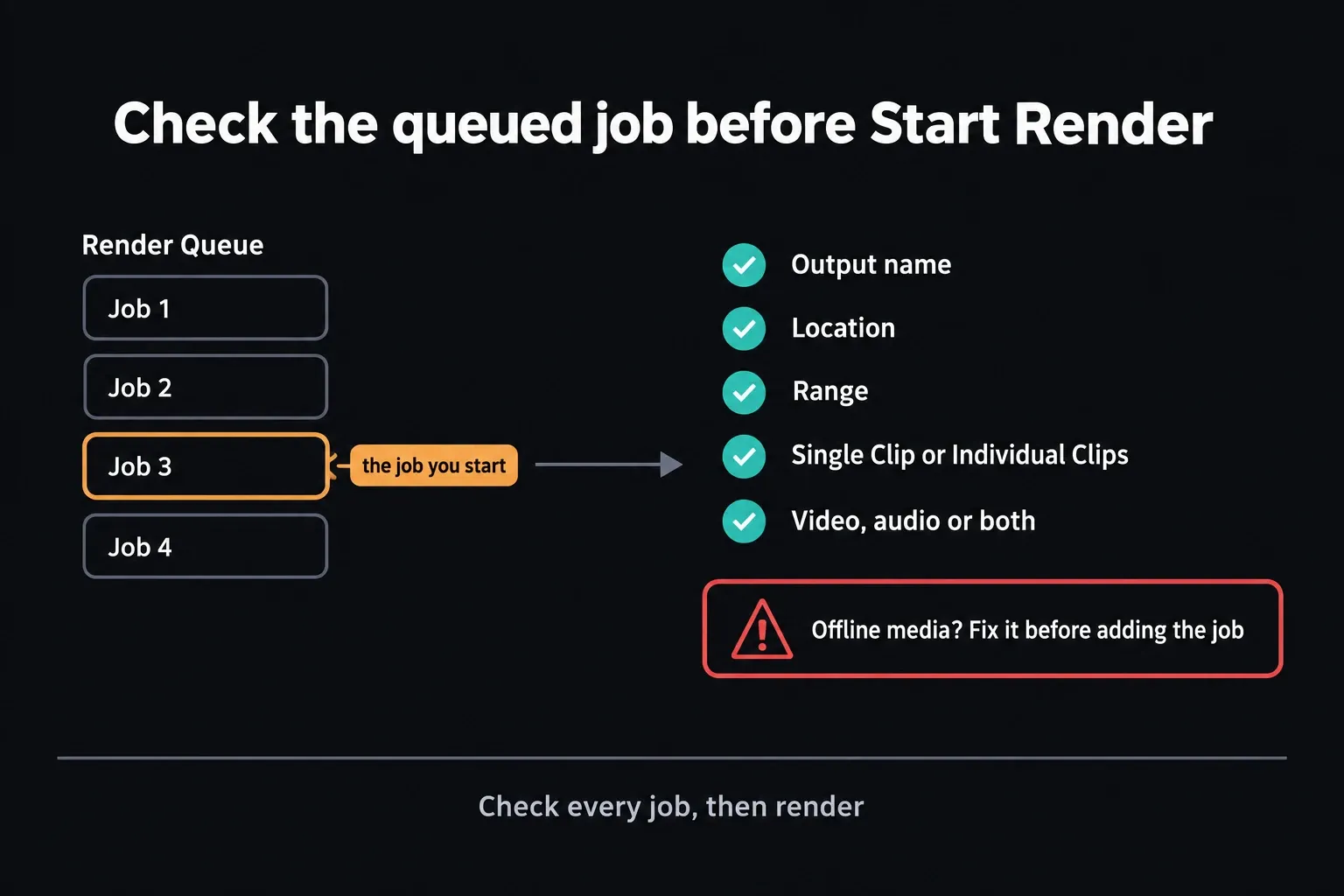
DaVinci Resolve's Deliver page lets you queue more than one job, so check the job you're about to start. The controls you edited a minute ago may belong to a different queued job. Confirm the output name and location, the intended range and the clip mode. Resolve can queue audio-only, video-only and combined outputs. That's handy, and it also means a wrong job can sit in the queue looking perfectly plausible. If you need the surrounding controls, follow the complete Deliver-page export walkthrough.
Audio needs its own preflight
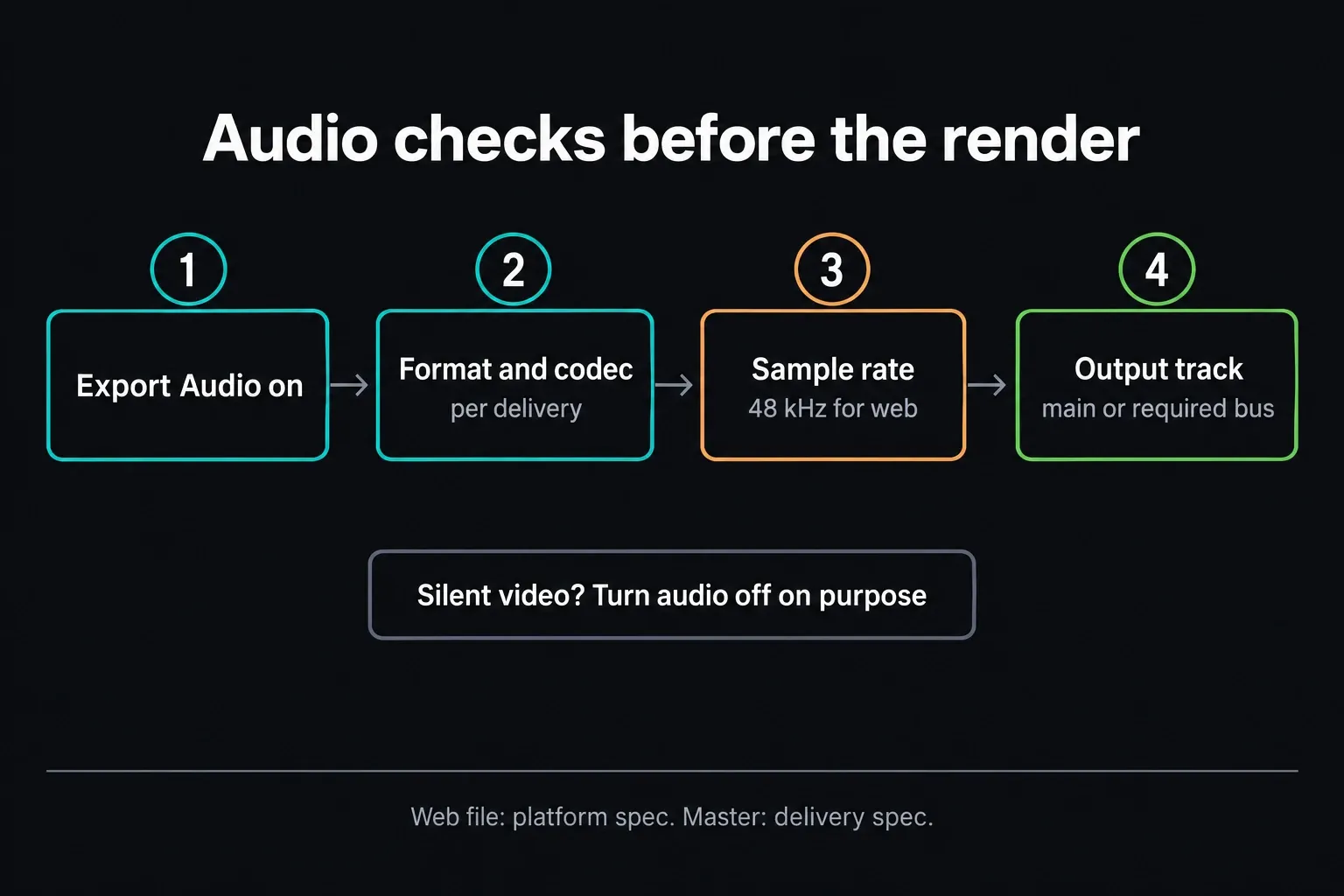
When a video needs sound, turning on Export Audio is only the first check. The output track or bus you select has to carry the signal you monitored, and the requested channel layout has to match the delivery. For a finished stereo mix, that's often the Stereo Main bus; stems and handoffs need a different plan. The separate DaVinci Resolve audio export guide covers finished mixes, buses, stems and timeline tracks, and it treats each one as its own case.
Silent video is a valid choice. Turn audio off on purpose; the tool then skips the audio-bus check and asks you to review the silent output. This form needs a numeric bitrate for its AAC comparison. Linear PCM doesn't use that AAC target field, so follow the required sample rate, bit depth and channel layout in Resolve.
How the YouTube and Vimeo reference profiles work
The built-in examples are 1080p SDR references, last checked October 5, 2026. They don't cover HDR delivery or every codec. YouTube recommends MP4, H.264, progressive scan, the source frame rate, variable bitrate and 48 kHz audio. AAC-LC is only the example here; the guidance also lists Opus and Eclipsa Audio. Its SDR table lists 8 Mbps for 1080p at 24, 25 or 30 fps and 12 Mbps at 48, 50 or 60 fps. For 4K, the ranges are 35–45 and 53–68 Mbps respectively; this tool warns below the lower end and doesn't treat the upper end as an upload ceiling. Stereo audio is listed at 384 kbps. The checker compares your values with the official YouTube encoding settings and reports differences as review notes. A note doesn't mean the file can't upload, and YouTube says no bitrate limit is required.
If Resolve uses automatic or quality-based encoding, select that mode and leave the Mbps value alone. ProRes and DNxHR also skip the numeric comparison. Vimeo explicitly points ProRes users to their editor's standard presets. A custom resolution or an unlisted frame rate gets a review note, and the tool won't guess a bitrate verdict.
Vimeo's current compression guidance accepts several codecs, recommends a constant native frame rate, progressive scan and variable bitrate where possible, and publishes wider target ranges. Its 1080p range is 10 to 20 Mbps and its 4K range is 30 to 60 Mbps; AAC-LC audio is listed at 320 kb/s and 48 kHz. Vimeo also says that MP4 and MOV are preferred, even though it accepts many formats. The checker uses the Vimeo compression table together with its file-preparation guidance.
Want the full platform workflow? Use the DaVinci Resolve YouTube export settings guide.
The delivery specification wins
A broadcaster, client, festival, archive or VFX handoff may require MOV, MXF, ProRes, DNxHR, PCM audio, a particular channel layout or exact naming rules. In that case, choose Custom or client specification. The checker stops applying platform preferences and marks the result for review, since it cannot read the client specification. Missing applicable values and unfinished confirmations stay visible. Don't bend a written delivery requirement just to make a generic platform profile look cleaner.
Some controls change with the Resolve edition, operating system, codec, encoder and hardware. The current Resolve product page notes that Quick Export offers destination presets and common master, H.264, H.265 and audio-only options, while the Deliver page gives you the Render Queue for batch output. That doesn't make any one setting universal for every codec. Check the official Blackmagic Media page for an overview of those delivery workflows, then verify exact controls in the documentation for your installed version.
After the render, check the file that will leave your machine
Open the rendered file outside Resolve. Watch the first and last frames, then sample a few cuts, transitions, graphics and sections with heavy motion. Listen for sync problems, missing channels, clipping or sudden silence. Confirm the captions are in the form you promised. If the picture changes in another player, use the washed-out export diagnostic. If the job stops or fails, match the actual message against the render-failed troubleshooting guide before you touch any settings.
For formats and delivery problems, go to the DaVinci Resolve export hub. For related planning utilities, head back to the free tools and calculators.
DaVinci Resolve export preflight FAQ
Does the checker inspect my DaVinci Resolve project?
No. It checks only the settings you enter and the items you confirm. It cannot read your timeline, Render Settings, Render Queue, media state or final file. It also doesn't verify every codec/container combination, platform support or Studio support.
Does the checker upload my project or media?
No file is requested or uploaded. The comparison runs in this page. A shared link carries settings in its URL, and those can appear in browser history, server logs or analytics when it's opened. Don't treat the share link as a private record.
Does a YouTube or Vimeo warning mean my file will fail to upload?
No. A review note can mean your value differs from a recommendation, or that the input sits outside this tool's coverage. Check the destination guidance and the actual output; this report can't guarantee an upload.
Should I use Single Clip or Individual Clips?
Use Single Clip for one finished program. Use Individual Clips when the delivery calls for separate clips or a handoff. Either way, confirm the actual queued job against the delivery specification.
Do I have to play the final file before running preflight?
No. Run preflight before rendering. Once the render finishes, play the exported file outside Resolve and check picture, sound, sync, captions and the first and last frames. A ticked checklist can't stand in for that inspection.
Can I check a silent video or an automatic-bitrate export?
Yes. Turn audio off on purpose to skip the audio fields and the bus check. Select Auto / quality when no numeric video bitrate is set. ProRes and DNxHR skip the numeric bitrate comparison too, though their presets and finished output still need review.
What happens when I change settings or open a shared link?
Changing a field cancels the previous report, so run the check again. A shared link restores the settings but resets all manual, frame-rate and scan-type confirmations. The recipient has to check their own project.
What should I do when a client specification differs from a platform profile?
Choose Custom or client specification and follow the written requirements. The tool cannot validate that document, so it keeps the result marked for review. Platform reference values aren't universal export rules.
