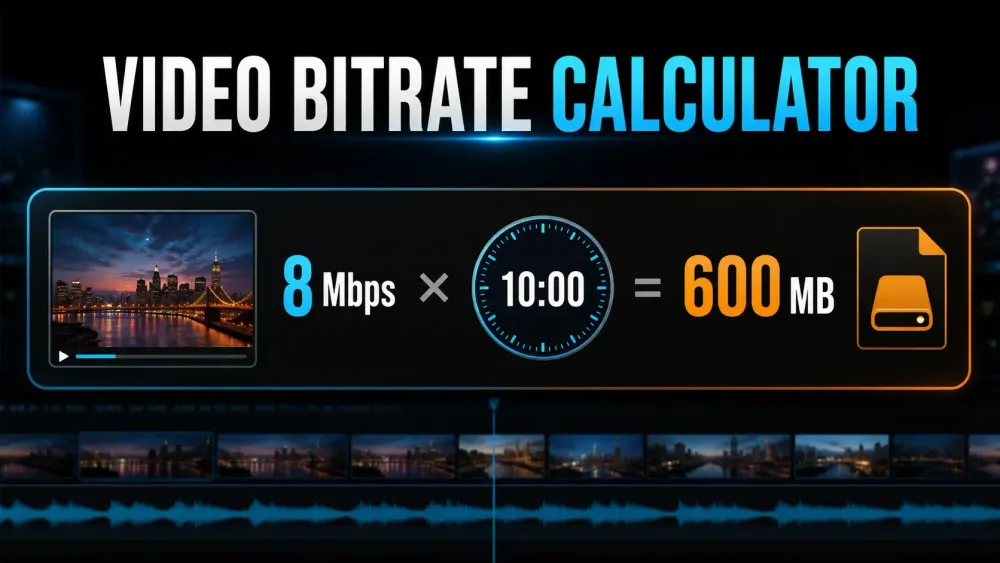
Enter the values you already know. This calculator can estimate a finished video file size, find the video bitrate that fits a target size, or tell you how long a storage card can record. It counts the audio stream, reports both decimal and binary units and does every calculation in your browser. No video is uploaded.
Choose a mode: File size needs the video rate, the combined audio rate and the duration. Target bitrate works backwards from your size cap. Recording time uses the free space you can actually record into, which may be less than the number printed on the card. Enter 0 for audio when there isn't any.
If a camera specification already gives the total recording data rate including audio, put that total in the video-rate field and leave audio at 0. Otherwise, enter video and the combined rate of all audio streams separately. Don't count the audio twice.
Three calculations, one tool
Video bitrate and file size calculator
Choose what you need to find. Rates are in bits per second; storage is in bytes.
Ready
Enter your values, then hit calculate.
No video is uploaded. Calculations run in this page. Shared links carry the settings in the URL, and opening one can put those values in browser history, server logs or analytics.
Where the calculator fits in DaVinci Resolve
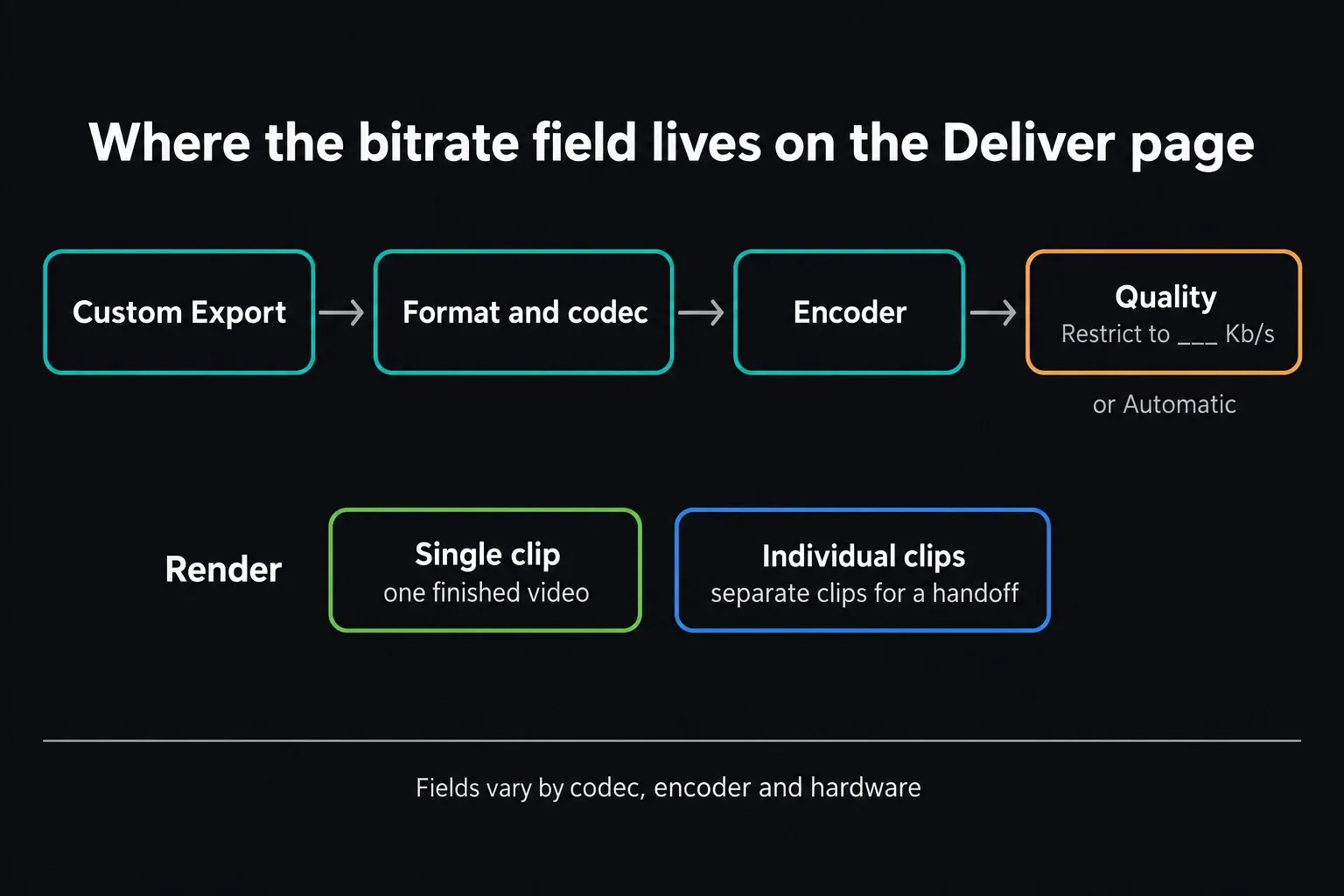
Start on the Deliver page and choose Custom Export when you want direct control over the settings and a destination preset won't do. After you select the format, codec and encoder, look at the Quality controls. A rate field may show up as Restrict to with a value in Kb/s. What's available, and what it's called, can vary by codec, operating system and hardware encoder, so don't expect every render preset to show the same field. If you need the surrounding controls, use the full Deliver-page walkthrough.
The file-size calculation
A byte contains eight bits, so the core conversion is simple: add the video and audio bitrates, multiply by the duration in seconds, then divide by eight. The reverse calculation works from a target number of bytes back to bits per second. The calculator carries the unrounded result into its next step and rounds only the display. It uses ordinary browser floating-point arithmetic, so treat it as math on your inputs; it never inspects a real file byte by byte.
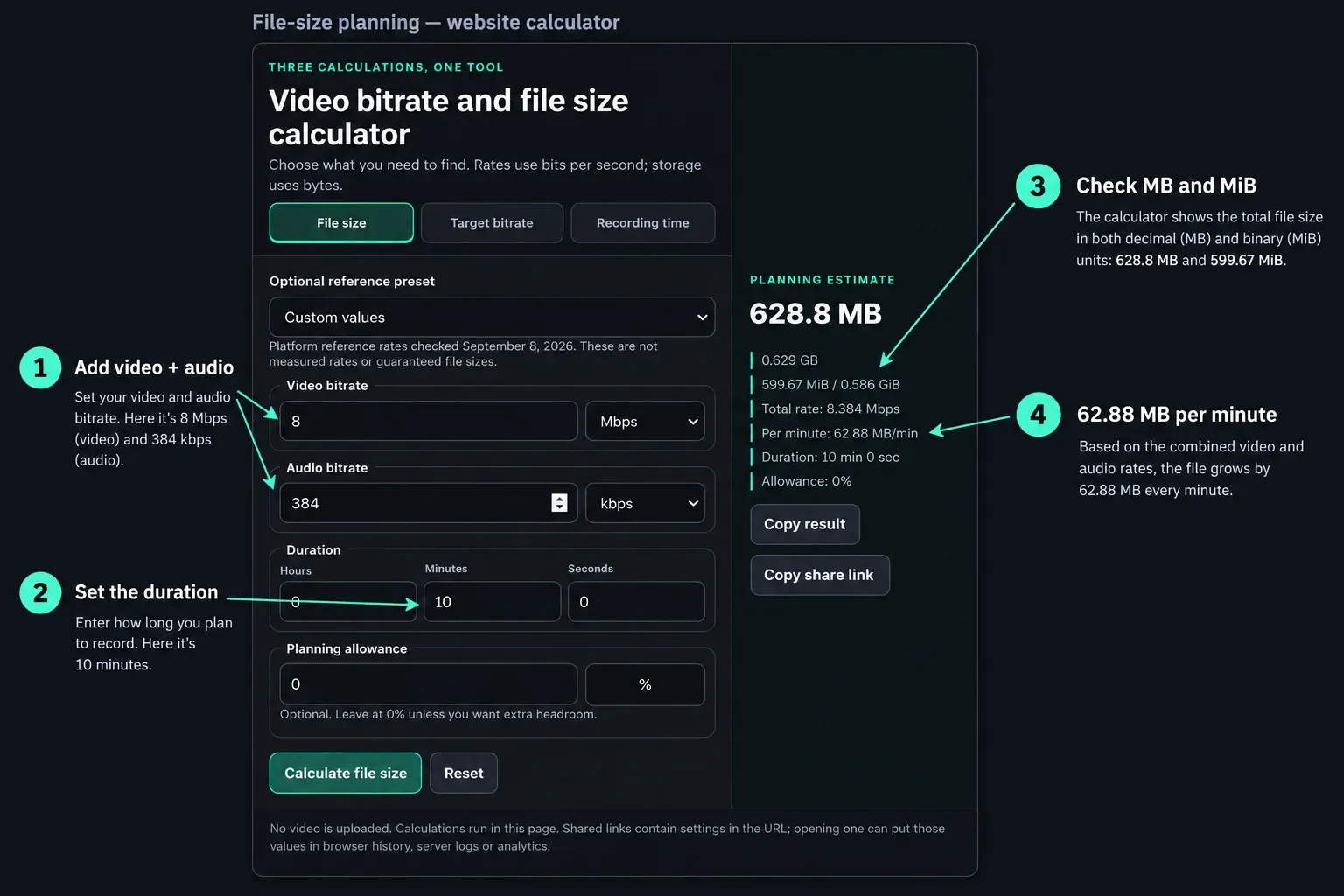
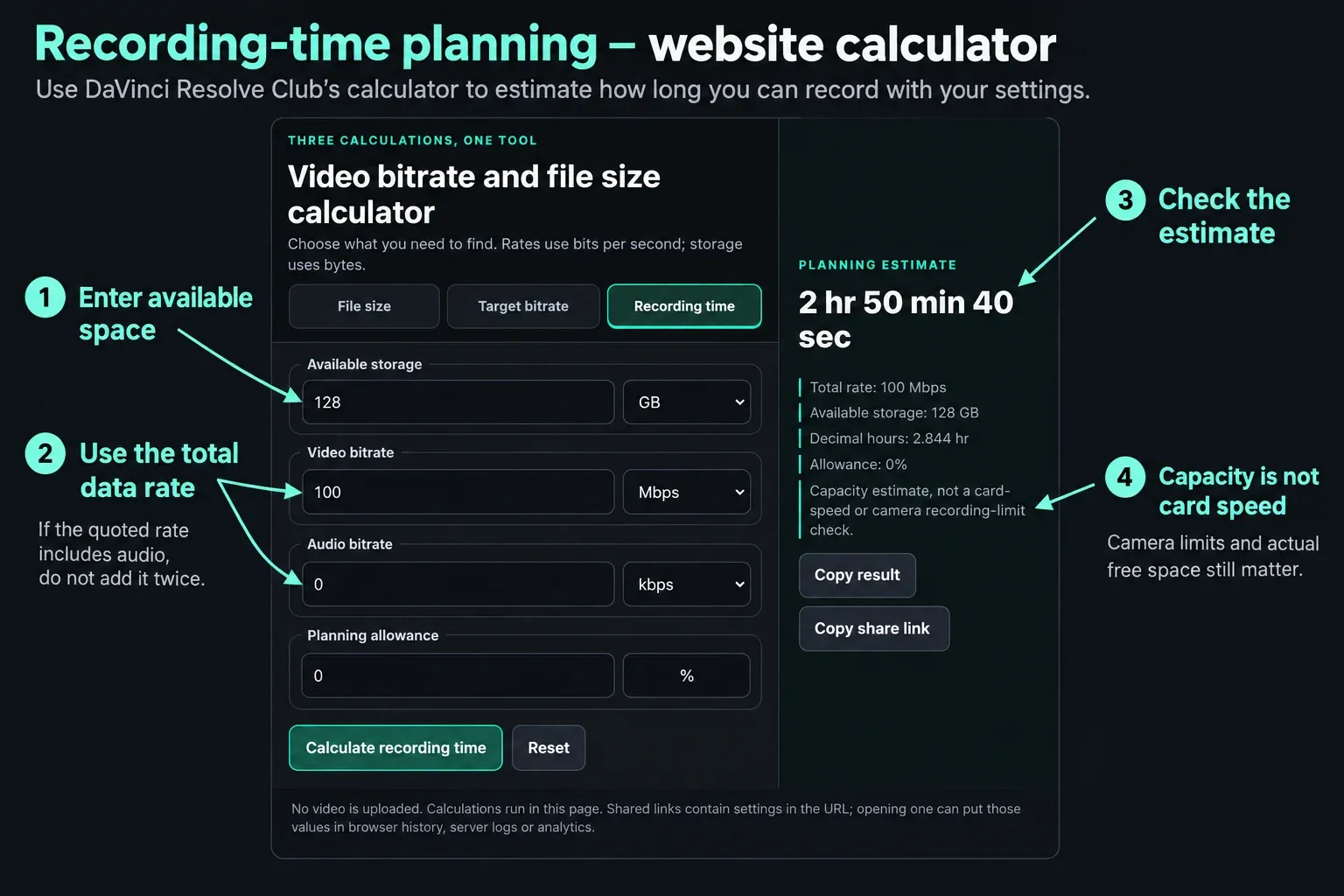
Here's an example: 8 Mbps of video plus 384 kbps of audio for ten minutes gives 628.8 MB before allowance, which is 62.88 MB per minute. A 500 MB target over ten minutes with 192 kbps audio leaves about 6.475 Mbps for video before allowance. If exactly 128 GB of decimal storage is available at a total 100 Mbps, the mathematical recording time is 2 hours, 50 minutes and 40 seconds. Formatting, existing files, camera limits and fluctuating data rates can cut into that usable time.
Estimate recording capacity, not card speed
MB and GB are not the same as MiB and GiB
This page reports both systems because apps and storage vendors don't always label them the same way. Decimal units use powers of 1,000: 1 MB is 1,000,000 bytes and 1 GB is 1,000,000,000 bytes. Binary units use powers of 1,024: 1 MiB is 1,048,576 bytes and 1 GiB is 1,073,741,824 bytes. These prefixes follow the distinction described by the National Institute of Standards and Technology.
Current YouTube and Vimeo reference rates
Think of the presets as planning shortcuts. There's no secret best-quality setting hiding in them. YouTube's upload guidance, checked October 5, 2026, recommends H.264 with variable bitrate and lists SDR reference rates of 8 Mbps for 1080p at standard frame rates, 12 Mbps for high frame rates, 35 to 45 Mbps for 4K at standard frame rates and 53 to 68 Mbps for 4K at high frame rates. Its stereo audio recommendation is 384 kbps. Check the official YouTube upload encoding settings before a critical delivery, because platform guidance can change.
Vimeo's compression guidance, checked October 5, 2026, recommends variable bitrate where available and gives wider ranges: 10 to 20 Mbps for 1080p and 30 to 60 Mbps for 4K, with AAC-LC audio at 320 kb/s. The presets keep the low and high ends separate. They're planning examples for compressed web uploads, and they don't apply to ProRes or DNxHR. Vimeo explicitly tells ProRes users to follow their editor's standard presets. If your encoder runs in a quality-based mode, use a measured representative average or a documented format rate, since a quality slider has no Mbps value. See Vimeo's video and audio compression guidelines for the full table.
Why the rendered file can differ
Rate times duration gives you the media payload for the actual average total data rate. A real export can still differ. Variable bitrate moves with scene complexity, the target or maximum you request may not be the average you get, and the container adds metadata and indexing data. Extra audio tracks, embedded captions and other streams take up space too. Vimeo likewise names bitrate as the main driver while pointing to compression settings, metadata and other video properties as additional factors in its storage estimate explanation.
No container-overhead percentage holds for every format and workflow. That's why the allowance starts at zero and stays under your control. A 10% allowance multiplies the estimated payload by 1.10; target-bitrate and recording-time modes divide the available byte budget by 1.10 first. It doesn't claim every file carries 10% overhead, and it isn't the same as reserving 10% of the whole card. For a hard upload cap, budget below the limit, render a representative section, and inspect the complete output before uploading. A short sample can't guarantee the size of the full film.
Use the result for the next export decision
Treat a target bitrate as a planning limit. It says nothing about quality on its own. Resolution, frame rate, codec, encoder, motion, grain and source quality all affect how well a given rate holds up. If your destination is YouTube, pair the calculation with our DaVinci Resolve YouTube export settings. For broader format choices and export troubleshooting, start from the DaVinci Resolve export hub.
Want to check the queued job as well as its estimated size? Use the export preflight checklist. The other planning utilities live in Tools and calculators.
Video bitrate calculator FAQ
Does resolution determine video file size?
Not by itself. At a fixed total bitrate and duration, a 1080p file and a 4K file calculate to the same size. The 4K version usually needs more bitrate to keep comparable detail, which is why platform recommendations rise with resolution and frame rate.
Why is my rendered file different from the estimate?
Variable bitrate, encoder behavior, container metadata, extra streams and rounding can all move the final result. Use an actual average total rate for payload math; a preset or a requested encoder target is only a planning estimate. Container data can still add bytes on top.
Where do I find bitrate in DaVinci Resolve?
Open the Deliver page and look at the Quality controls for your chosen format and codec. A rate field may appear as Restrict to in Kb/s, but whether you get it depends on the codec, encoder, operating system and hardware.
What is the difference between MB and MiB?
MB is decimal and holds 1,000,000 bytes. MiB is binary and holds 1,048,576 bytes. The calculator shows both, so you can compare its result with whichever convention another app uses.
Can a bitrate calculation guarantee an exact upload size?
No. It can solve the mathematical target, but variable-rate encoding and container data can shift the finished file. Leave some margin below a hard cap and check the rendered output.
Does this calculator upload my video or inputs?
No video file is requested or uploaded. The calculation runs in this page. A shared link includes settings in its URL, and opening it can expose those values to browser history, server logs or analytics. Don't treat the link as private storage.
Does recording time prove my card is fast enough?
No. It estimates capacity from available bytes and the total data rate. It doesn't test sustained write speed, certify a memory card, detect free space or get around camera recording limits.
What happens after I edit a value or switch modes?
The previous result is cleared, so calculate again before copying a result or a share link. Reset restores that mode's starting values and removes the settings query from the address bar.
